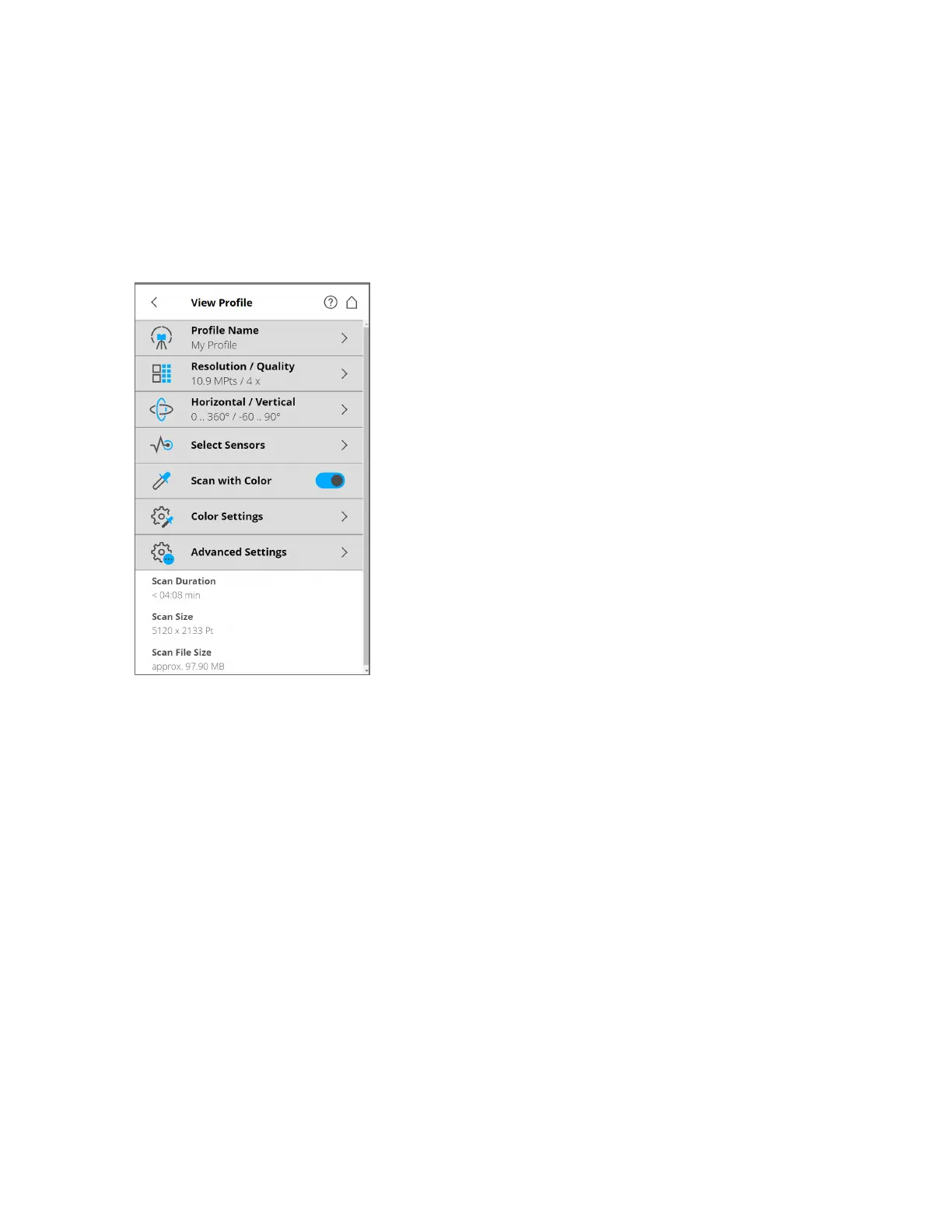
To add a new profile, tap Add. You can also add new profiles by duplicating existing profiles. To do
this, select the profile that you want to duplicate and tap Duplicate. Tap again on the profile. A new
screen appears. Enter the profile name, and adjust its scan parameters.
To delete a custom scan profile, select it and tap the Delete button. You cannot delete factory predefined
profiles.
Figure 6-15 Scan Profile Details
Profile Name - Name of the scan profile. Tap to change it.
The further settings in this view are similar to the settings of the scanning parameters. See Scan
Parameters on page66.
Editing a Scan Profile
To edit a scan profile, select it in the list and tap it again to view its details. You cannot edit predefined
profiles, but you can duplicate them and edit the copy.
To view the details of the selected profile, tap it again.
Operators
Manage > Operators > Default Operator
Information about which scanner operator has recorded which scans can be useful for the person who is
post-processing the scans, especially when there are several scanner operators working on the same scan
project.
FARO
®
Focus Premium Laser Scanner User Manual
Chapter 6: Controller Software
FARO Focus Premium (March 2022) Page78of157



 To Next Page