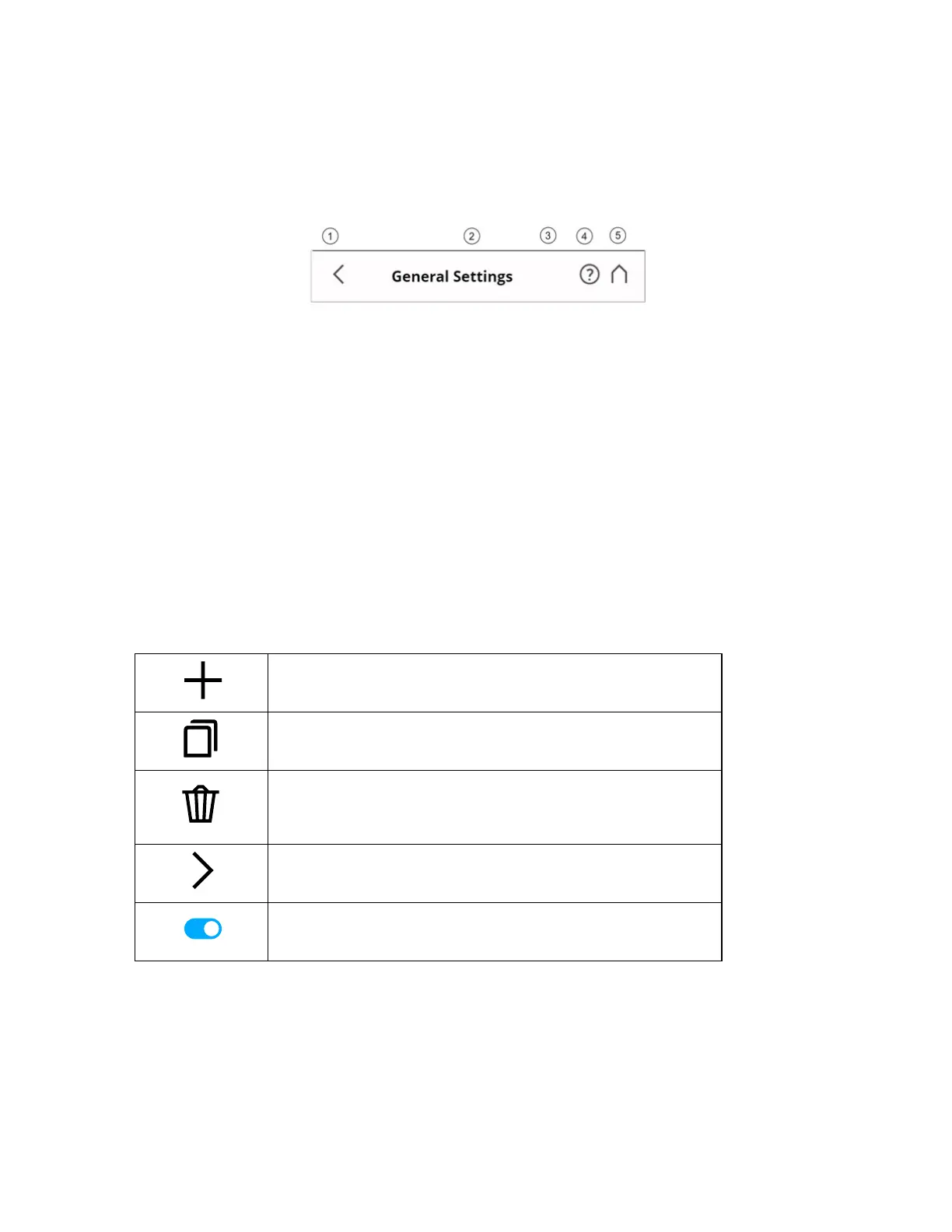
Navigation Bar
Figure 6-2 Navigation Bar
①
Back - Returns you to the previous screen.
②
Screen Name - Name of the screen that is currently shown.
③
Errors and Warnings - Only appears, if warning or errors are present. Tap this to open a screen that
shows the details of the existing warnings or errors. See Service on page98.
④
Help - Opens the online help of the currently active screen, providing access to the user manual. See
Online Help and Notifications on page103.
⑤
Home - Returns you to the home screen. See Frequently Used Buttons below.
Frequently Used Buttons
Add new scan profiles, projects, or operators.
Duplicates the selected list element, and adds it as a new scan
profile, project, or operator.
Deletes selected list elements, such as projects, scan profiles, or
operators. This is grayed-out, if the selected list element cannot be
deleted.
Opens a new screen with further details or settings.
Turns functions on or off. Here, the function is turned on.
FARO
®
Focus Premium Laser Scanner User Manual
Chapter 6: Controller Software
FARO Focus Premium (March 2022) Page63of157



 To Next Page