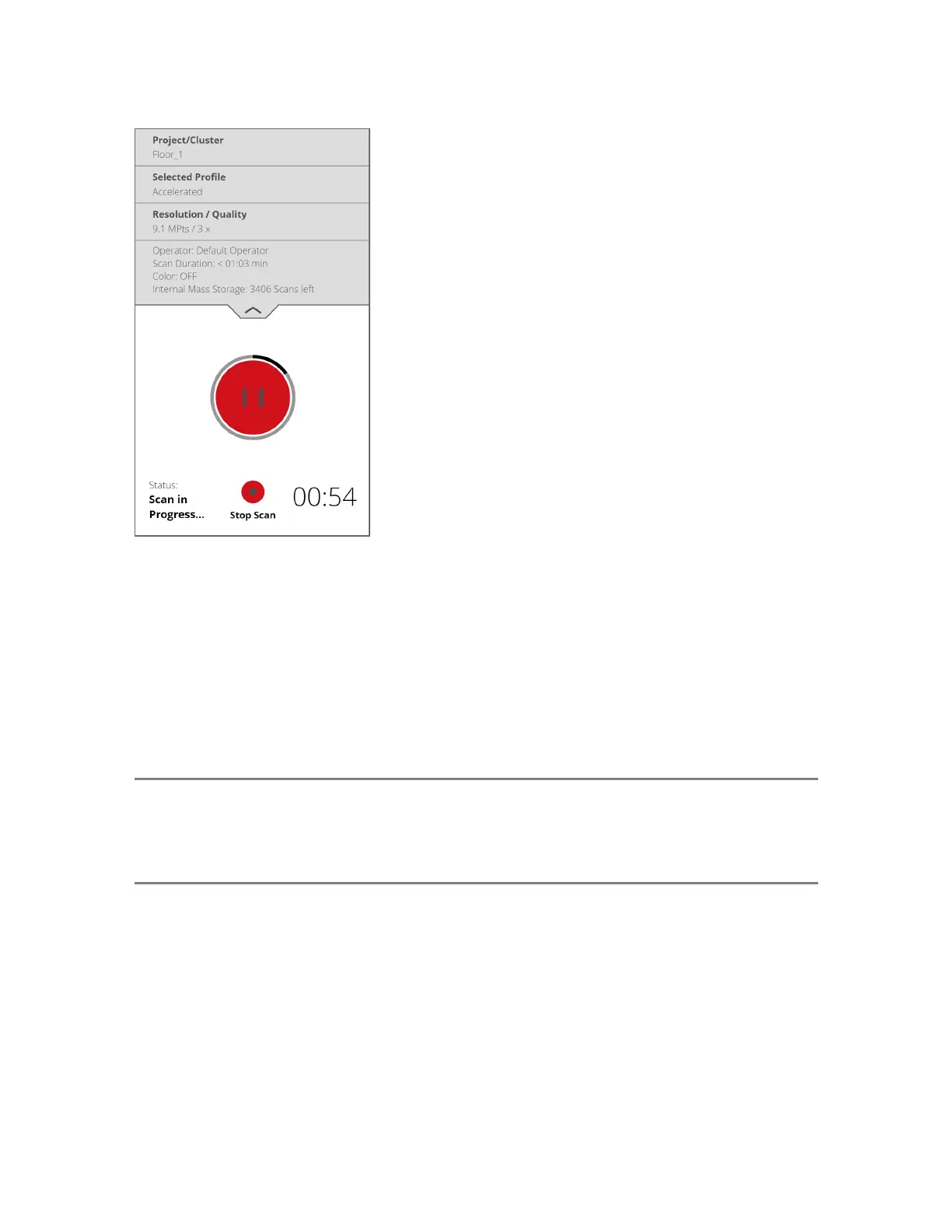
Figure 5-23 Scanning View
During most of the scanning process, a scan can be paused using the pause button. You can pause to
avoid scanning a moving object, such as a car or piece of machinery, for example. Resume scanning by
tapping the resume button. Avoid pausing the scan while the scanner is scanning a target such as a
checkerboard. Pausing and resuming a scan directly on a target can cause automatic-target detection to
fail for that target. Remember that it is essential for the scanner to remain absolutely motionless when
paused, and we recommend pausing it using the Stream app or a connected browser, rather than tapping
the scanner’s screen.
To stop a scan, tap Stop Scan in the scanning view. You are then asked whether to keep or delete the
incomplete scan.
NOTE: After scanning and picture capturing is complete, depending on environmental conditions, the
scanner may make another turn to capture inclination data. Do NOTmove the scanner while it
is capturing the inclination data, or the inclination data of the scan might be inaccurate and
usable for the scan registration.
As soon as the entire scanning process is complete, the scanner plays a notification sound, if not disabled
in the settings, and a new screen appears with a preview picture of the captured scan. Now, you can
move the scanner to the next scan position and start a new scan.
FARO
®
Focus Premium Laser Scanner User Manual
Chapter 5: Getting Started
FARO Focus Premium (March 2022) Page50of157



 To Next Page