104 FCP-75 Manual — P/N LS10147-003FK-E:A 3/17/2021
System Operation Basic Operation
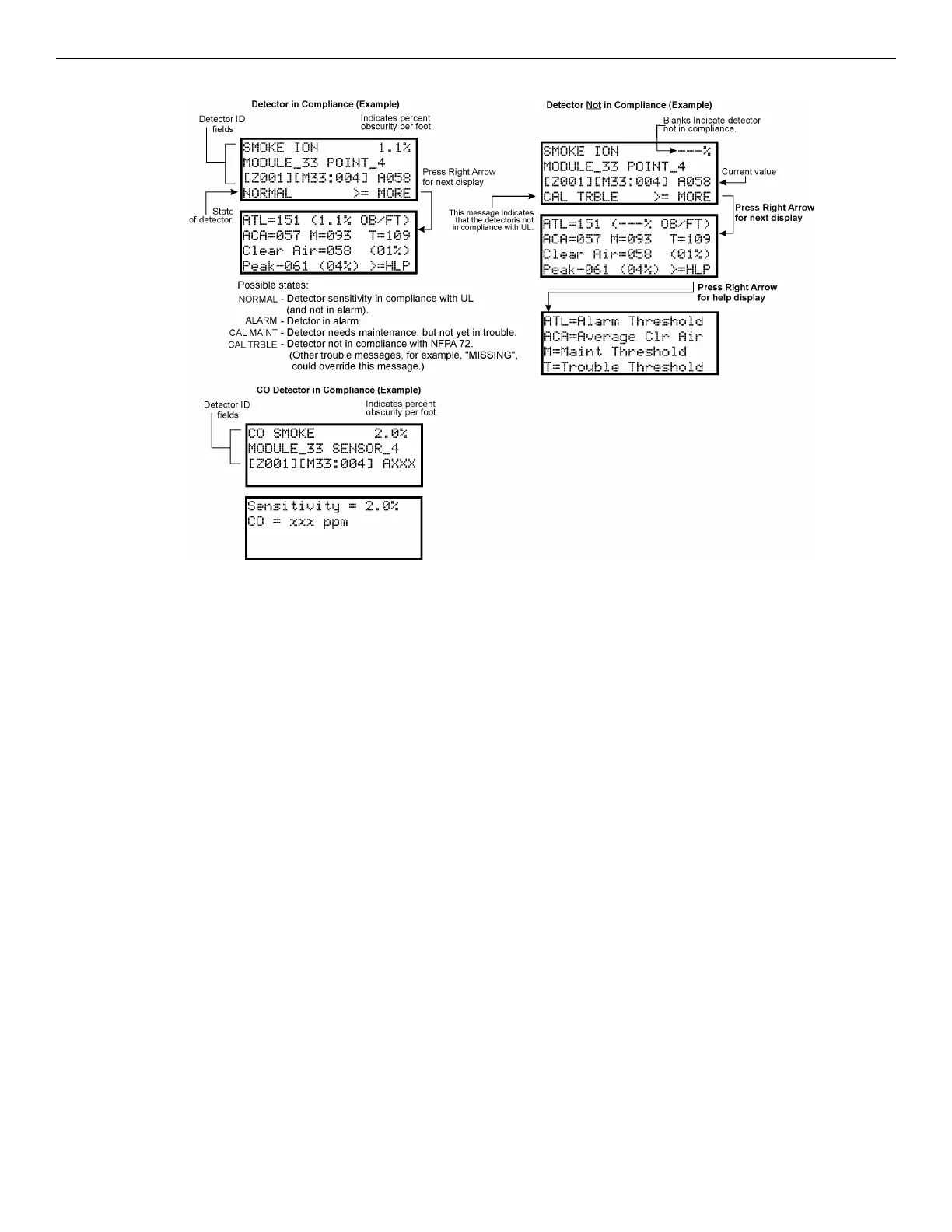
5. A screen similar to those shown in Figure 10.3 will display.
Figure 10.3 Checking Detector Sensitivity Compliance
You can print detector status by uploading the detector status to and printing from the HFSS Programming Tool.
10.4.12 View Status of a Point
1. From the Main Menu, select 2 for Point Status.
2. From the list that displays, press ENTER to select the module where this point is located. The screen that displays will show you if the
point has a trouble and will provide sensitivity compliance information. (See Section 10.4.11 for complete information about detector
sensitivity compliance.)
10.4.13 View Alarms, Supervisories or Troubles
When the system is in alarm, supervisory or trouble, you can press down to view the location of an alarm, supervisories or trouble.
10.4.14 View System Information
Press 8 from the Main Menu to view the panel model and serial number and system version number and date. Press the left arrow key to
return.
About Panel
Press 1 to access About Panel to view the panel model, serial number and system version number and date.
Send/Receive firmware updates
The FCP-75 has the ability to be updated in the field. The latest FCP-75 Firmware Update Utility can be downloaded from the Fike web site.
Once a panel has been updated using the Firmware Update Utility, you can use Send/Receive firmware updates to propagate the firmware to
the other panels in the network.
1. Press 2 to send a firmware update or press 3 to receive a firmware update from the System Information Menu. Available panels are
listed in the Menu. Note: this feature requires a multi-site installer Access Code.
2. Use the up or down arrow key to select a panel to send/receive an update to/from. Press ENTER to start the update process.
Feature Activation
This Menu is used to activate/register additional features.
1. Press 4 from the System Information Menu. This will bring up the Feature Activation Menu.
2. Press 1 to enter a six digit activation code or press 2 to review features already activated in this panel.
Ethernet Info
1. Press 5 from the System Information Menu for Ethernet Information.



 To Next Page