FCP-75 Manual — P/N LS10147-003FK-E:A 3/17/2021 139
Appendix B: Editing Text Using the Built-In Programmer
This section contains tables of programmable characters that may be used for device, module, site, template, group, and zone names. T9 style
editing is used.
B.1 Characters Used for Editing Text
Table B.1 lists the available characters and their associated numeric designator. When programming:
1. Use the Up or Down arrow key to scroll to the mode wanted.
2. Press the number shown in Table B.1 until the character wanted is shown.
3. Arrow left and right for position, and press enter to accept.
B.2 Example Name Edit
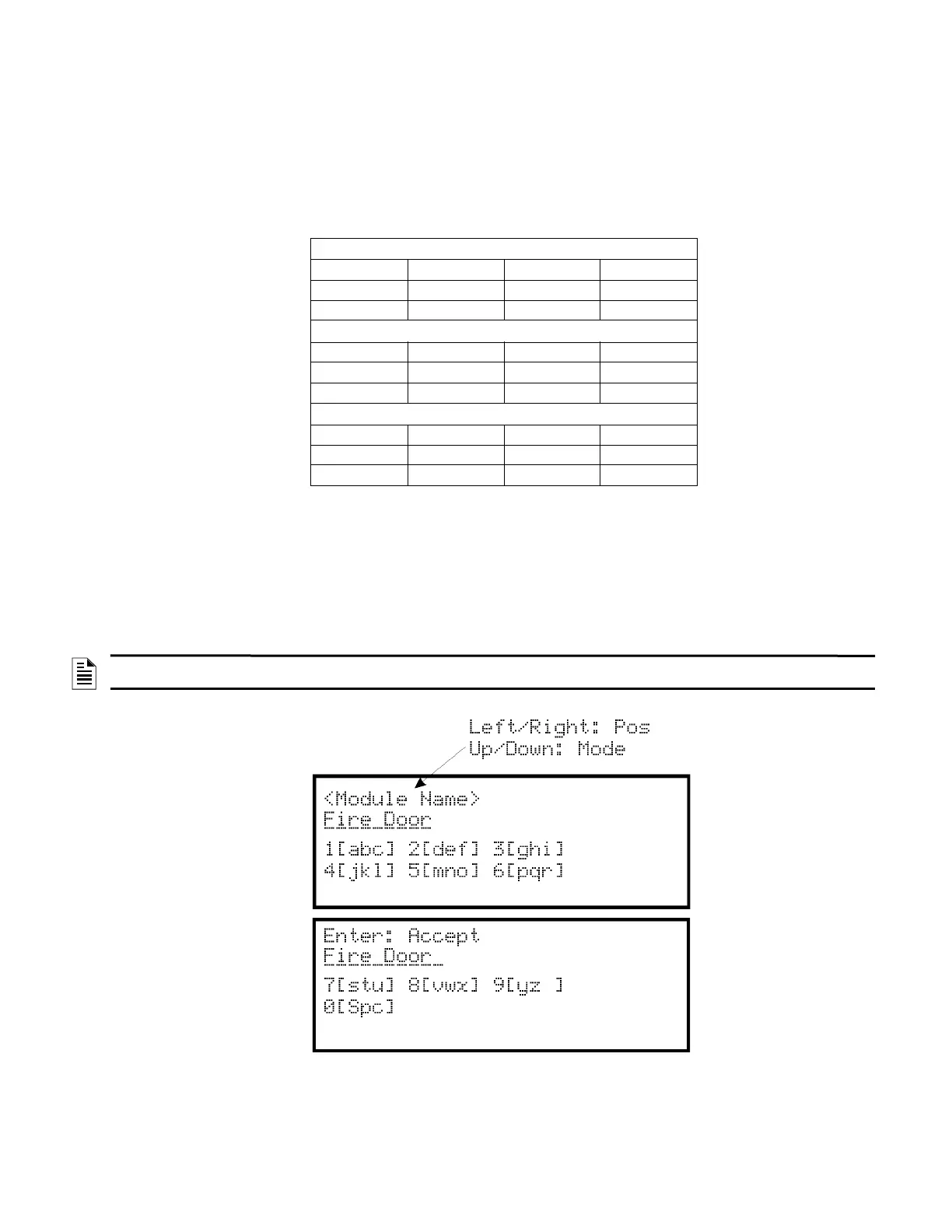
1. Press the up or down arrow to select upper case letters mode, Press 2 until “F” appears.
2. Press the up or down arrow to change mode to lower case letters, Press 3 until “i” appears.
3. Press 6 until “r” appears.
4. Press 2 until “e” appears.
5. Press 0 to space, then continue to next word using the same process.
6. Press ENTER to accept.
Figure B.1 Edit Name Example
Lower Case Letters
abc1 def2 ghi3 jkl4
mno5 pqr6 stu7 vwx8
yz9 Spc0
Upper Case Letters
ABC1 DEF2 GHI3 JKL4
MNO5 PQR6 STU7 VWX8
YZ9 Spc0
Numbers and Special Characters
1
[ ]1 2 ( )2 3 . ,3 4 : ; 4
5 ’ "5 6 ? !6 7 ‘ /7 8 – +8
9 = -9 0 0 * & @ * # $ #
Table B.1 Character Table
NOTE: After three seconds of no change, letter will automatically be accepted. Also pressing next number will automatically accept
previous choice


 To Next Page