X20/X20S and Ethos v1.0.11 User Manual
User Interface and Navigation
The X20/X20S has a touch screen, making the user interface quite intuitive. Touching the
Model Setup (Airplane icon), Configure Screens (Multiple Screens icon), and System Setup
(Gear icon) tabs take you directly to those functions, which are described in those sections of
the manual. They can also be accessed using the [MDL], [DISP] and [SYS] keys respectively.
A long press on the [RTN] key will return you to the Home screen from any sub-menu.
Touching the system time on the right of the bottom bar takes you to the Date & Time section,
allowing you to set the time and date.
Touching the speaker or battery icons in the top bar will bring up the relevant Sound & Vibr.
and Battery control panels.
Editing Controls
Virtual Keyboard
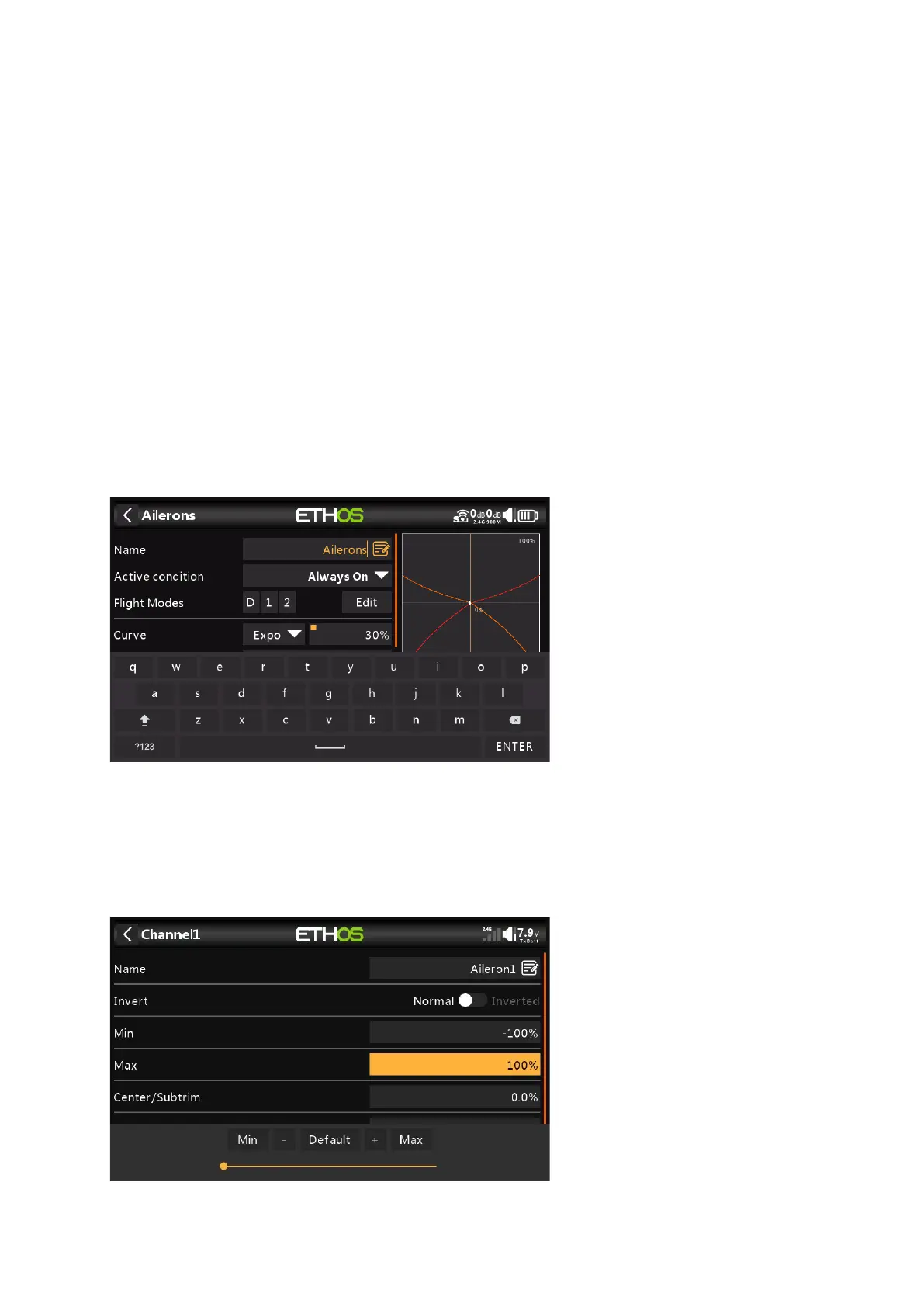
Ethos provides a virtual keyboard for editing text fields.
Simply touch on any text field (or click [ENT]) to bring up the keyboard.
Touch the '?123' or 'abc' key to toggle between alpha and numeric keypads. There is also a
Caps lock for entering uppercase letters.
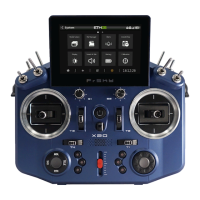
Number Value Controls
When touching a Number Value a dialog pops up with keys for setting the value to Min,
Default or Max, and also 'plus' and 'minus' keys for incrementing or decrementing the value.



 To Next Page