5.4 Using the ScanSnap as a Copy Machine
ScanSnap S300 Operator's Guide 121
About Actions
5
7. Change settings for printing, and then click the [Print] button.
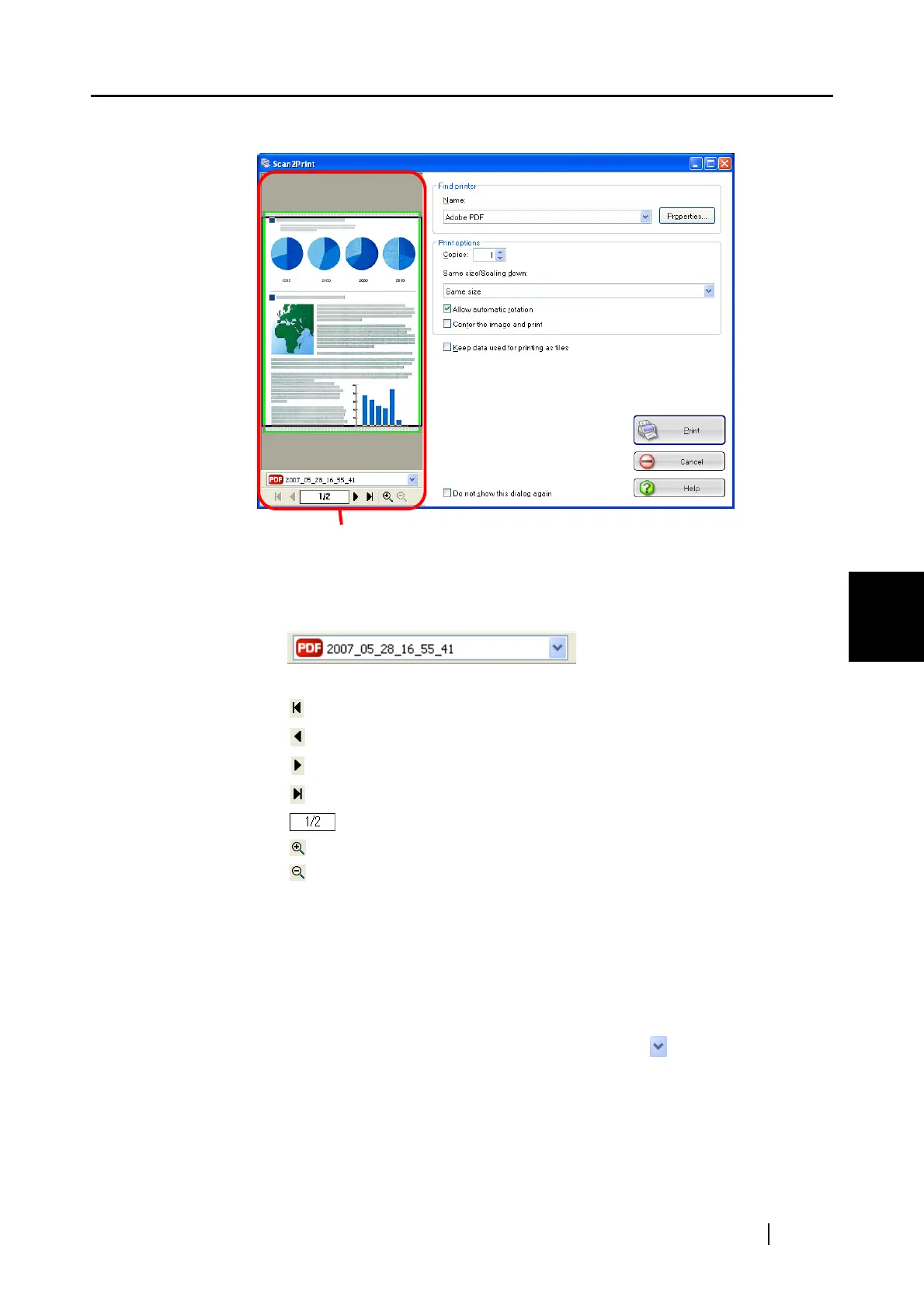
Preview Window
The print preview of the selected file is displayed.
The area outside the printing area is shaded.
:
The currently selected file name is displayed.
: To go to the first page, click this First Page button.
: To go to the previous page, click this Previous Page button.
: To go to the next page, click this Next Page button.
: To go to the last page, click this Last Page button.
: Current page number / Total page number
: To zoom in, click this button.
: To zoom out, click this button.
Drag the vertical scroll bar or use mouse actions to move around the page so that
you can view all the areas of it when the image is enlarged.
Find printer
Select a printer to use.
Name
The currently selected printer is displayed.
To change printers, click the down-arrow button , and then select a
printer you want to use in the printer list.
[Properties] button
The print setup dialog box for the currently selected printer is displayed.
Note that the settings configured in the [Scan2Print] dialog box are given
higher priority over the settings for the currently selected printer.
Preview Window



 To Next Page
 Loading...