38
8. Click the Write button where the arrow connects between the VDR and CF.
9. A confirmation window appears; click the OK button to save the configuration data to
the startup CF.
10. Check that the PC, VDR, DRU, Backup HDD and CF share the same VDR config
code.
3.2 How to Back up Configuration Data to a PC
Configuration data saved to the PC can be edited with Wordpad and shared with other
vessels. For future service ease, it is recommended to backup configuration data to the
PC and have the data on board the vessel. Also, it is recommended to upload this data to
Furuno SMS (Service Management System). If unable to upload to Furuno SMS, please
contact the Service Center, Furuno, Japan.
To back up configuration data to the PC do as follows:
1. Set up parameters on the tabs, referring to Chapter 2.
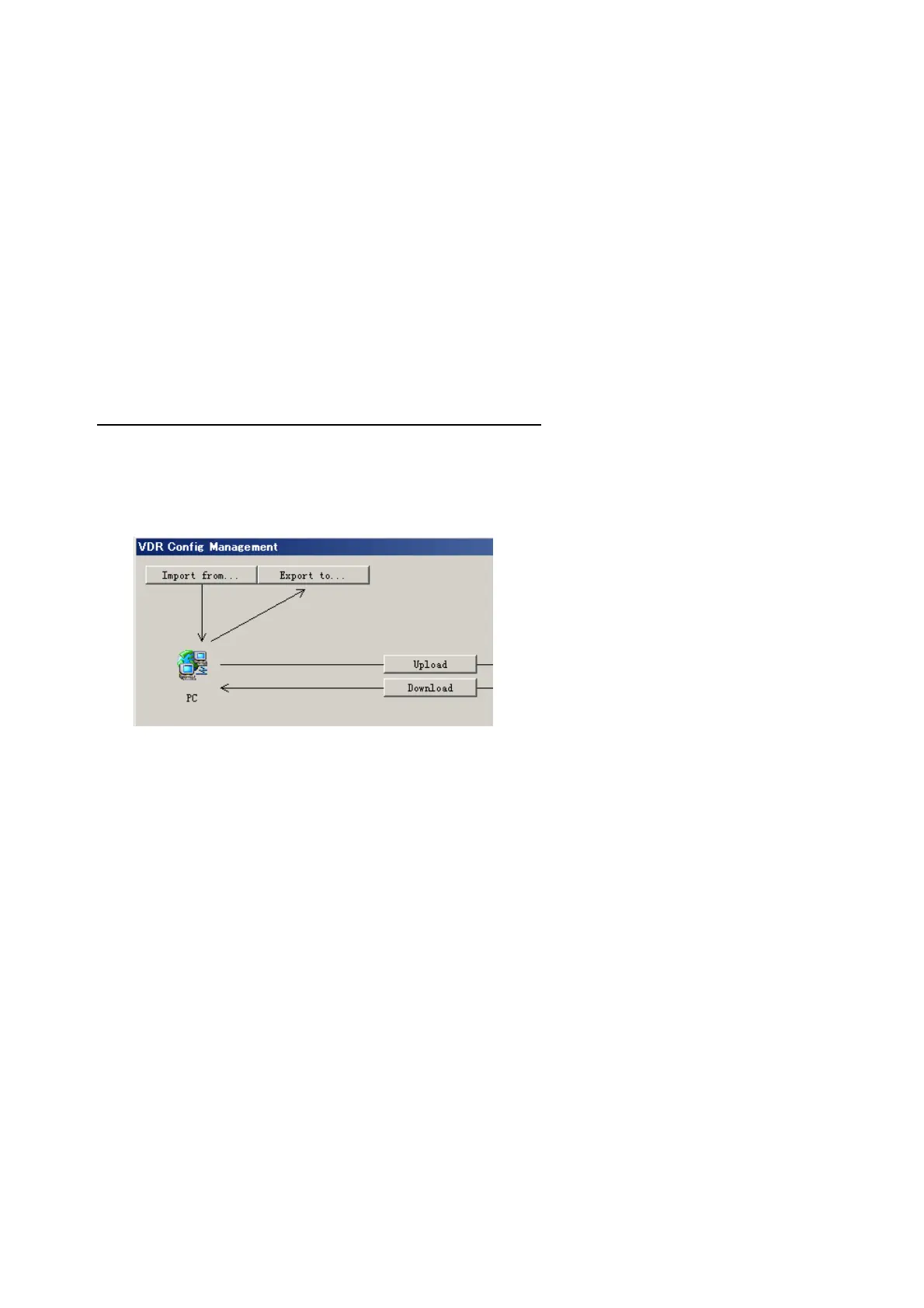
2. Click the Maintenance menu.
3. Select VDR Config Management.
4. Click the Export to button.
5. A confirmation window appears; click the OK button.
6. Select where to save the data, enter file name, then click the Open button.
7. Confirm that back up file is in the location selected.
3.3 How to restore the default settings
Click the Default button on the VDR Config Management window to restore the default
settings of the DRU, Backup HDD, CF and VDR Maintenance Viewer.



 To Next Page