5
Windows 7
1. Click Start, Control Panel, Network and Internet, Network and Sharing Center.
2. Click the Properties button on the Local Area Connection Status dialog box.
3. Select Internet Protocol Version 4 (TCP/IP v4) then click the Properties button.
4. Click the Use the following IP address button.
5. Enter IP address and subnet mask:
IP address: 10.0.0.102 or 10.0.0.99 (other than 10.0.0.100)
Subnet mask: 255.0.0.0
6. Click the OK button and then click the Close button.
7. Restart the PC.
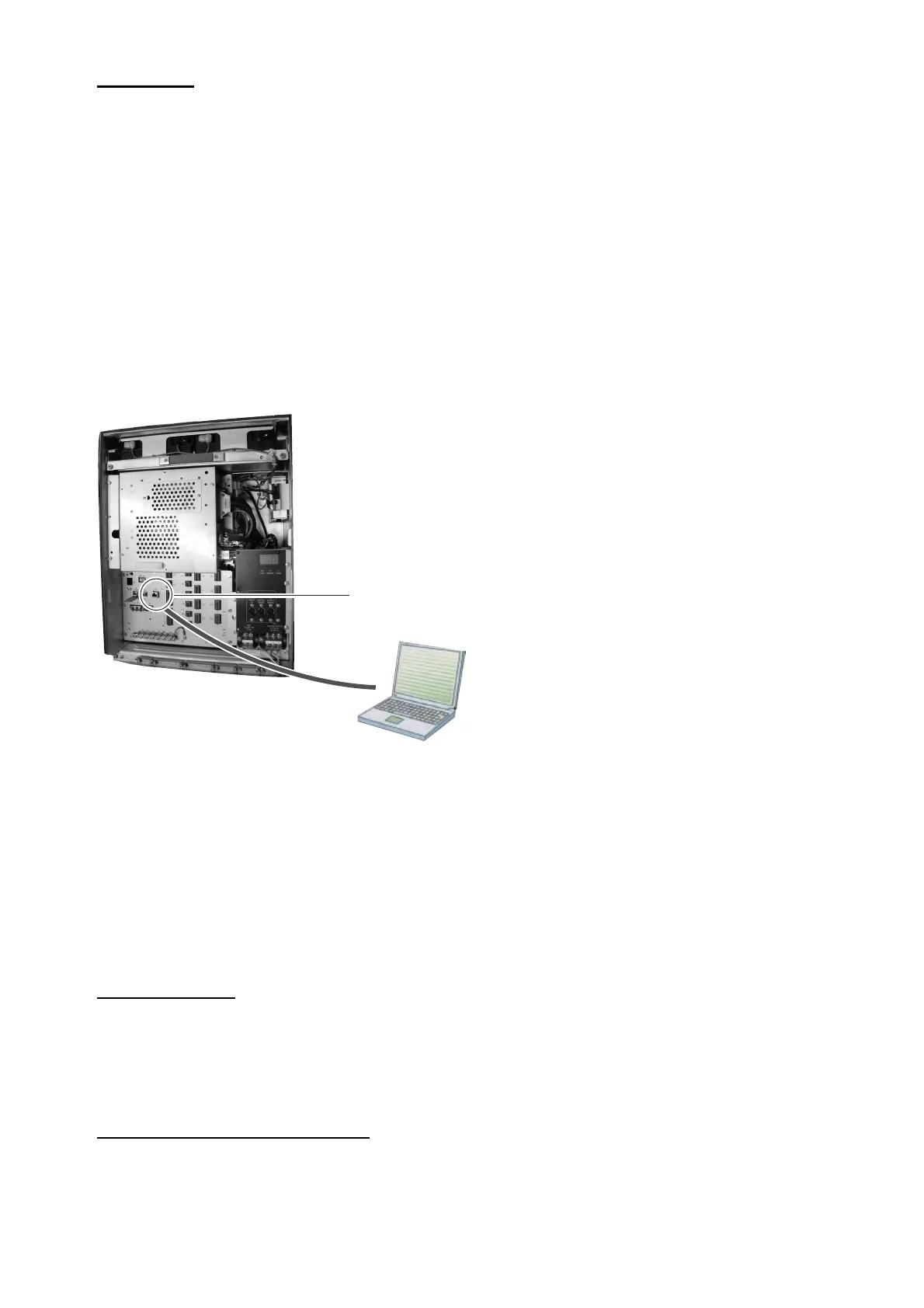
1.4 How to connect a PC to the VR-3000
Use an Ethernet cross cable to connect a PC to J14 (DATA) in the DCU.
Ethernet
cross cable
DCU
PC
J14 (DATA)
1.5 How to start the VDR Maintenance Viewer
Windows XP: START menu > VR-3000 > VDR Maintenance Viewer
Windows Vista: START menu > All Programs > VR-3000 > VDR Maintenance Viewer
Windows 7: START menu > All Programs > VR-3000 > VDR Maintenance Viewer
1.6 How to uninstall the VDR Maintenance Viewer
Uninstall the software as an Administrator.
For Windows XP
1. Click START menu > VR-3000 > VR-3000 Uninstall.
Uninstall the software following the wizard shown on the display.
2. Delete the VDRViewer folder saved in the My Computer > Local Disk (C:) > Program Files
folder.
For Windows Vista or Windows 7
1. Click START menu > All Programs > VR-3000 > VR-3000 Uninstall.
Uninstall the software following the wizard shown on the display.
2. Delete the VDRViewer folder saved in the My Computer > Local Disk (C:) > Program Files
folder.



 To Next Page