47
5. Check the displayed Software information is correct.
6. Enter the IP address 10.0.0.100 in the IP address box in the Update Server area.
7. Enter password.
8. Click the Update button.
After the updating is completed, the VDR is automatically restarted.
Note: Click the Restore button on the Software Update window to restore previous
software version. This feature is available after updating the software.
6.2 Password Management
The password can be changed for a serviceman to access the equipment. Contact
FURUNO to get the default password to use during installation.
Serviceman password
1. Click the Maintenance menu.
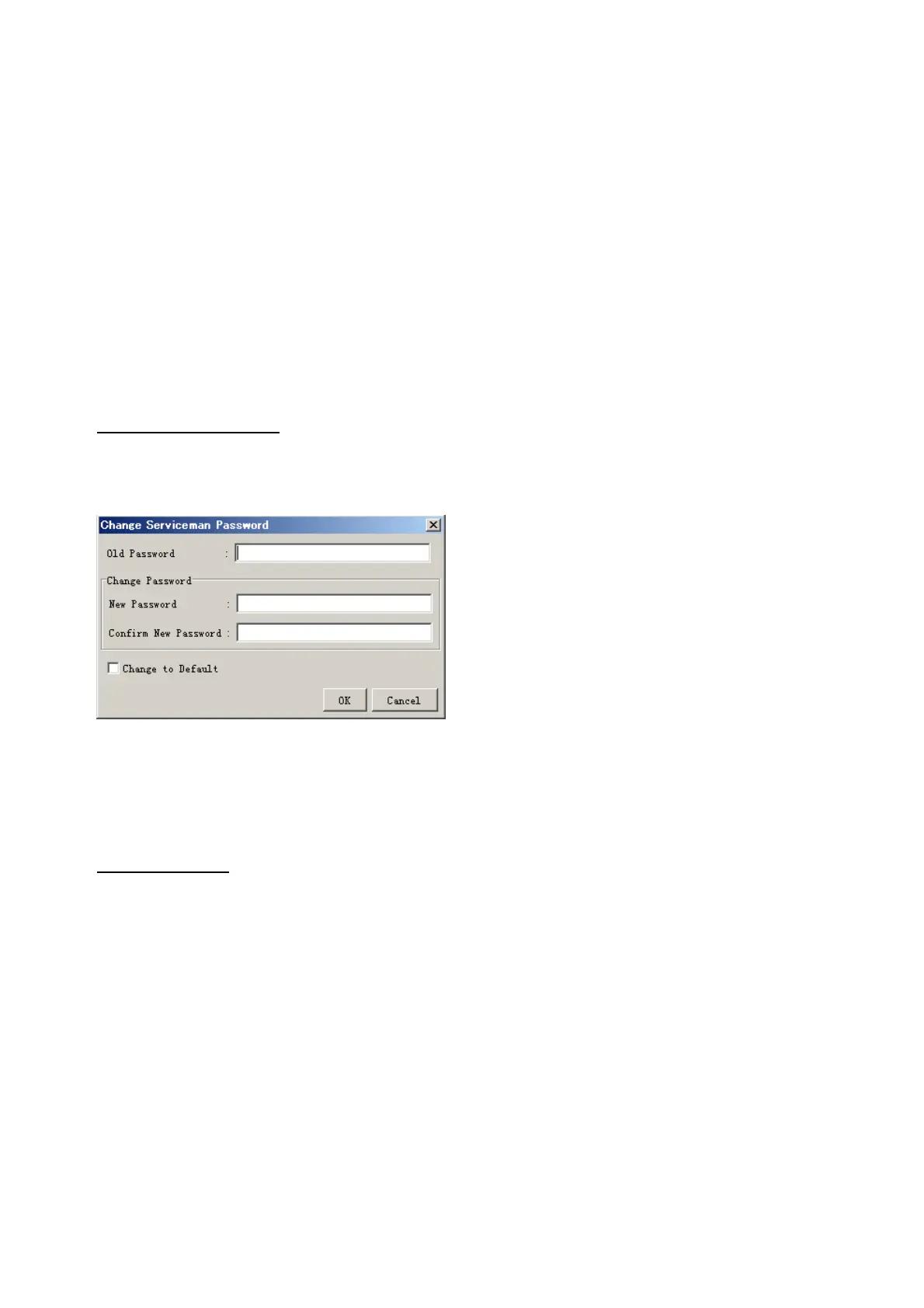
2. Select Change Serviceman Password from Password Management to show the
Change Serviceman Password window.
3. Enter current password in the Old Password box.
4. Enter the new password in the New Password box of the Change Password area.
5. Enter new password again, in the Confirm New Password box.
6. Click the OK button.
Audio password
The audio password set at the VDR Maintenance Viewer can be removed to enable
audio access without password.
1. Click the Maintenance menu.
2. Select Change Audio Password from Password Management to show the Change
Audio Password window.
3. The confirmation window appears; click the OK button.



 To Next Page