133 232003110G (03)
Drilling (Advanced Page)
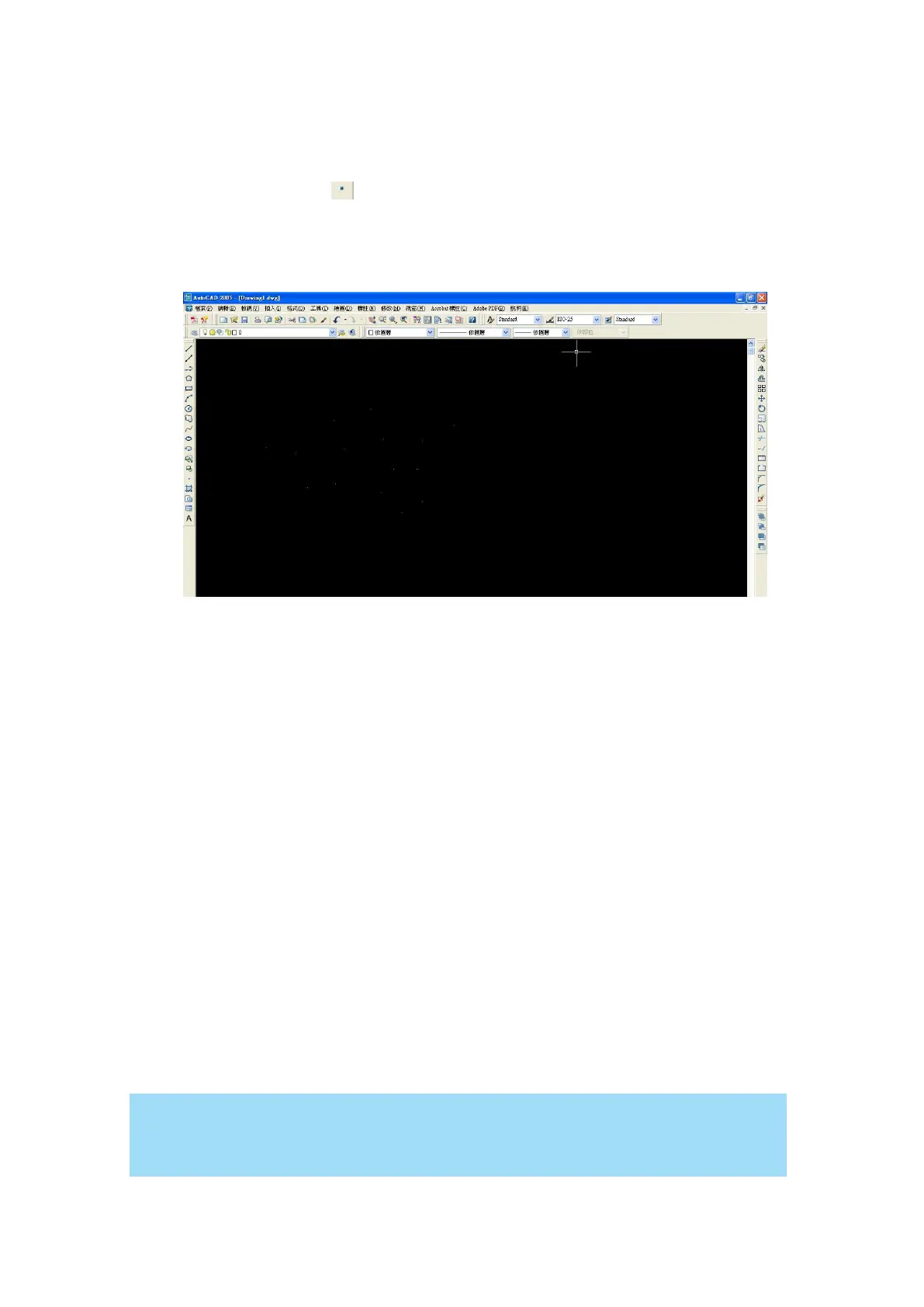
The drilling function is available only for use with AutoCad. Users can insert dots from AutoCad’s
tool bar and use the drilling function to set the drilling time required to create holes.
Use the default “dot” tool ( ) from the tool bar to create dots which will be interpreted as drilling
locations.
Use the adjusting bar on under the “Drilling” function to set the drilling time (spot delay) required.
The size of the drilled hole can be adjusted by deploying a longer or shorter drilling time.
Use Cluster (Advanced Page) [DEFAULT SETTING: Unselected]
This setting allows you to change how the S400 interprets and processes individual /
independent areas of an image in order to minimize job-processing times. The Cluster function is
only applicable when multiple areas of an image are broken down and isolated from each other
(areas not touching each other, blank space in-between). Another condition that must be met for
the Cluster function is that these individual areas of your design must have some X-axis overlap,
meaning that they should be to some extent side-by-side with empty spaces between them. The
distance value can be set by the user and represents the limit or cutoff point in which side-by-side
objects will be processed in Cluster mode or not. If the distance between side-by-side objects is
greater than the set distance value, then the individual areas will be processed in Cluster mode.
Conversely, if the distance between side-by-side objects is lesser than the set distance value,
then the individual areas will be processed normally (not via Cluster mode).
An example of an image that would benefit from the Cluster function would be: 2 squares to be
engraved, side-by-side on the X-axis with a 20 cm gap in between them. In this scenario, you
would want to enable the Cluster setting and set the distance to a value less than 20. By doing so,
the laser will completely process one square and “leap-frog” to the second square, rather than
processing both squares simultaneously. The resulting processing time is minimized by
eliminating the unnecessary travel distance the laser head needs to make across the X-axis in
between squares, if they were to be processed simultaneously.
If you wish to use the Border and Cluster function simultaneously, then the Border
Thickness value must be less than the Distance value specified in the Cluster setting.


 To Next Page