64 232003110G (03)
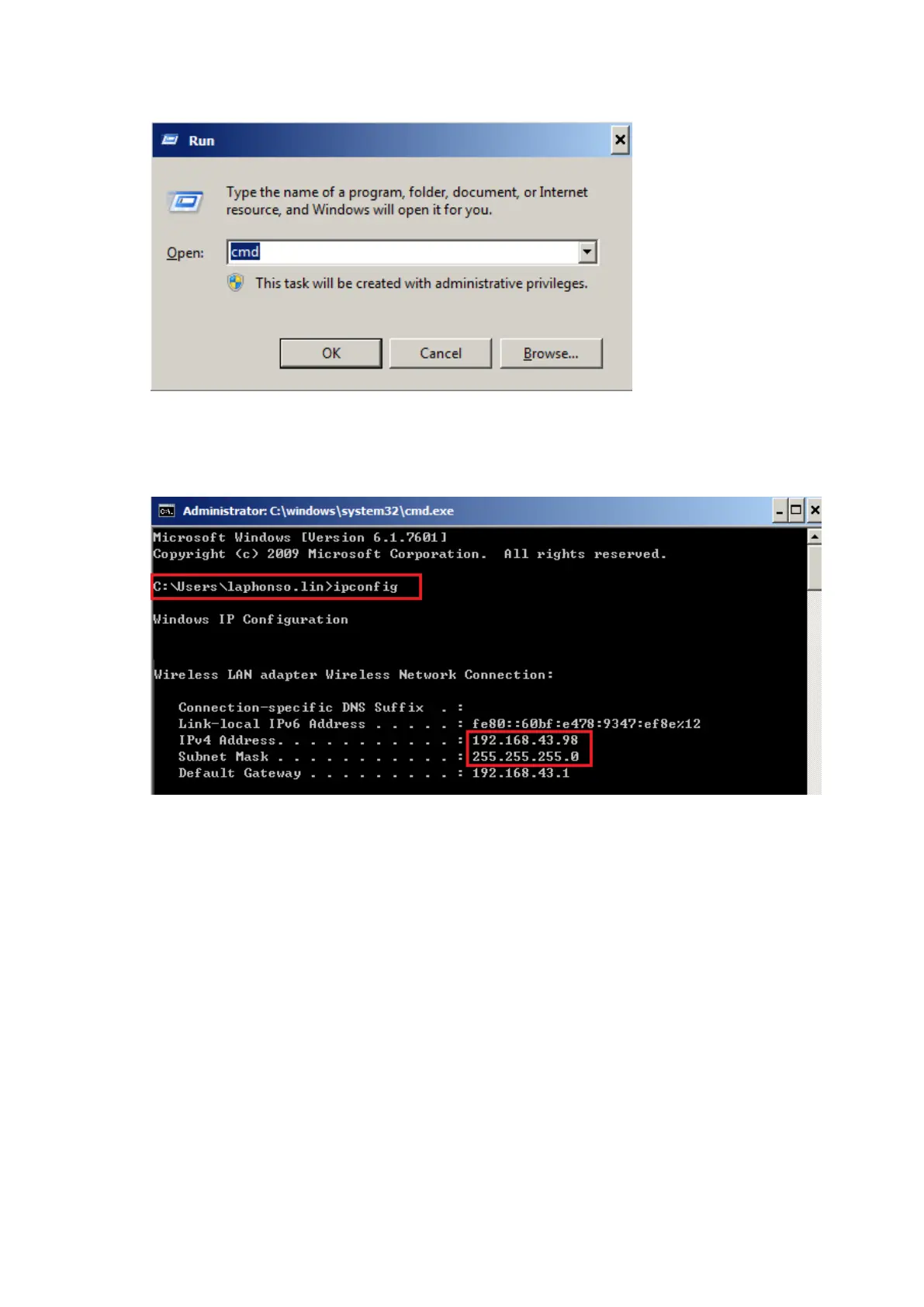
Type “ipconfig” after the prompt symbol then press enter, the TCP/IP configurations of this
PC/Laptop will show as below)
Set those two IP addresses to the laser machine and the PC/Laptop which you want to communicate
with laser.
Test Ping again to see if you can get normal response from destination IP, if the communication is
normal now (can get reply from destination IP), we can be sure the IP addresses we set originally are
invalid, ask the LAN administrator to provide us a proper one.
b. Directly connect the Laser machine and PC/Laptop using the RJ45 cable without any
router/switch..etc. in between, test PING and send files, if the files can be sent and the result of
PING is normal (can get response from destination IP), the Ethernet function of GCC laser is normal,
it should be something wrong in the LAN environment , ask the administrator of the LAN to solve the
problem.


 To Next Page