38
Figure 33: HTTP - Job Editor: Logfile-entry
Example above: The text “Powerfail” will written into the logfile every 100 seconds for as long
as the event is present. Other actions on events such as Email, RCCMD-shutdown, UPS-
Dialer, TempMan etc. can be configured in the same way. Each event may have an unlimited
number of actions (executed now, delayed etc.).
Note: Do not forget to apply your changes before leaving the menu to send the
values to the CS121-adapter!
The CS121-logfile is located in the adapter root directory “../flash” The user can read the
Alarmlog-file using a FTP connection with the default IP address 10.10.10.10 or the configured
IP-address and the username/password combination “admin/cs121-snmp”. Alternatively the
logfiles can also be watched with the GENEREX monitor-tools UPSMON or JAVAMON resp.
via the Webbrowser. About the logfiles-contents please see also section 3.3 Reading the
Logfile.
3.2.10.3 Email-Job
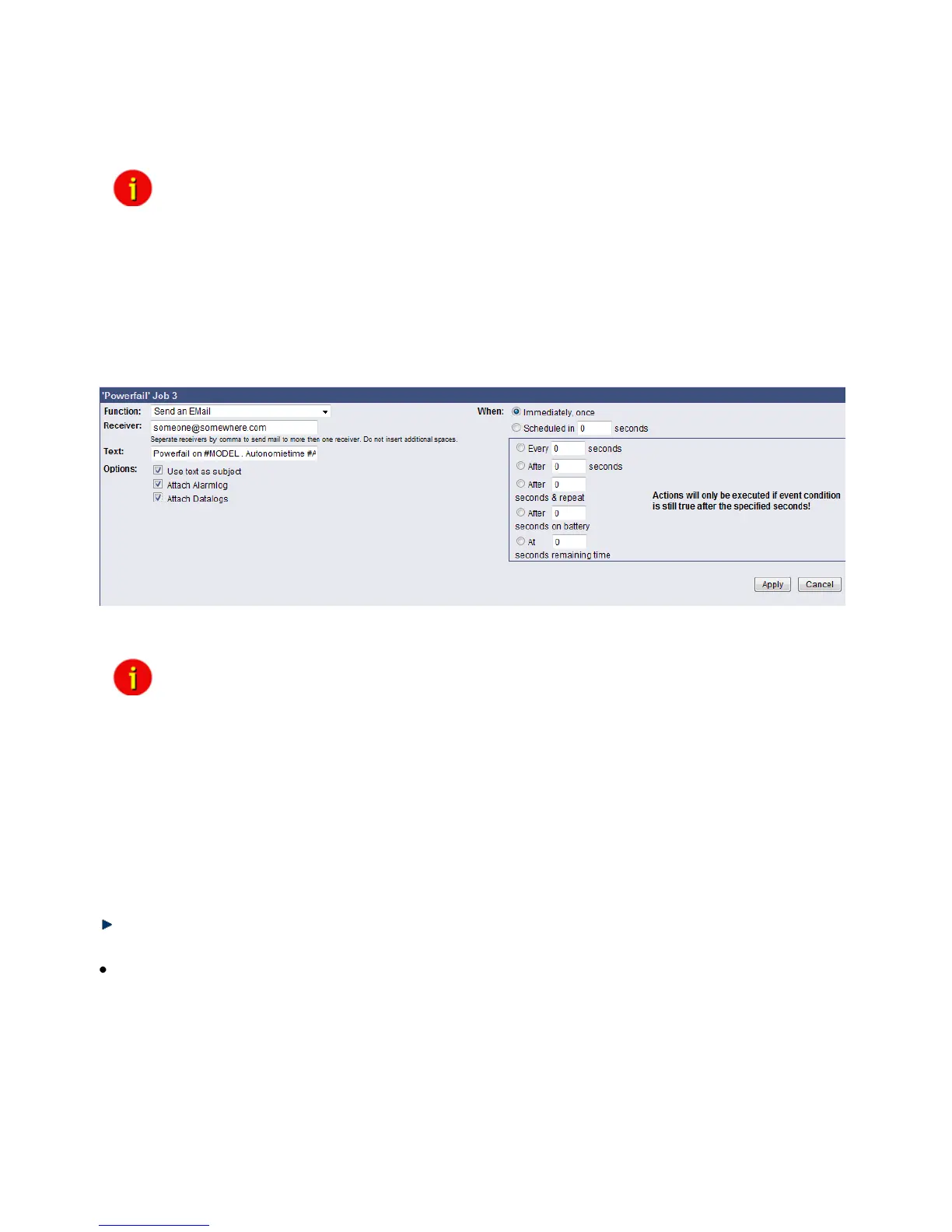
Figure 34: HTTP - Job Editor: Email-Job
To configure an Email-job follow the entries in the figure above.
Note: Please ensure that your Email settings in the menu “Email” are valid.
(See also section “Email” above)
Besides text entries, variables can also be integrated into the email from the CS121-adapter.
This may personalize your emails. A list of available variables are documentated in the
appendix (Section E Available Variables of the CS121). Please mind, that the variables are
only getting filled if the event actually occures, not by testing the action. (So simulation is not
possible, you have to create a real alarm to see the full message)
For example please see the figure above: There, the variables #MODEL and
#AUTONOMTIME will be substituted with their current values when the action will be released.
Please notice the syntax, that each variable name must be started with the character # and
must be ended with a <space> character.
Apply your settings and test the Email-job in the “Event Editor” to ensure Email will be
sent.
Continuous, periodic events:
To define an event job which will be executed continuous, e.g. daily, create a job on the event
„UPSMAN started“, as in the following figure:



 To Next Page