60
CHAPTER 6
Configuring the GERBER EDGE FX via the Web Interface
Address pool. The address may vary from session to session. Your network administrator must
define the starting and ending addresses of the pool.
You must cycle the power to the GERBER EDGE in order for the DHCP settings to be in effect.
To activate DHCP
1 Open the GERBER EDGE FX web interface by entering the printer's IP address in the
Location or Address line of your web browser (for example: http:// 169.254.128.129).
The Welcome to GERBER EDGE FX screen displays.
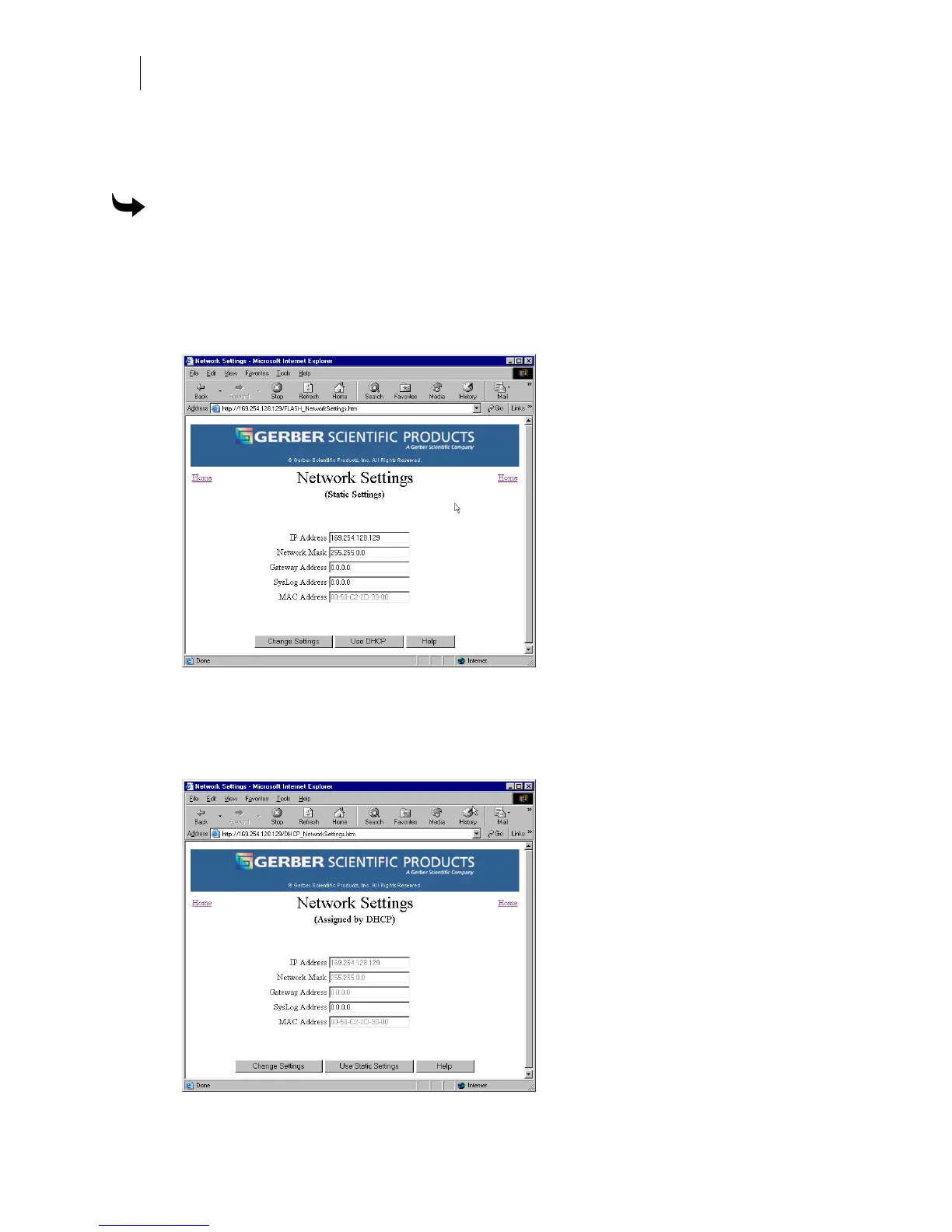
2 Click the Network Settings link to open the Network Settings page. By default the
GERBER EDGE FX uses Static Settings.
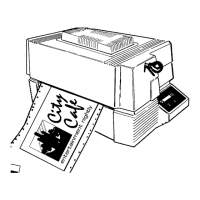
3 Click the Use DHCP button. You will be warned to cycle power to the printer before
DHCP is enabled.
4 After the power is cycled the Network Settings page now displays the DHCP settings
for reference only. They are not user editable.



 To Next Page