60
o To accept the new value, press ENT
or press ESC to exit without saving changes.
o Both of these options will return you to
the Source Setup menu.
Note: Analog Monitor can also be used for
monitoring digital input level, however input
gain cannot be changed.
Video type
Video typeVideo type
Video type
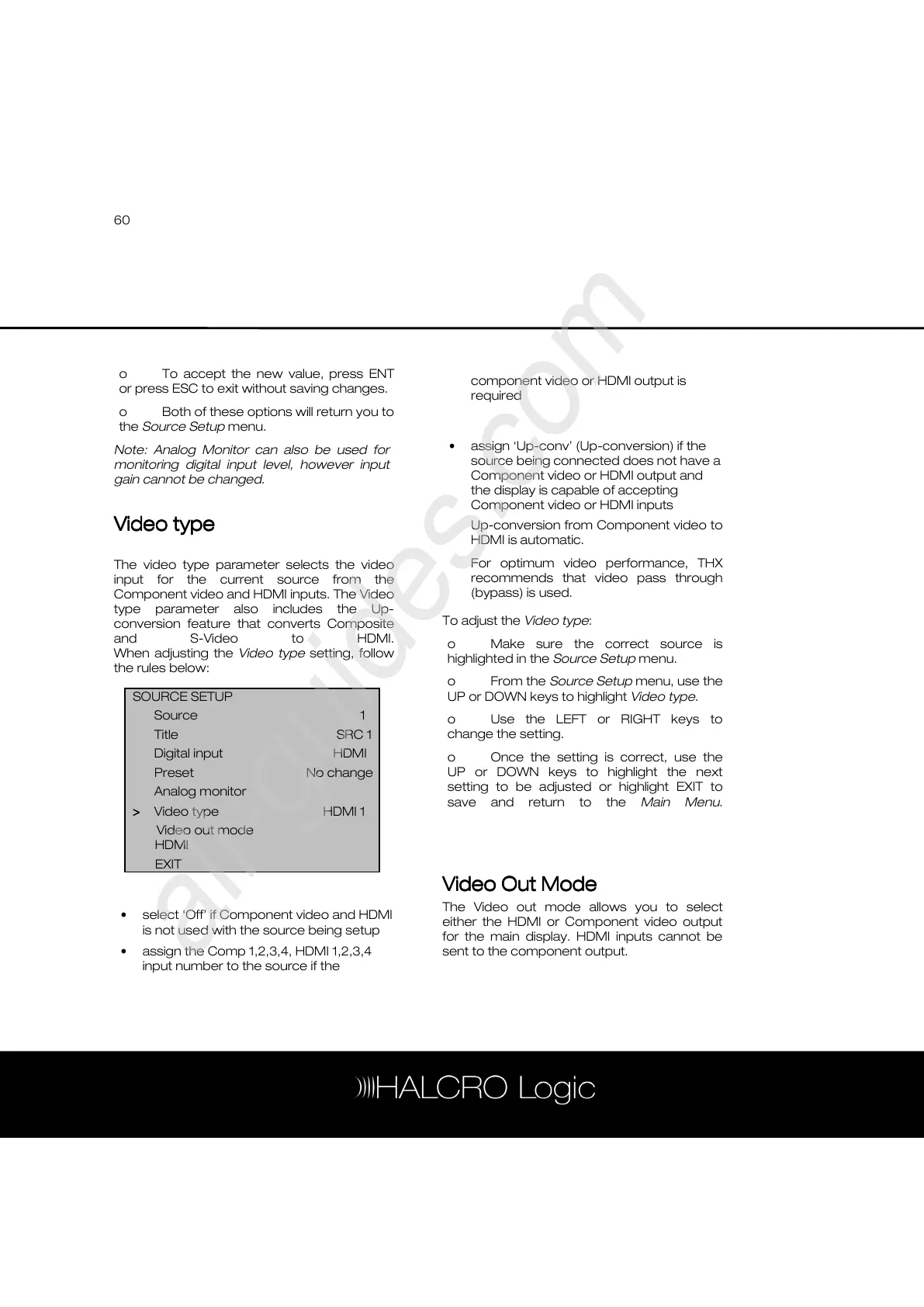
The video type parameter selects the video
input for the current source from the
Component video and HDMI inputs. The Video
type parameter also includes the Up-
conversion feature that converts Composite
and S-Video to HDMI.
When adjusting the Video type setting, follow
the rules below:
• select ‘Off’ if Component video and HDMI
is not used with the source being setup
• assign the Comp 1,2,3,4, HDMI 1,2,3,4
input number to the source if the
component video or HDMI output is
required
• assign ‘Up-conv’ (Up-conversion) if the
source being connected does not have a
Component video or HDMI output and
the display is capable of accepting
Component video or HDMI inputs
Up-conversion from Component video to
HDMI is automatic.
For optimum video performance, THX
recommends that video pass through
(bypass) is used.
To adjust the Video type:
o Make sure the correct source is
highlighted in the Source Setup menu.
o From the Source Setup menu, use the
UP or DOWN keys to highlight Video type.
o Use the LEFT or RIGHT keys to
change the setting.
o Once the setting is correct, use the
UP or DOWN keys to highlight the next
setting to be adjusted or highlight EXIT to
save and return to the Main Menu.
Video Out Mode
Video Out ModeVideo Out Mode
Video Out Mode
The Video out mode allows you to select
either the HDMI or Component video output
for the main display. HDMI inputs cannot be
sent to the component output.
SOURCE SETUP
Source 1
Title SRC 1


 To Next Page