HQ Pro-Stitcher User Manual07/23/124.6 Overview
Toolbar
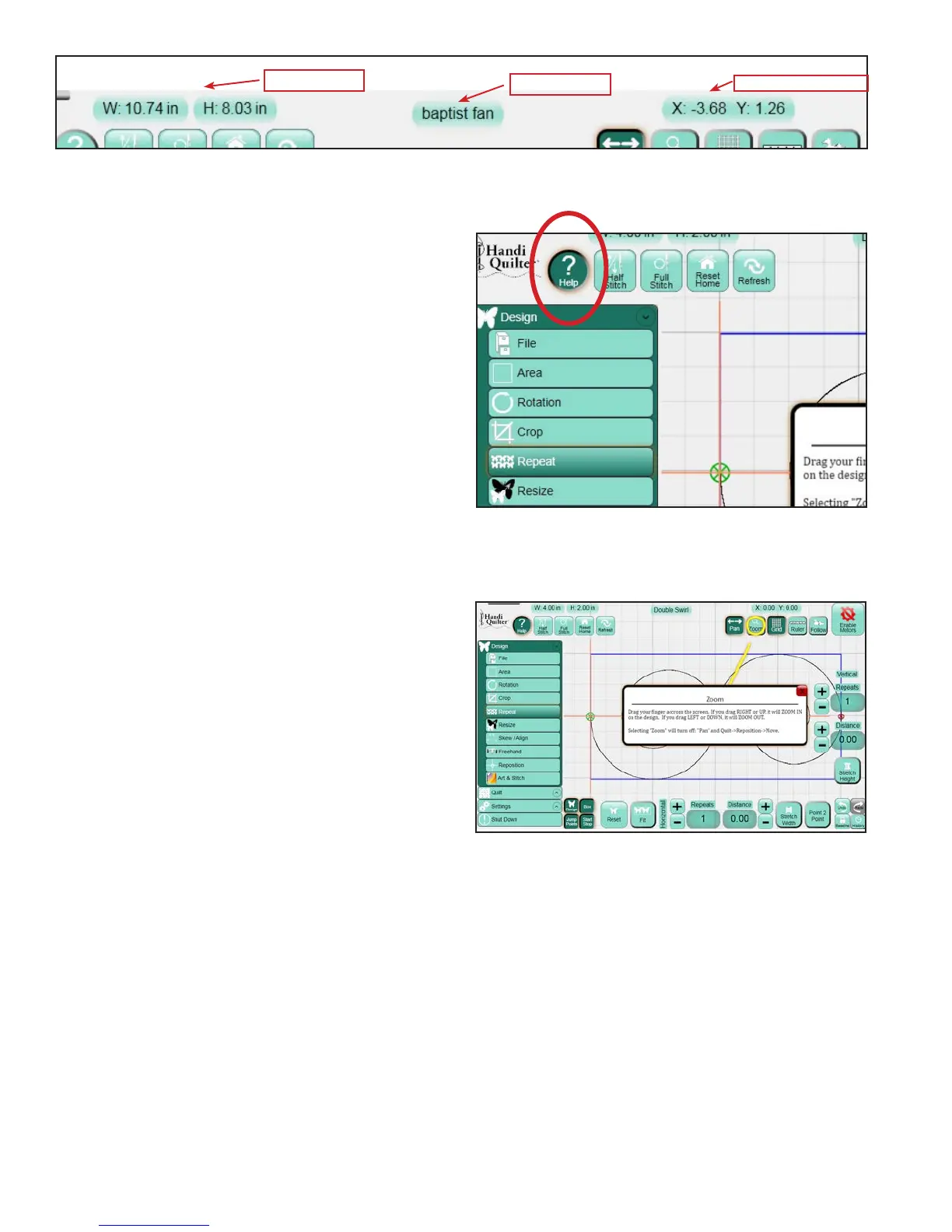
e toolbar at the top of the screen contains several
commonly used functions that are helpful when
using the HQ Pro-Stitcher (Figure 4.14).
At the top-center of the screen is the name of the
le that is currently loaded. To the le of the design
le name is the size of the design (width and height
in inches) as it is currently laid out on the screen, as
determined by the blue bounding box. To the right
of the le name is the current location of the needle
and crosshairs relative to the Home position, or the
number of inches away from the X=0, Y=0 point in
the design.
Help
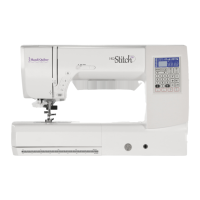
Press the Help button to activate the Help Mode for
the Pro-Stitcher (Figure 4.15). In Help Mode most
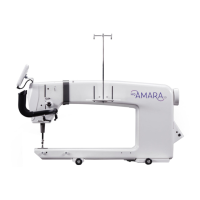
buttons and information boxes can be pressed to
display a pop-up box containing information about
the button or box that was pressed (Figure 4.16).
Exit Help Mode by either pressing the Help button
again or pressing the red X button in the pop-up
help box.
Figure 4.15
Figure 4.16
Figure 4.14
File Name
Design Size
Needle Position




 To Next Page