6.5.2.3 Image
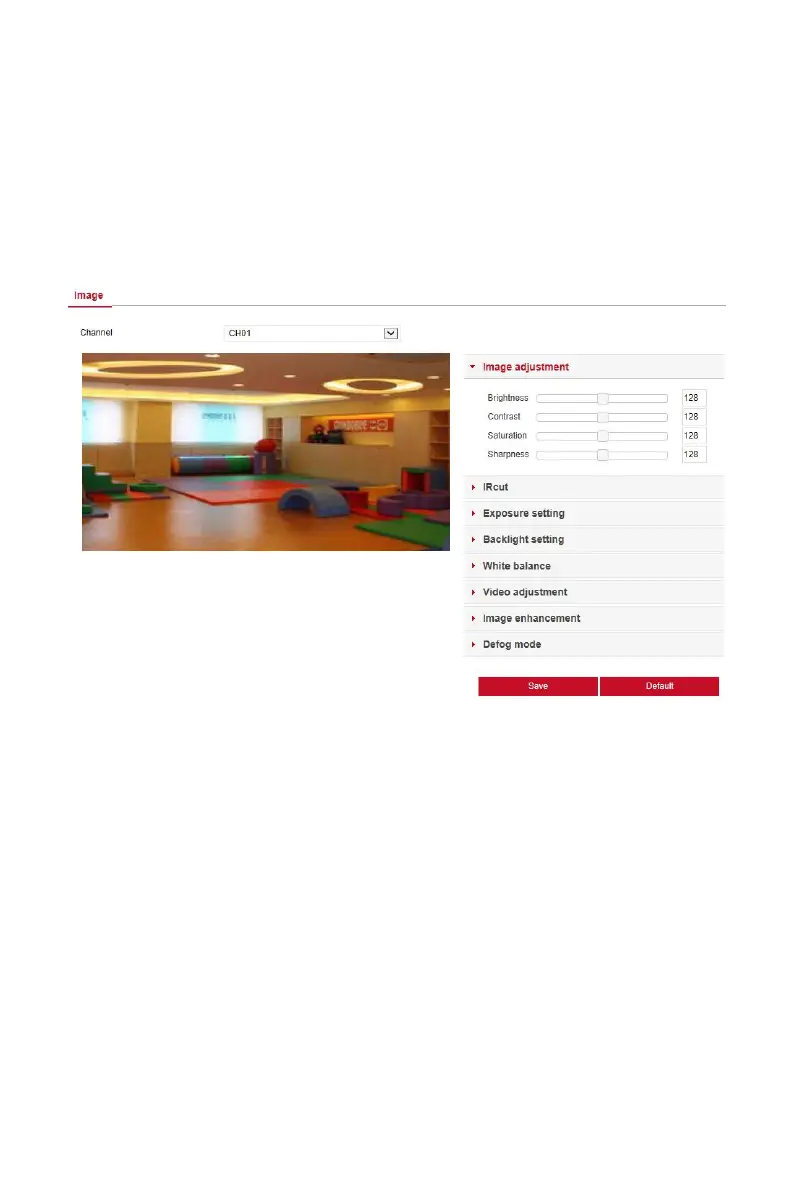
In the main interface, click "Configuration →Camera →Image" to enter the
Image setting interface, as shown in Figure 6-10 below. Here you can view
and set the channel image (brightness, contrast, saturation and sharpness),
fill light, exposure, backlight, white balance, video adjustment, image
enhancement and defogging, etc. The relevant parameters are consistent
with the local settings of the NVR.
Figure 6-10
6.5.2.4 Privacy Mask
In the main interface, click "Configuration →Camera →Privacy Mask" to
enter the privacy mask setting interface, as shown in Figure 6-11 below. Here
you can set three shielding areas, and the relevant parameters are consistent
with the NVR-side settings.



 To Next Page