Chapter 5 NVR Menu
5.1 Shortcut menu
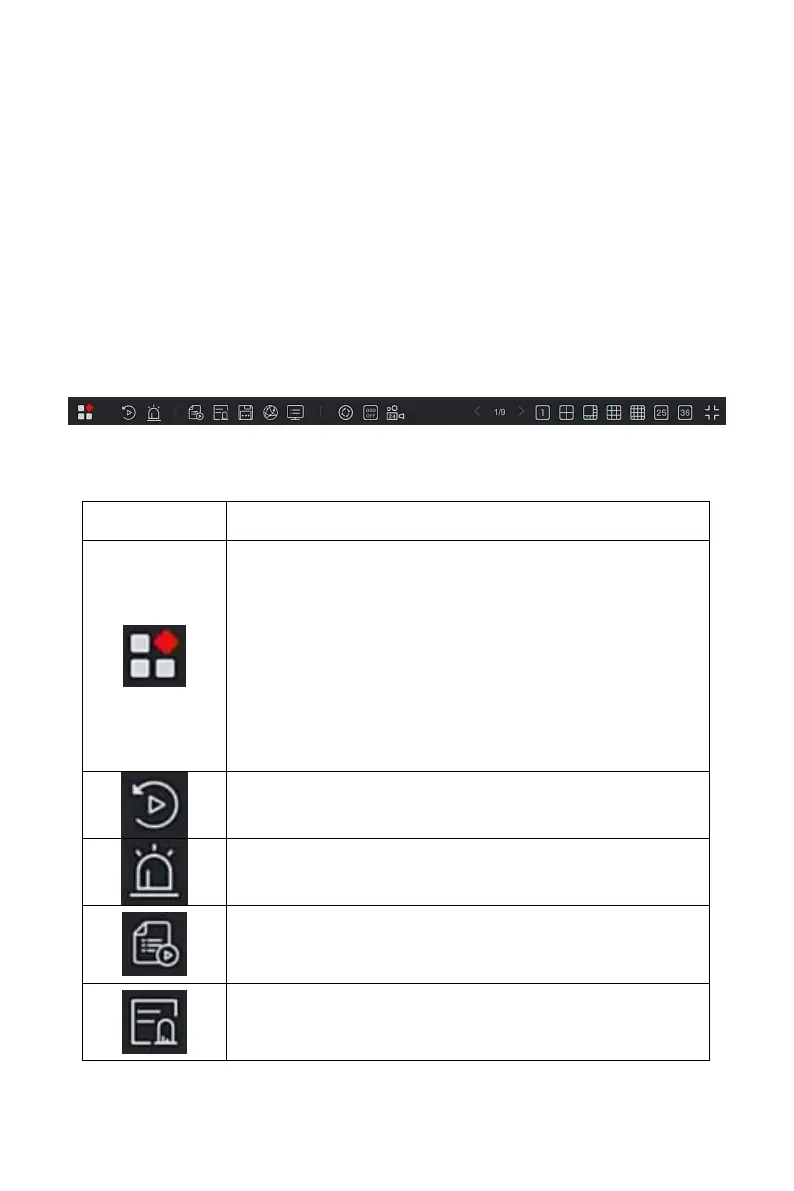
After logging in to the system, move the mouse to the bottom of the preview
interface, a shortcut menu pops up, as shown in Figure 5-1, you can enter
the interface to make some relevant settings. Such as start (file management,
system settings, logout, shutdown), playback, alarm, recording status, alarm
status, hard disk status, Network status, system information, poll setup
interface, turn on / off OSD, turn on / off all-day recording, screen split (1
screen, 4 screens, 8 screens, 9 screens. ) and exit full screen (enter main
menu mode).
Figure 5-1
The shortcut menu icons and specific functions are shown in Table 5-1
below:
Including file management, system settings, logout,
shutdown.
Click "File Management" to quickly enter the file
management interface.
Click "System Setup" to quickly enter the system
settings interface.
Click "Logout" to log out the current user.
Click "Shutdown" for soft shutdown, the power needs
to be turned on again when the device is restarted.
Click into the Playback interface.(Detailed operation
as 5.3.2)
Click to enter the alarm output status interface.
(Detailed operation as 5.1.1)
Click to enter the recording status interface, where
you can view the channel recording status, stream
type, bit rate and other related information.
Click to enter the alarm status interface, where you
can view the alarm name, type,status and other
related information of each alarm input channel.



 To Next Page