Row
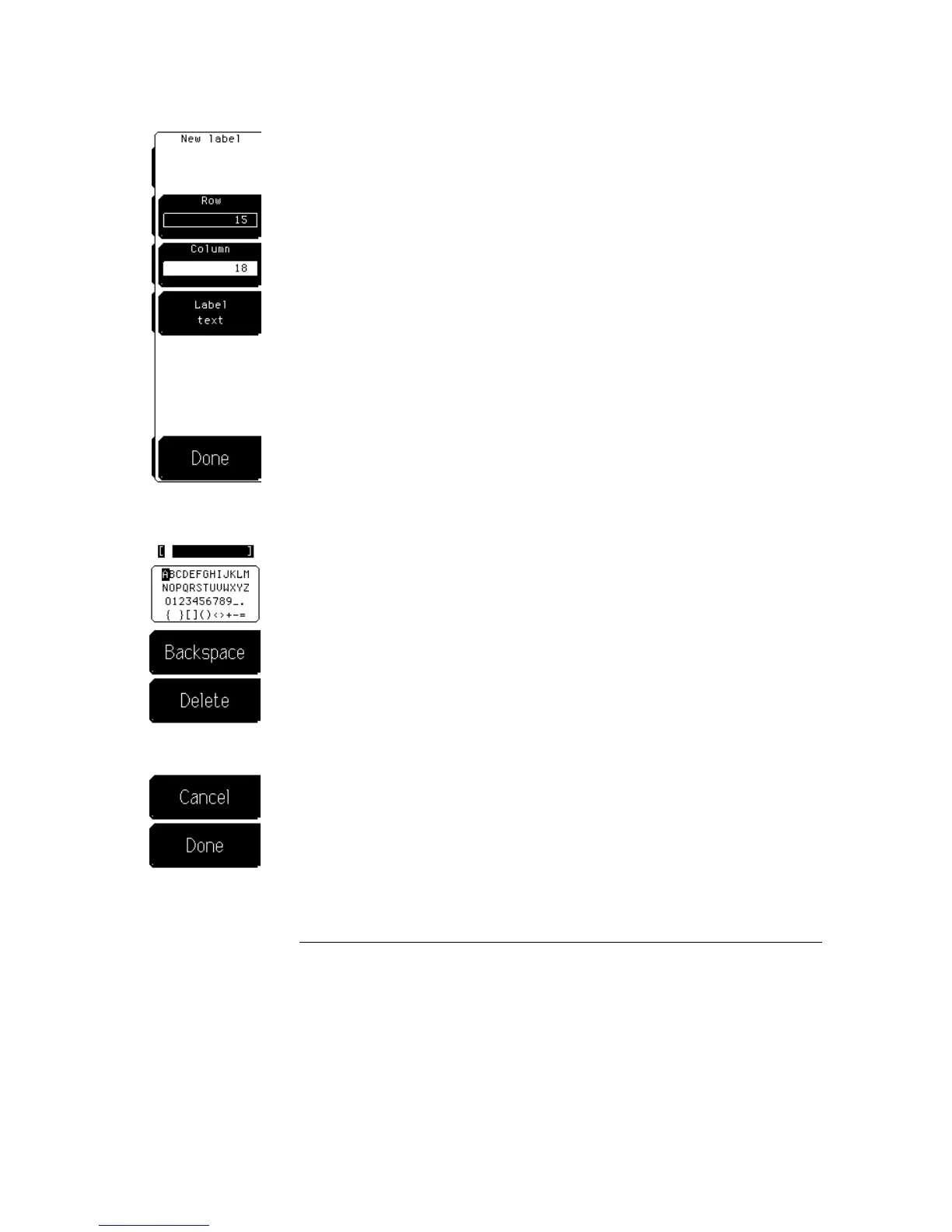
The Row softkey allows you to select one of the 19 vertical rows
for the placement of the label.
Column
The Column softkey allows you to select one of the 64
horizontal columns where the label is placed.
Label text
The Label text softkey brings up a third-level menu. This
menu allows you to create a label, up to 64 characters long, with the
letters and numbers from the character list shown at the left.
Spaces are allowed in a label. The space selection is located in the character
list between the { } symbols.
•
To move the cursor through the character list, use the knob.
•
To select a character from the character list, use the enter key on the
keypad.
•
To enter numbers into the file name, use the keypad or select numbers
from the character list.
•
To move the cursor through the file name, use the arrow keys.
•
To erase the entire file name, press the clear (Clr) key on the keypad.
•
To move the cursor one character to the left in the file name and to also
delete that character, use the Backspace softkey.
•
To delete a character from the file name, use the arrow key to position the
cursor over that character, then press the Delete softkey.
If labels overlap on the display, only the last label defined is displayed. The
previous label is not erased, it is hidden by the last label defined. Either use
the Modify label softkey to reposition one of the labels to a new position, or
use the Delete label softkey to erase one of the labels from the display.
After you position the label, enter the text for the label, and turn the display
on, the label does not appear on the screen until you press the Done softkey
and exit back to the first-level label menu.
Display Menu
Label
9–14


 To Next Page