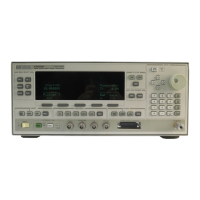
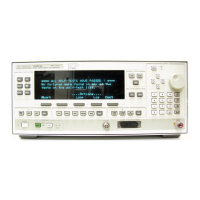
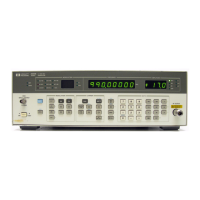
Access User Flatness Correction Menu
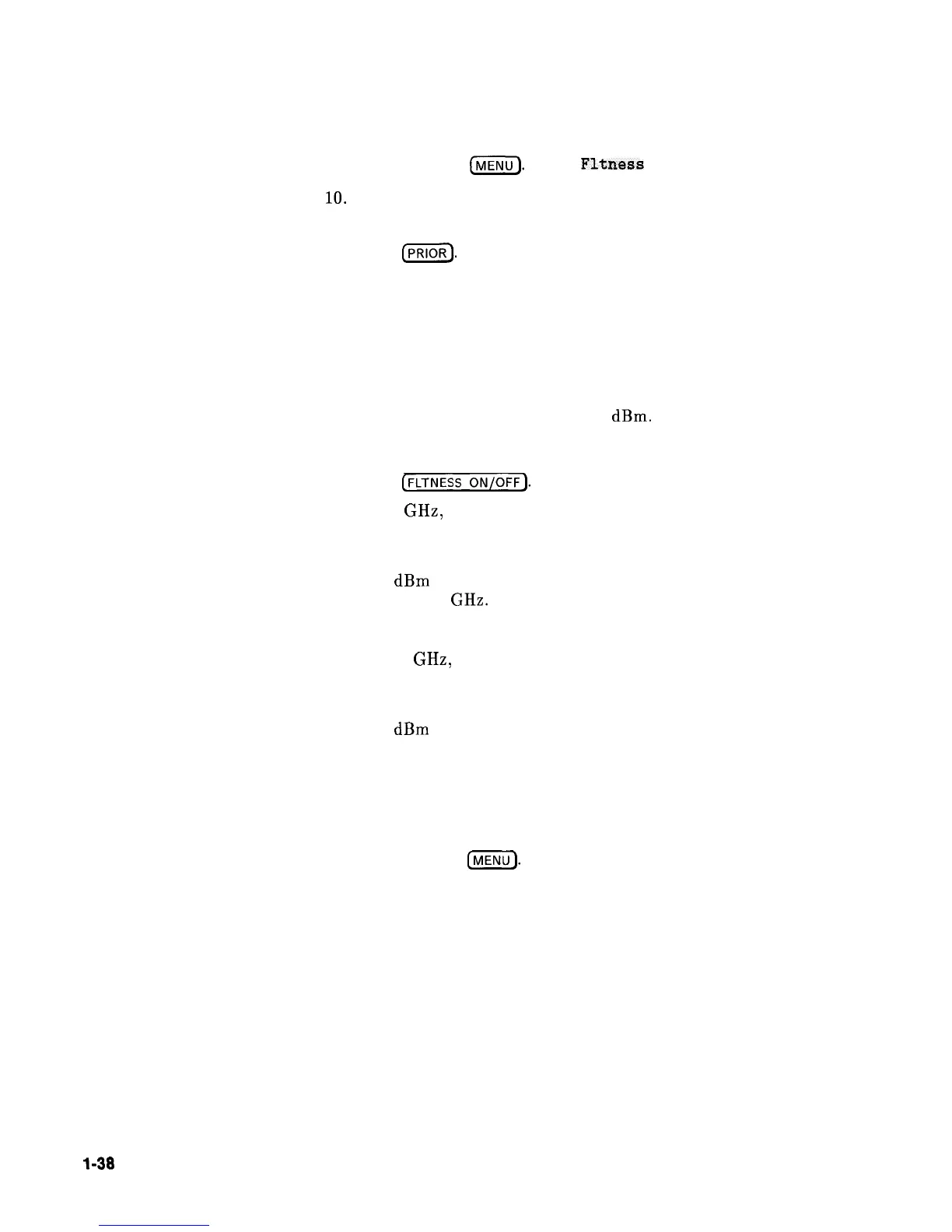
9. Press POWER
(z).
Select
Fitness
Menu.
10.
Select Delete Menu Delete All. This step insures that the
flatness array is empty.
11. Press
(=I.
Leave the delete menu and return to the previous
soft key menu.
12. Select Copy List This step copies the frequency list into the
correction table in sequential order.
13. Select Freq Follow. This sets the synthesizer to CW frequency
mode to facilitate taking correction information. As you scroll
through the correction cells, the synthesizer produces the
corresponding CW frequency at 0
dBm.
14. Select Enter Corr . This allows correction value entry.
15. Press
(FLTNESS
ON/OFF).
This step enables user flatness correction.
16. For 5 GHz, set the appropriate power sensor cal factor on the
power meter.
17. Use the synthesizer rotary knob to adjust for a measurement of
0.00
dBm
on the power meter. Notice that a correction value is
entered at 5 GHz.
18. Use the up arrow key to increment to the next correction cell.
19. For 11 GHz, set the appropriate power sensor cal factor on the
power meter.
20. Use the synthesizer rotary knob to adjust for a measurement of
0.00
dBm
on the power meter.
21. Repeat this sequence of steps until all the frequency points have
a correction value entered.
Activate List Mode
22. Press SWEEP
(MENU].
Select Sweep Mode List .
23. The flatness correction array is ready to be applied to your setup.
Disconnect the power meter/sensor. The power produced at the
point where the power meter/sensor was disconnected is now
calibrated at the frequencies and power level specified above.
l-38
Getting Started Advanced


 To Next Page