18
Names and Functions of Parts
Chapter 1 Installation and Preparation
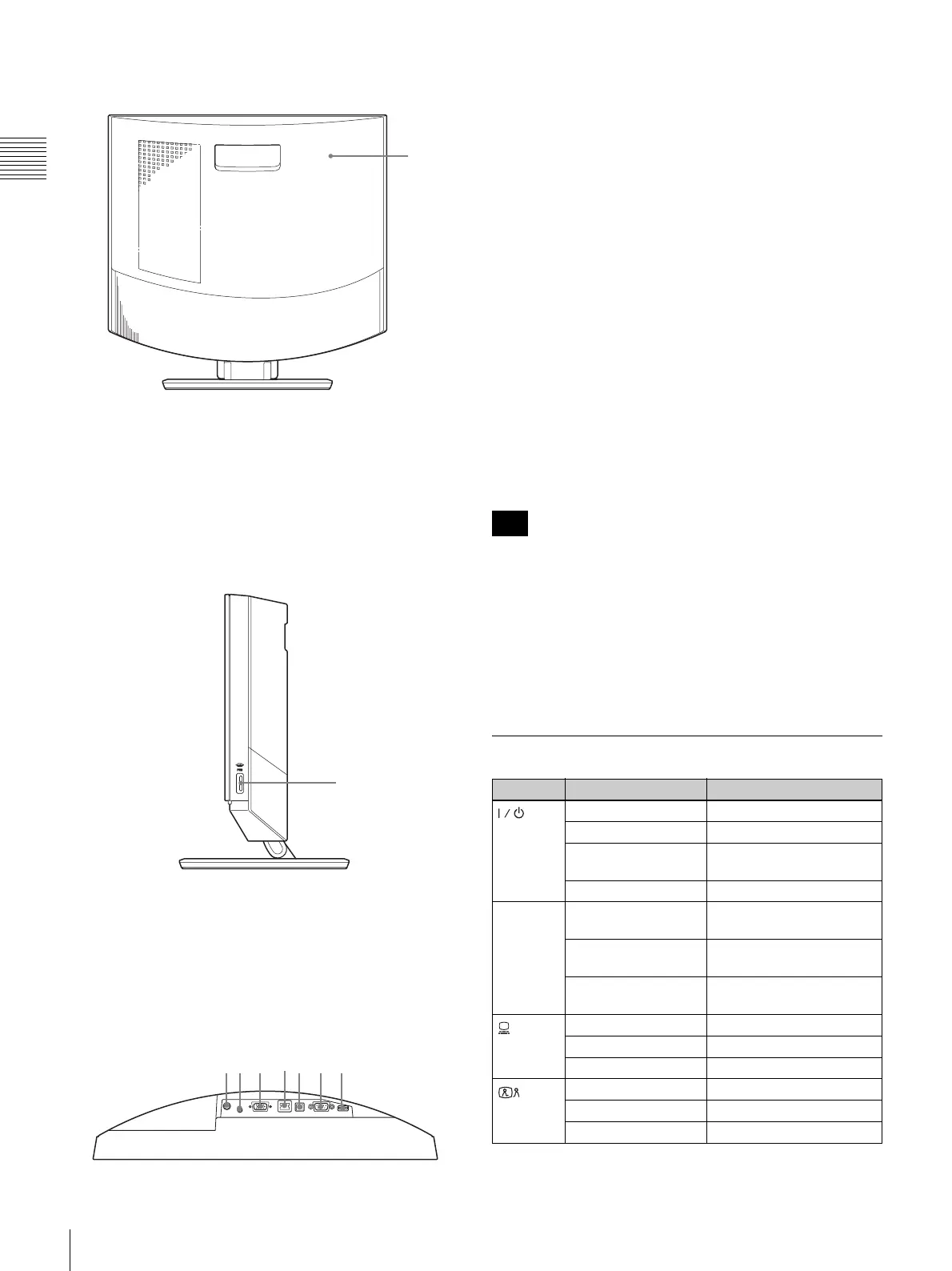
Rear view
a Rear cover
Removing this cover gives access to the connector panel.
The connecting section between the stand and the display
is also located behind the panel. You can adjust the height
of the display by changing the screw positions.
Right side view
a “Memory Stick” slot
A “Memory Stick” can be inserted here.
Connector panel
(section behind rear cover, seen from
below)
a DC19.5V connector
Connect the supplied AC adapter SQ2N120W19P-01 here.
b AUDIO IN (PC sound input) jack (stereo mini
jack)
Connect this jack to the audio output of a computer
connected to the RGB IN connector.
c RGB IN connector (15-pin mini D-sub connector)
Connect the RGB output of a computer here.
d 100BASE-TX/10BASE-T port (modular port)
Use a Category 5 LAN cable to connect this port to a hub
or similar equipment.
This port is equipped with a Link/Data indicator (green)
and a 100/10 Mbps indicator (orange).
e PC port
This connector is used when the same mouse is to be used
for the ViewPoint 8050 and for a computer connected to
the RGB IN connector. Link the connector to a USB port
on the computer.
Use a USB cable that is 3 m (10 ft.) or shorter.
f RS-232C port (9-pin D-sub connector)
This connector is used only for servicing the system.
g Mouse port
Connect the supplied optical mouse ViewPoint 8050-MS
here.
Indicator Names and Functions
1
1
Note
Indicator Status Meaning
(Power) *
Lit green Power is on
Lit orange Standby
Flashing orange (1-
second cycle)
Problem with fan
Out Power is off
Online * Flashing blue
(3 times per sec.)
Sending/receiving
Blue illumination lit Communication in
progress
Out Offline (no missed call) or
standby
(PC) *
Lit blue Computer display
Lit white Videoconference display
Out Standby
(Videocon-
ference) *
Lit blue Videoconference display
Lit white Computer display
Out Standby



 To Next Page