44
Registering a Remote Party in the Phone Book
Chapter 2
Registration and Setup
registered in the Phone Book are copied to the inserted
“Memory Stick”.
To delete the Private Phone Book from the
“Memory Stick”
Insert the “Memory Stick” from which you want to delete
the registered Private Phone Book into the Memory Stick
slot on the system, then select “Delete Private Phone
Book” from Page 1 of the Administrator Setup menu. All
the data are deleted from the inserted “Memory Stick”.
To dial a specified entry of the Private
Phone Book automatically
If you set “Auto Dialing” in the Administrator Setup menu
to “On”, you can automatically dial one of the entries in the
Private Phone Book simply by inserting the “Memory
Stick” on which the Private Phone Book is stored.
Only one entry can be set for auto dial. The most recent
address for which “Auto Dialing” was set to “On” will be
used.
1
Open the Private Phone Book.
2
Move the mouse cursor to the remote party that you
want to dial automatically, and click the “Edit”.
The List Edit menu appears.
3
Set “Auto Dial” to “On” by clicking on the setting.
4
Click “Save”.
The setting is saved and “AUTO” appears on the
Private Phone Book menu list.
To exit from the Private Phone Book menu
Remove the “Memory Stick” in which the Private Phone
Book is registered from the Videoconferencing terminal.
The screen returns to the Phone Book menu.
Using the Shared Phone Book
Using the Shared Phone Book function, a phone book
located on a server can be accessed by multiple
Videoconferencing Terminal units.
For details about settings, consult your network
administrator.
You cannot register, edit, delete, or attach images to parties
in the Shared Phone Book. In addition, you cannot copy
parties registered in the Shared Phone Book to the Private
Phone Book.
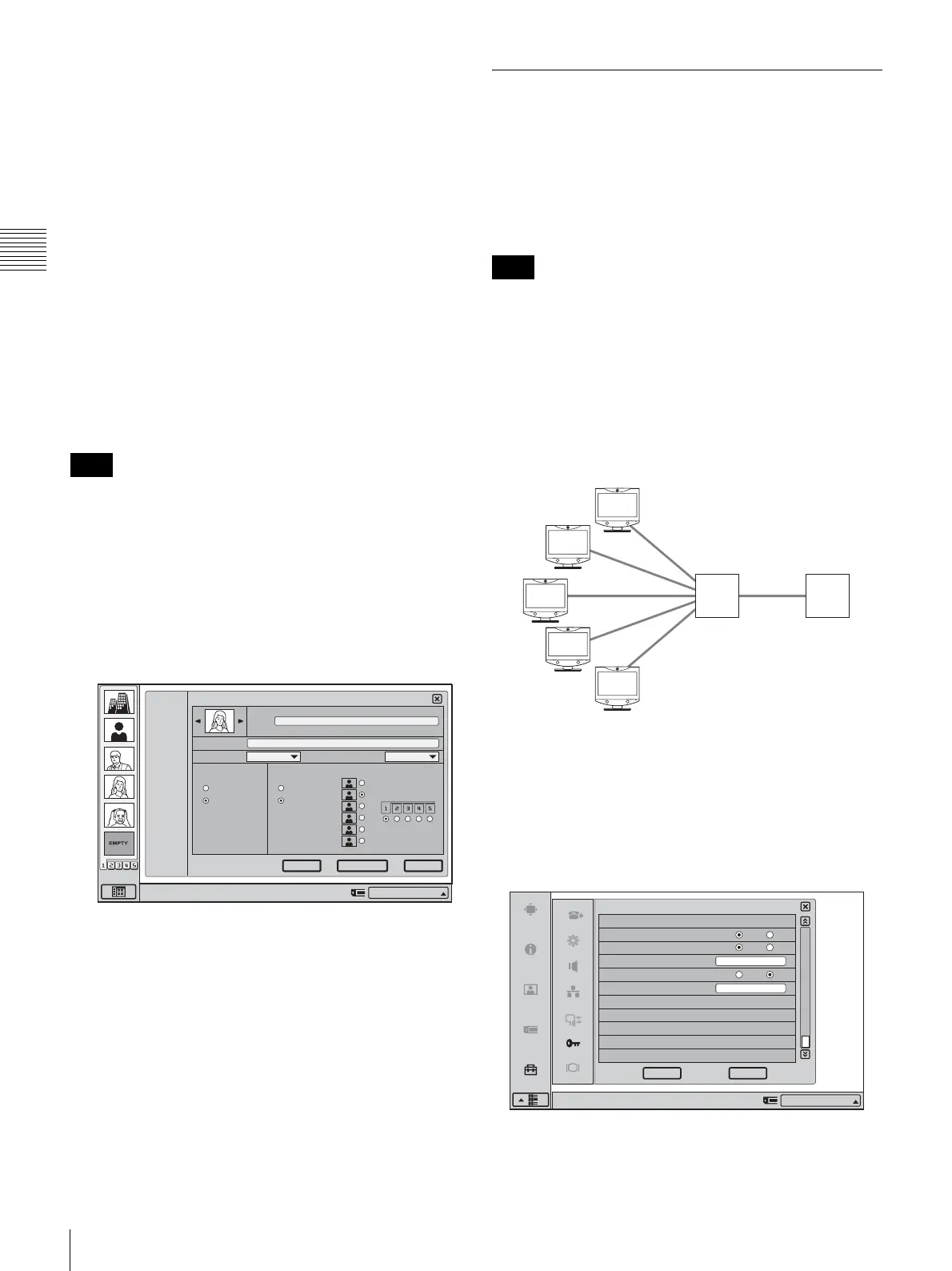
System configuration example
In this system configuration, sharing of a Phone Book
using H.350 is enabled.
To use the Shared Phone Book
Set “Shared Phone Book” and “SPB Mode” to “On” under
Page 11/11 of the Administrator Setup menu, and enter the
appropriate values for “SPB Server Address” and “SPB
Server Password”.
Note
Right-click the mouse to display a help message.
1/3
IP 1024
Off
On
Off
On
Duplicate Save
Cancel
List Edit
Phone Book
Line I/F
LAN Bandwidth
Auto Dial One Touch Dial
Index
ALL
A
-
I
J
-
S
T
-
Z
0
-
9
New
IP:012.345.678.912
Note
H.350/LDAP
Server with
Shared Phone
Book
Directory
server
On Off
On Off
On Off
Shared Phone Book Setup
Shared Phone Book
SPB Mode
SPB Server Address
SPB Auto Registration
SPB Server Password
Administrator Setup
Right-click the mouse to display a help message.
CancelOK
IP:012.345.678.912
11/11
abcdefgh
192.100.10.10



 To Next Page