Please note: PVR is only available for certain countries.
The ICECRYPT receiver supports DTV programme record and playback functions. Any DTV programme
can be recorded and be viewed via the PVR file browser.
The receiver also supports Timeshift, and Always on Timeshift functions.
Please note: A suitable USB drive must be connected.
All the recorded files are displayed in the File Browser and
can be previewed in the Preview Window.
Use the keys to highlight the file that you would like to
Preview, and press OK to watch it in the Preview Window.
Press the RED key to go FULL SCREEN.
Press the EXIT key to return to preview mode.
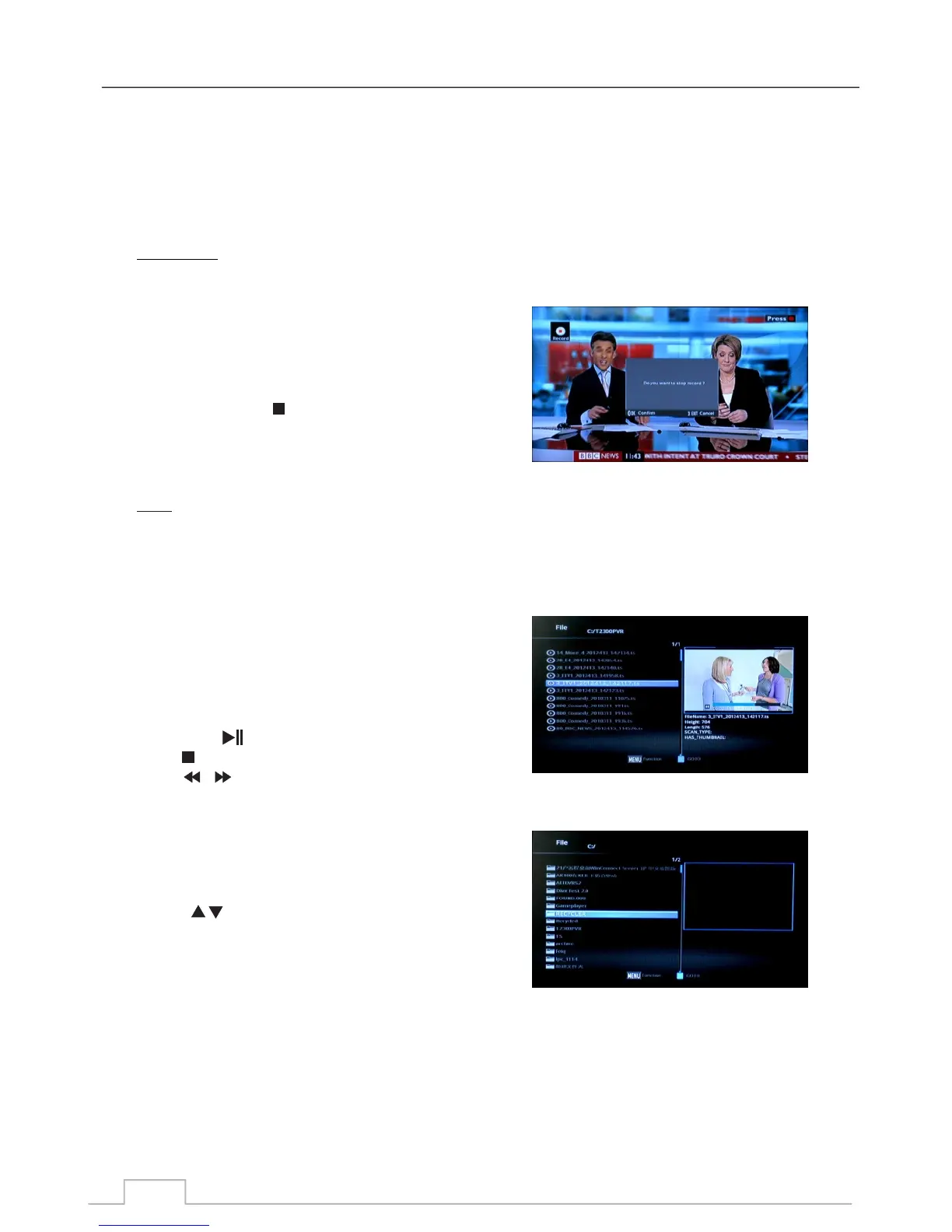
In normal viewing mode, press RECORD key on your
remote to start recording. You will see a Record ICON with
timing appear on the top left of your TV screen, indicating
the programme is currently being recorded.
Pressing the STOP ( ) key will display a menu "Do you
want to stop record?"
Press the OK key to stop recording and save the recorded
programme, or press the EXIT key to continue recording.
Note: When you stop recording, the programme you have just
recorded will be automatically added to the PVR RECORD
folder in PVR sub-menu.
In the PVR menu you can see a list of recorded programmes.
Press the RED key to switch to full screen mode,
and press EXIT key to return to preview mode.
Press the MENU key for additional functions
Press OK or key to play the programme.
Press key to stop playing.
Press keys to play fast forward or fast reverse.
Multimedia Player
Personal Video Recorder (PVR):
Record:
PVR Menu:
File Browser:
31


 To Next Page