Wireless Access Point
User Guide
3.4 Setting up WiFi network with an IP-COM router
supporting AP management
A hotel may be deployed with a large number of APs. But you can manage them centrally using IP-COM
router supporting AP management. The following describes the procedure.
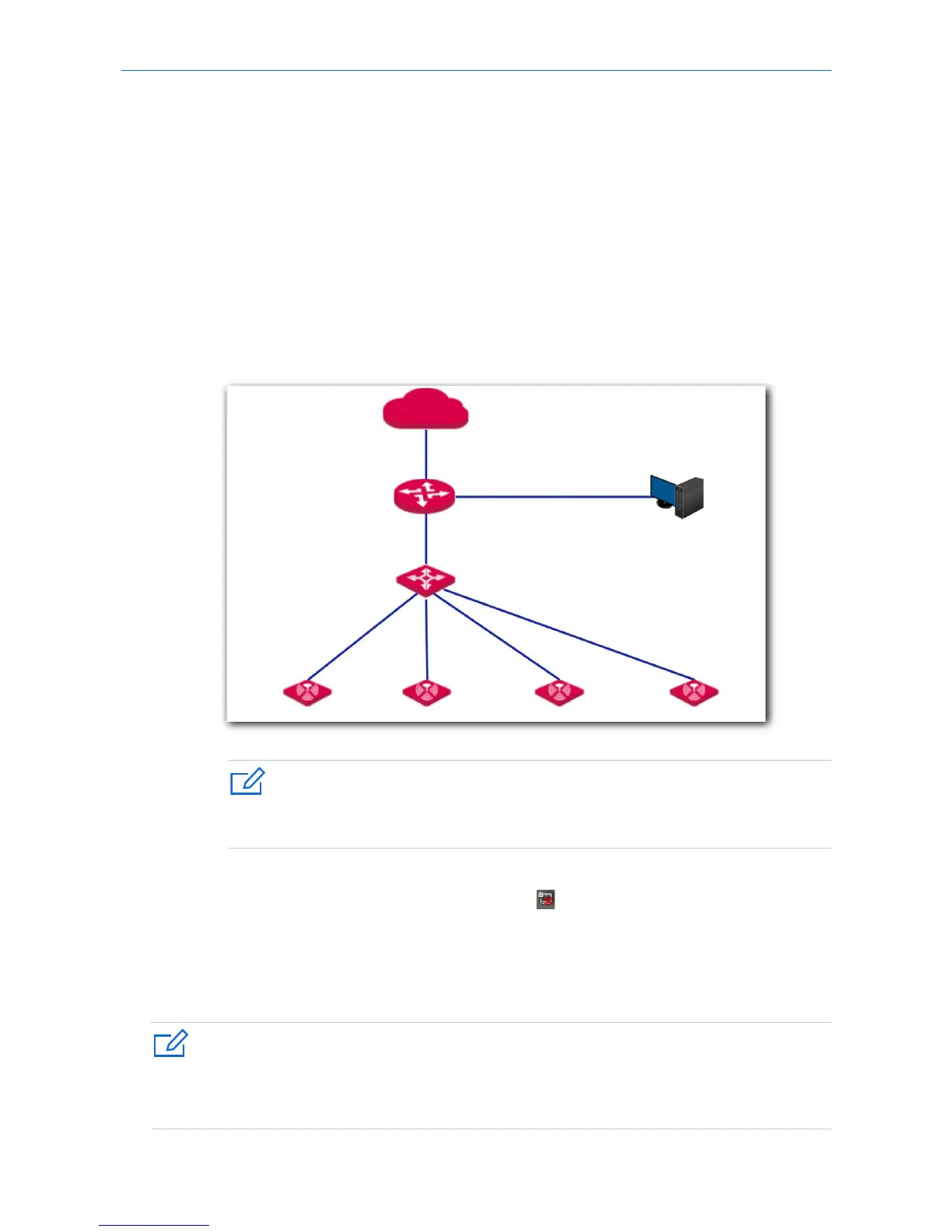
1. Connect devices.
(1) Ensure that your IP-COM router is connected to the internet.
(2) Ensure that your router and PoE switch are connected to power supply.
(3) Connect your computer and PoE switch to the LAN ports of the router using Ethernet cables.
(4) Connect your APs to PoE ports of your PoE switch using Ethernet cables.
The network topology is shown as follows:
If you choose to power on your AP using DC power supply, connect the PWR port of your AP to
a DC power resource using the included power adapter.
After finishing connection, ensure that the AP’s LED indicator blinks and the lower-right
network icon on your computer is not displayed .
2. Start a web browser on your computer and log in to the web UI of the router. For details about
managing your APs, refer to your router’s user guide.
---End
If your AP is managed by an IP-COM router in the LAN network, the AP’s IP address may have been changed.
If you want to go to the AP’s web UI, first view the new IP address of the AP on the web UI of the router,
then log in to the AP’s web UI using the new IP address.


 To Next Page