Wireless Access Point
User Guide
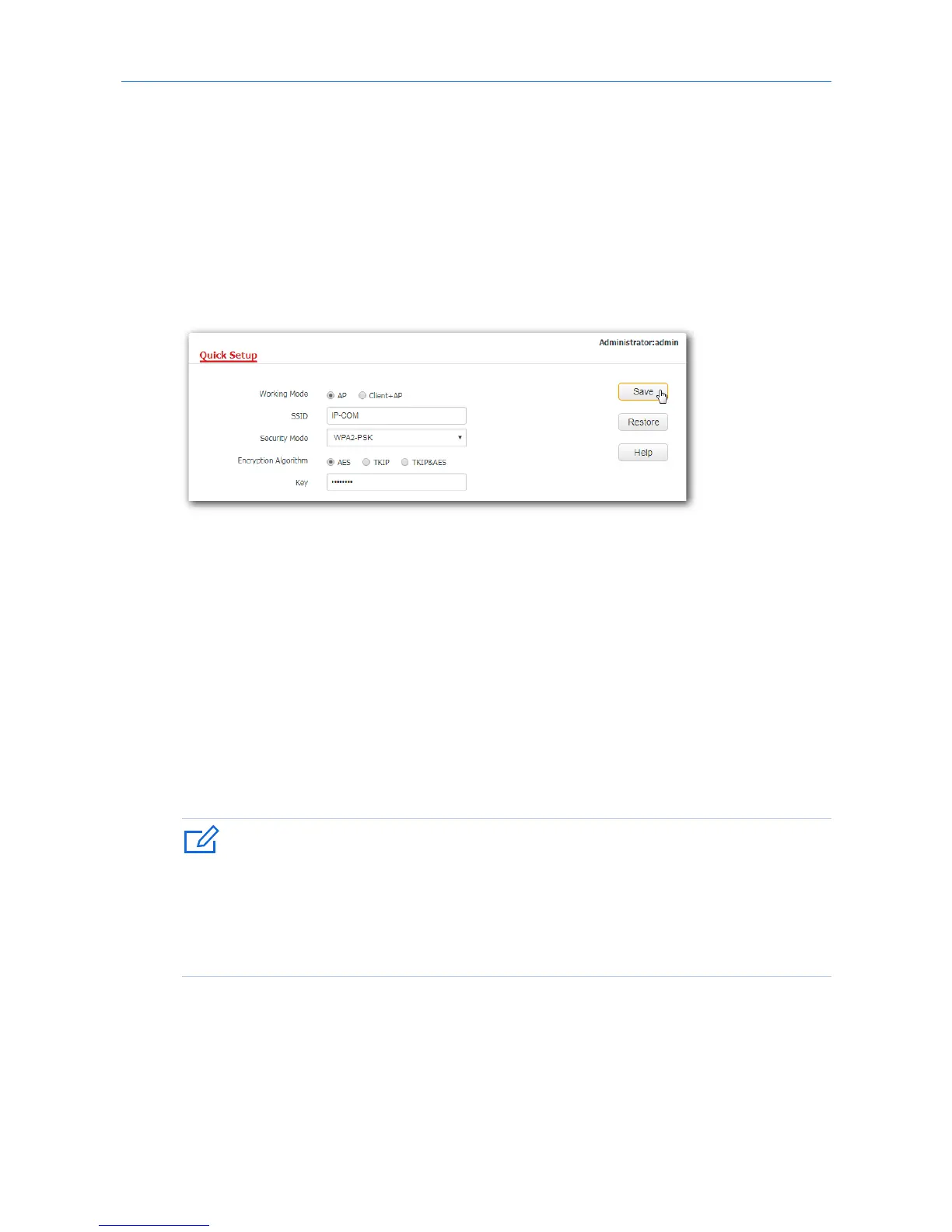
6.2 Setting WiFi network in AP mode
1. Click Quick Setup.
2. Working Mode: Select AP mode.
3. SSID: Set a WiFi name for your AP’s WiFi network, which is IP-COM_83F4B0 in this example.
4. Security Mode: Select one security mode for your AP. You are recommended to select WPA2-PSK.
5. Encryption Algorithm: Select one encryption algorithm for your AP, which is AES in this example.
6. Key: Set a WiFi password for your AP’s WiFi network.
7. Click Save.
---End
After configuration, connect wireless devices to your AP’s WiFi network using the SSID and WiFi password
you set on the Quick Setup page.
6.3 Setting WiFi network in Client+AP mode
1. Click Quick Setup.
2. Working Mode: Click Client+AP mode.
3. Click Scan.
4. Select the WiFi network you want to extend from the WiFi network list that appears, which is
Tom-WiFi in this example.
- If no WiFi network is found, click Wireless > RF to ensure that Enable RF is selected, and try
scanning again.
- After a WiFi network is selected, the AP identifies its SSID, security mode, encryption algorithm,
channel of WiFi network and populates them on the page automatically. However, some other
parameters such as Key must be entered yourself.



 To Next Page