Wireless Access Point
User Guide
4.3 Web UI layout
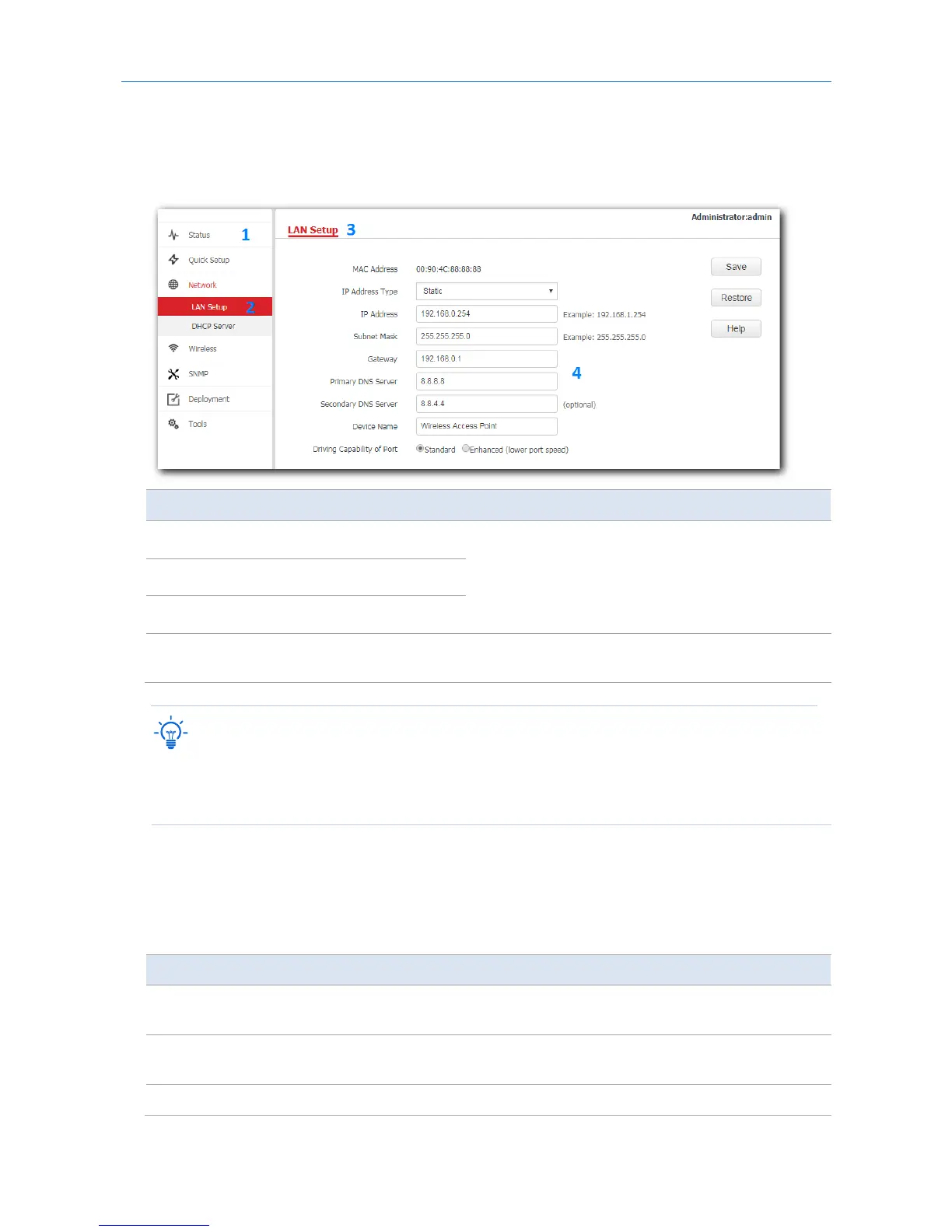
The web UI of the AP is composed of four parts, including the navigation trees of two levels, tab page area,
and configuration area. See the following figure.
No. Name Description
1
Level-1 navigation bar
The navigation bars and tab pages display the function
menu of the AP. When you select a function in the
navigation bar, the corresponding configuration
appears in the configuration area.
2
Level-2 navigation bar
3
Tab page area
4
Configuration area
In this area, you can view and modify configuration of
the AP.
The functions and parameters dimmed on the web UI indicates that they cannot be changed in the current
configuration or they are not supported by the AP. If you want to configure the functions or parameters
dimmed on the web UI, you need to configure their related functions or parameters on the web UI first.
4.4 Common buttons
The following table describes the common buttons available on the web UI of the AP.
Button Description
Save
Click it to save the configuration on the current page and enable the configuration
to take effect.
Restore
Click it to set the configuration on the current page back to the original
configuration.
Help
Click it to view corresponding help information on the page.
17


 To Next Page