Wireless Access Point
User Guide
11.3.2 Configuring log settings
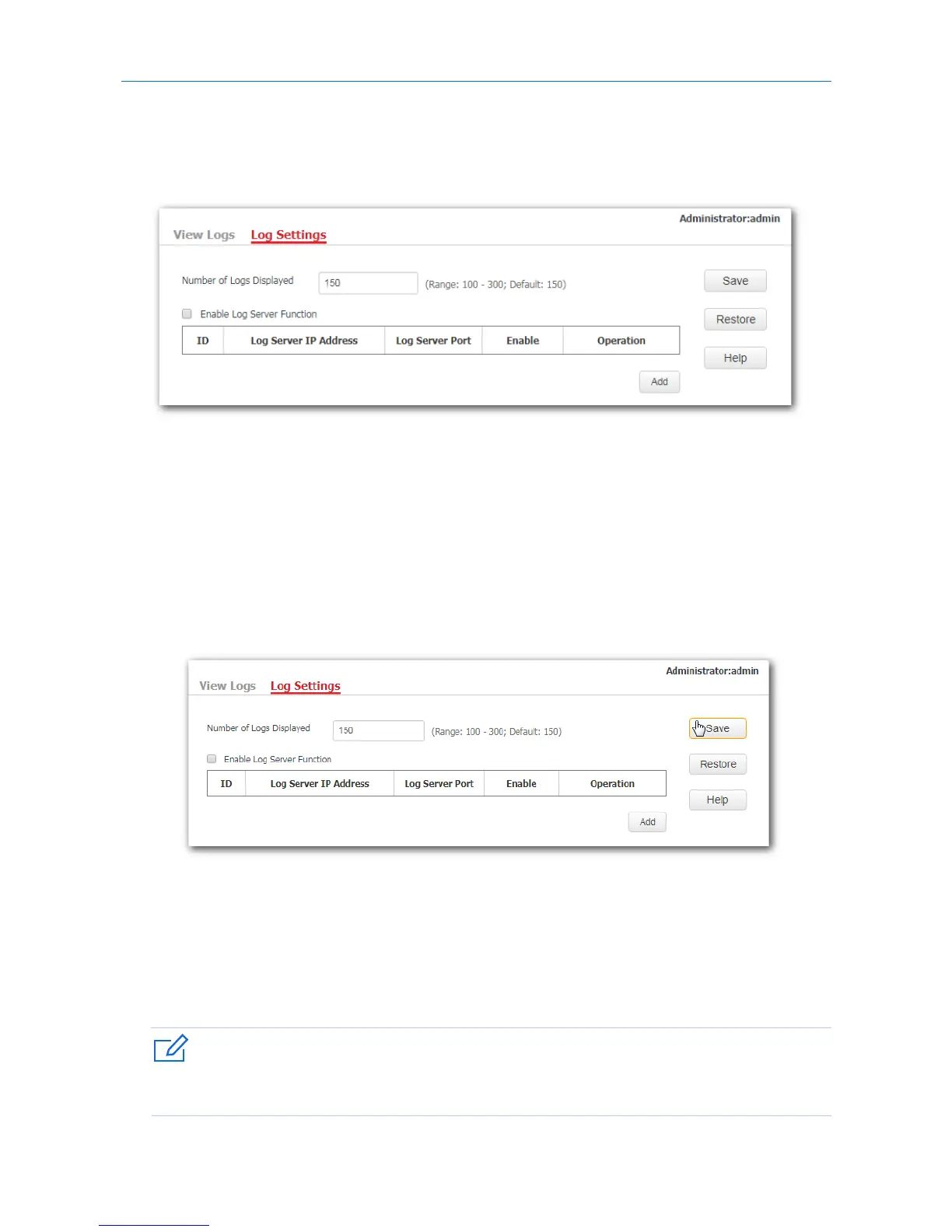
To access the page, click Tools > Logs > Log Settings.
On this page, you can set the number of displayed logs and configure the log server function.
Setting the number of displayed logs
By default, the AP can display a maximum of 150 logs on the View Logs page. You can change the number
as required.
Procedure:
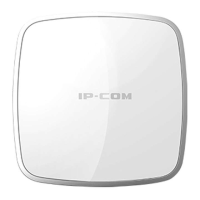
1. To access the page, click Tools > Logs > Log Settings.
2. Number of Logs Displayed: Change the number of logs as required within the range of 100 to 300.
3. Click Save.
---End
Configuring the log server settings
After you specify a log server, the AP sends its logs to the log server. You can view all the historical logs of
the AP on the log server.
To ensure that system logs can be sent to a log server, choose Network > LAN Setup and set the IP address,
subnet mask, and gateway of the AP to communicate with the log server.
89


 To Next Page