Wireless Access Point
User Guide
8.8 QVLAN Setup
8.8.1 Overview
This AP supports the IEEE 802.1Q VLAN function and is able to work with switches supporting that
function to establish multiple VLANs. Devices connecting to VLANs with different VLAN IDs cannot
communicate with each other. By default, the AP’s QVLAN function is disabled.
8.8.2 Configuring the QVLAN function
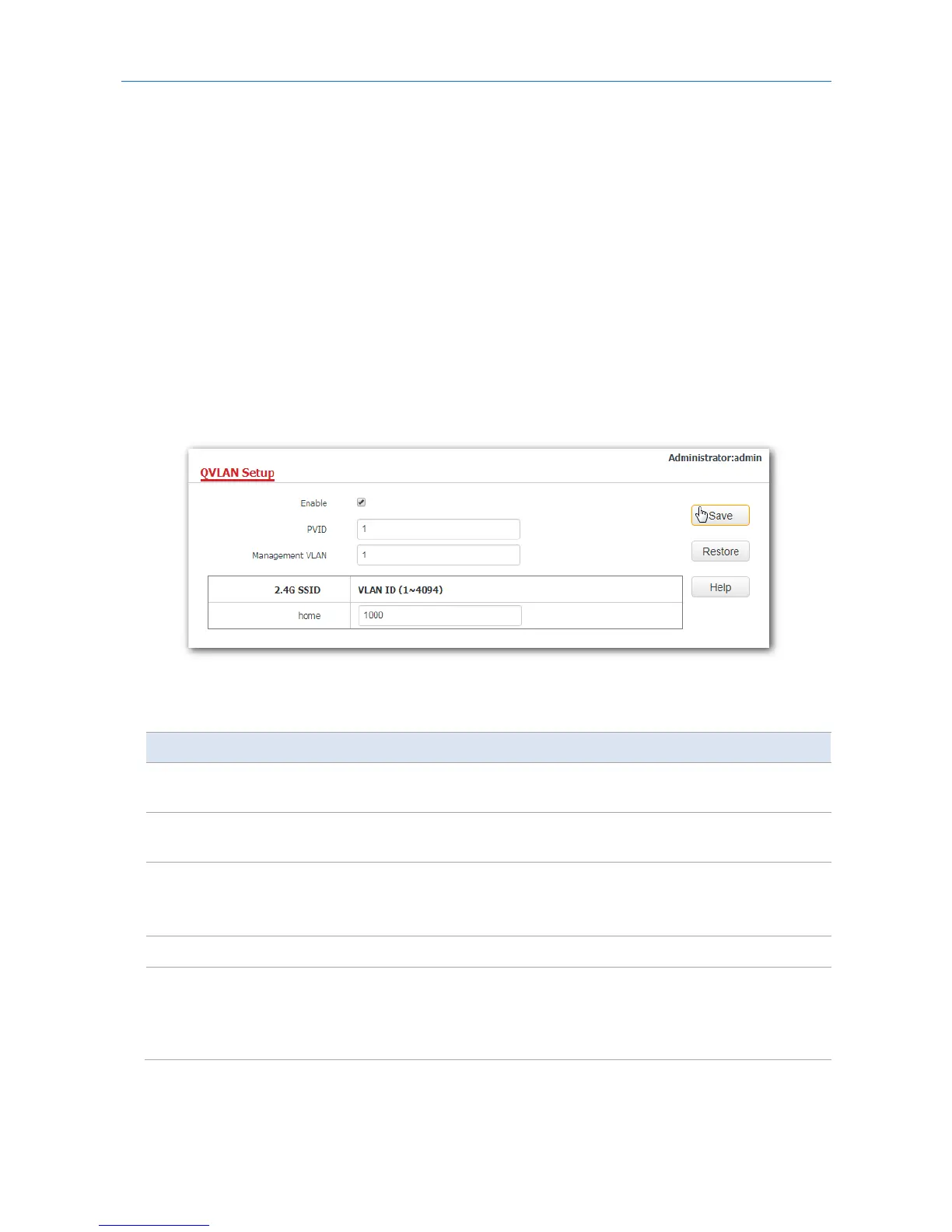
1. Choose Wireless > QVLAN Setup.
2. Set the parameters as required. Generally, you only need to set the Enable and VLAN ID settings.
3. Click Save.
---End
Parameter description
Parameter Description
Enable
It specifies whether to enable the QVLAN function of the AP. By default, it is
disabled.
PVID
It specifies the ID of the default native VLAN of the trunk port of the AP. The default
value is 1.
Management VLAN
It specifies the ID of the AP management VLAN. The default value is 1.
After changing the management VLAN, you can manage the AP only after
connecting your computer or AP controller to the new management VLAN.
2.4G SSID It specifies the currently enabled SSID(s) of the AP.
VLAN ID
It specifies the VLAN IDs corresponding to SSIDs. The value range is 1 to 4094, and
the default value is 1000.
After the QVLAN function is enabled, the wireless ports corresponding to SSIDs
functions as access ports. The PVID of an access port is the same as its VLAN ID.
If the QVLAN function is enabled, tagged data received by a port of the AP is forwarded to the other ports
of the VLAN corresponding to the VID in the data, whereas untagged data received by a port of the AP is
forwarded to the other ports of the VLAN corresponding to the PVID of the port that receives the data.
72



 To Next Page