To ensure that system logs can be sent to a log server, choose Network Settings > LAN Setup
and set the IP address, subnet mask, and gateway of the AP to communicate with the log
server.
Adding a log server
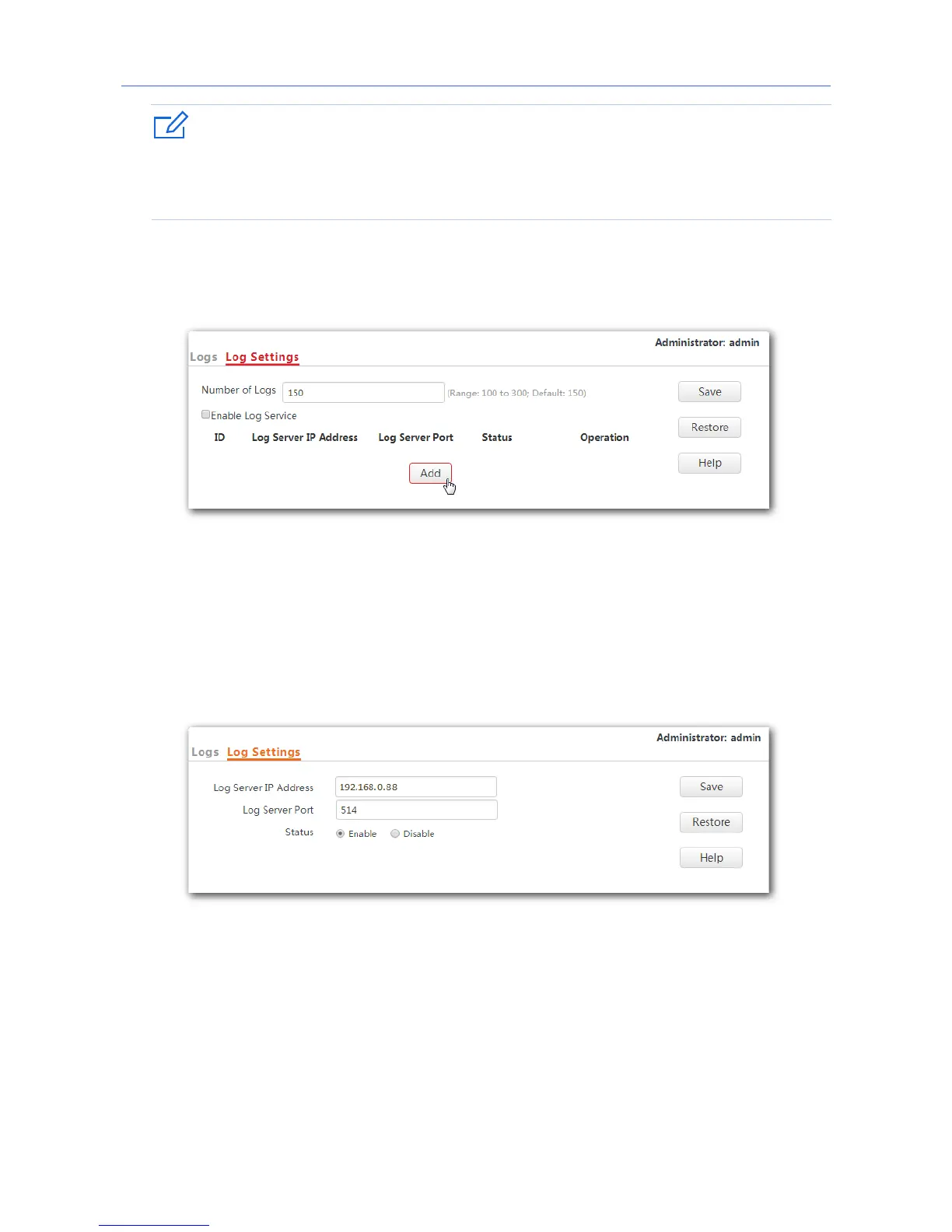
1. To access the page, click Tools > Logs > Log Settings.
2. Click Add.
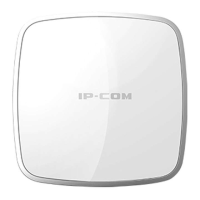
3. Set parameters as follows:
− Log Server IP Address: Enter the IP address of your log server, which is 192.168.0.88
in this example.
− Log Server Port: Enter the log server’s UDP port number used to send and receive
system logs. The default port number 514 is recommended.
− Status: Choose Enable.
4. Click Save.
5. Tick the box beside the Enable Log Service item.
6. Click Save.
102



 To Next Page