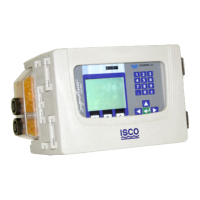
4210 Flow Meter
Section 2 Programming
2-11
2.4.9 Step 9 -
Reports/History
REPORTS/HISTORY lets you program the flow meter to print
regular reports on the internal printer. The reports the flow
meter prints are a summary of activity recorded over time. Typi-
cally included are such items as maximum and minimum flow
rates, the time they were reached, sample records, etc.
The flow meter lets you create two separate reports, and define
what appears on them to a great extent. Note that the contents of
the reports are defined in Setup in step 1. Step 9 merely lets you
turn them off and on and set the timing. You can define the start
time, the interval between reports and other aspects of the
report.
History provides a record of changes made to the flow meter's
program or operation events. As many as 50 changes can be
stored in the flow meter's memory at a time. The memory can
store up to 50 history items and 200 sample events at a time.
2.5 Interpreting The
Program Screens
Following are the program screens as they appear on the display
of a 4210 Flow Meter. Explanations for most of the screens will
be provided.
Note
Some items that appear in the following menus will have
parentheses (...) around them. This means that the item may
or may not appear on your flow meter’s display. Choices
made early in the program can render other choices unavail-
able later.
An example of this is the pH/D.O. option. Selection of one in Step
1 will keep the other from appearing in all subsequent menus.
Some of the diagnostic and error screens will be covered in
Section 5.
2.6 Step 1: OPERATING
MODE
Turn on the machine. Wait for the display to settle. Then press
the Enter/Program Step (Enter) key. The following will
appear. If the following menu does not appear, press Exit
Program, then Go To Program Step, then press 1.
PROGRAM is always the default. If you press Enter, the display
will automatically advance to the next screen, which will ask you
to select units of measurement. If you select SETUP, the fol-
lowing will appear:
If you press the right arrow key, the following options will
appear on the display:
SELECT OPTION
• PROGRAM • • SETUP •
SETUP OPTIONS: 'EXIT' TO QUIT
• SET CLOCK • • SITE ID • • MEASUREMENT SETUP •
SETUP OPTIONS: 'EXIT' TO QUIT
• STATUS ENABLE/ALARM HYSTERESIS •


 To Next Page