UMG 804 www.janitza.com
82
15.4 Modifying the Subnet (Windows 10)
· If your PC fails to access the UMG 804 when
directly plugged into a PC it could be a result
of the PC not being on the same subnet as the
UMG 804.
· To modify the subnet on your Windows 10 device
follow the instructions listed:
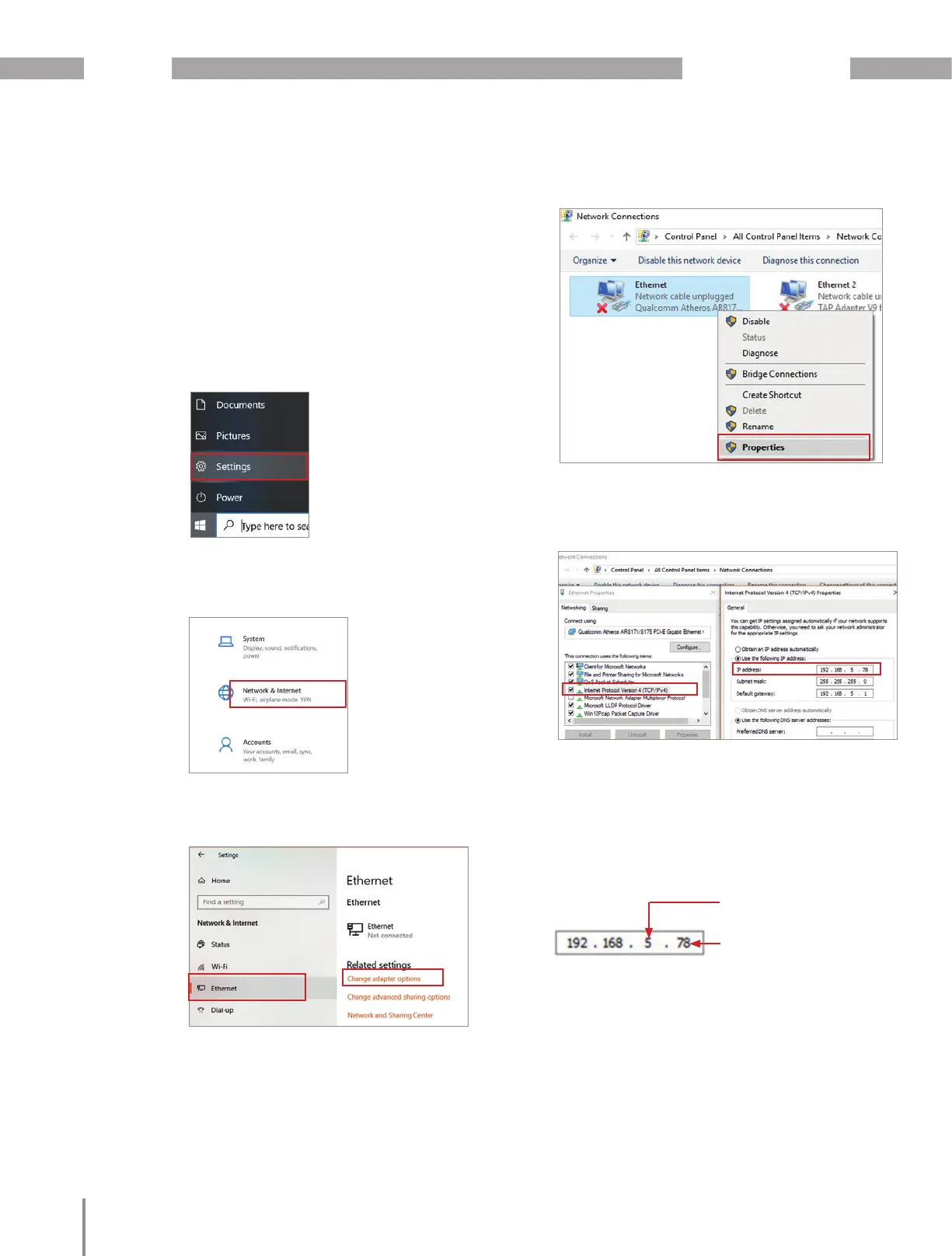
1. Go to the Windows icon and select settings;
select Network and Internet.
2. Select “Ethernet” and select “Change adapter
options”
3. Select “Ethernet” and select “Change adapter
options”
4. Select the Ethernet adapter and right click to
reveal the menu; then click on “Properties”.
5. Select the “Internet Protocol Version 4 (TCP/
IPv4)” field and then click configure; select
“Use the following IP address”.
6. Click “Use the following IP address” setting.
In the IP address field enter in the IP address
of the device being polled with the exception
of the last section i.e. “.78” in this example to
avoid an IP address conflict with any other de-
vices on the network.
7. The default Subnet mask on the UMG 804
is 255.255.255.0. If the Subnet Mask on the
UMG 804 is different modify it on the Windows
property panel.
8. If going through a Gateway the default gateway
address should be added.
Subnet must match
UMG 804 Subnet
This number must not be the
same as any other devices
on the network / UMG 804



 To Next Page