Connecting from a Web
Browser
You can access the web functions of this camera
recorder via a web browser on devices such as a
smartphone, tablet terminal, or PC.
Make
the necessary preparations for connection in
advance.
(A P185 [Camera Setup for Network
Connection] )
1
Set the camera recorder to the Camera
mode, and display
[Connection Setup]
(status screen).
0
Press the [STATUS
] button on the camera
recorder to display the status screen. Press
the cross-shaped button (HI) to display the
[Connection Setup] screen.
0
Check the displayed
[IP Address].
2
Start up the web browser on the terminal
you wish to connect to the camera
recorder, and enter the [IP Address] in the
address field.
(Example: 192.168.0.10)
If “192.168.0.10” is displayed in [IP Address],
enter “http://192.168.0.10”.
.
3
Enter the user name and password.
Enter the user name and the password on the
login screen to display the main page of the
camera.
0
Check the [
Web Username] and [Web
Password] in the [Network] screen (status
screen).
Memo :
0
The user name and password can be changed
in [Network] B [Web
] B [Username] and
[Password].
(A P147
[ Username ] )
(A P147 [ Password ] )
o
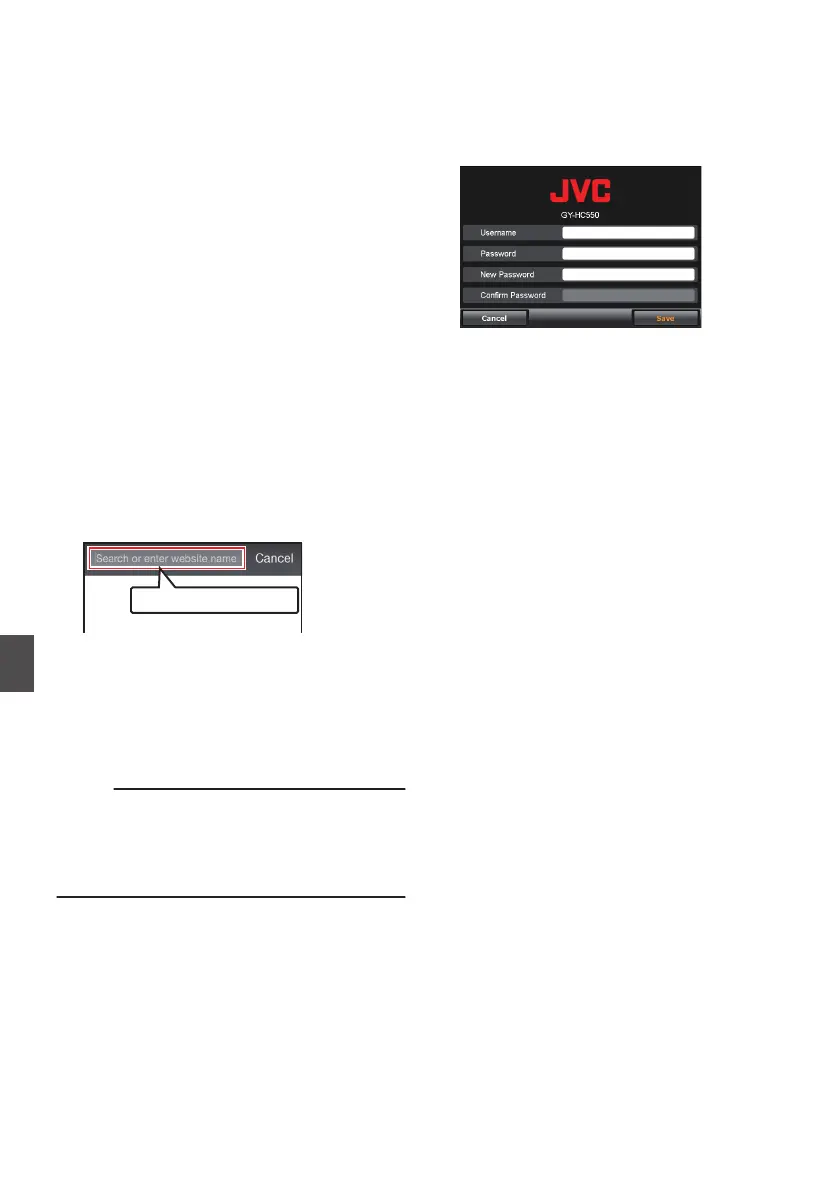
Default network settings (U model only)
If
a connection is established from the web browser
without changing the initial setting in [Network] B
[Web] B [Password], a screen prompting you to
reset the password will appear on the web browser.
After configuring the password, you will be able to
access the top page of the camera.
.
If you have initialized all the menu settings or
performed a network settings reset, a screen
prompting you to reset the password will appear
again. Configure the password accordingly in this
case.
194
Connecting from a Web Browser
Network


 To Next Page
 Loading...