80 | 07 Registration, Playbox, Performance
The Voice button in Registration is useful for having up to four voices to play on the
keyboard to accompany a song or style (any resource you have associated with that
Registration memory.
If you activate LOCK, the eight on-screen items do not change when you call another
Registration. This option is only valid for Voice 1, while it does not affect Voice 2 and
Drawbars.
Creating/Saving a Registration at home or studio
As we have seen above, once you have set the style, sounds, effects, and all other
configuration parameters needed to perform a song, do not forget to save the Registration
to be able to open it in the future, at the appropriate time.
1. Press the SAVE button on the front panel.
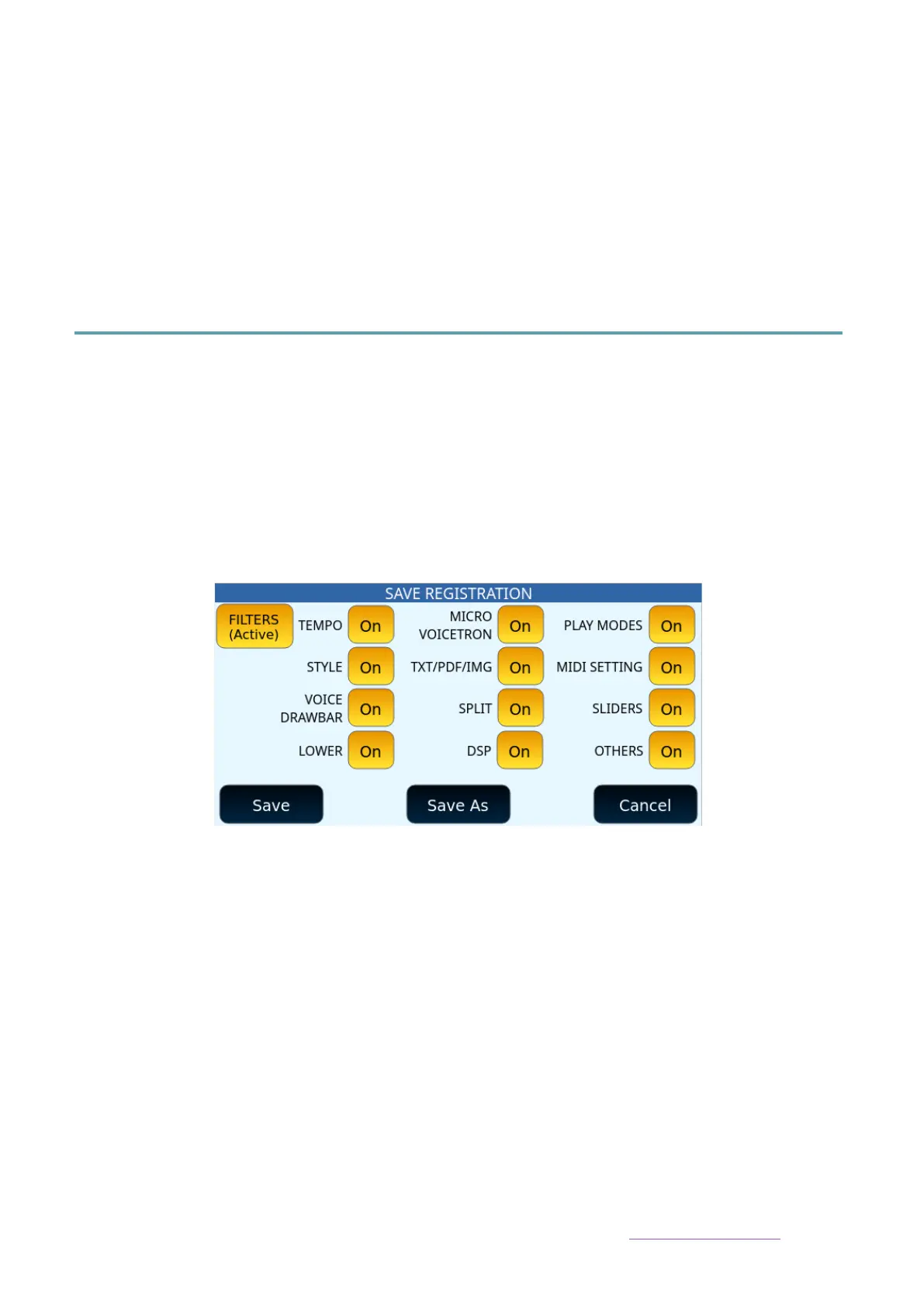
2. If you want to exclude some features from the Registration, press FILTERS to
appear (Active) and then act on the individual parameters.
Options:
• Press Save to save to the current active location (e.g. if you just loaded a registraton
and wanted to tweek and then save back to the same registration without renaming
it).
• Press Save As to save to a memory location or bank other than the current one (e.g. a
new registration or if you want to rename the current selected one). The instrument
will ask you to name the new Registration.
• Press Cancel to cancel the operation. Nothing will be saved.
Expert advice
When you save a Registration, the instrument stores the current configuration parameters
of the instrument of the keyboard. However, if you want to exclude certain parameters from
being loaded (e.g. Midi or footswitch set up which you want to be consistent throughout as
you switch between registrations), you can customize EVENT-X via Registration Setup and


 To Next Page