01 Getting started | 9
There are a vast number of EVENT-X functions, and, to maximize stability of the instrument,
some keys on the front panel are disabled during certain operations to facilitate ease of use.
Should this extremely rare occasion occur, do not panic. Simply press the EXIT button
(sometimes even twice to go back up steps) to return to the HOME page. Then try again.
Large high resolution Touch screen
It is easy to work with EVENT-X thanks to the large, graphic, and intuitive 7” colour screen.
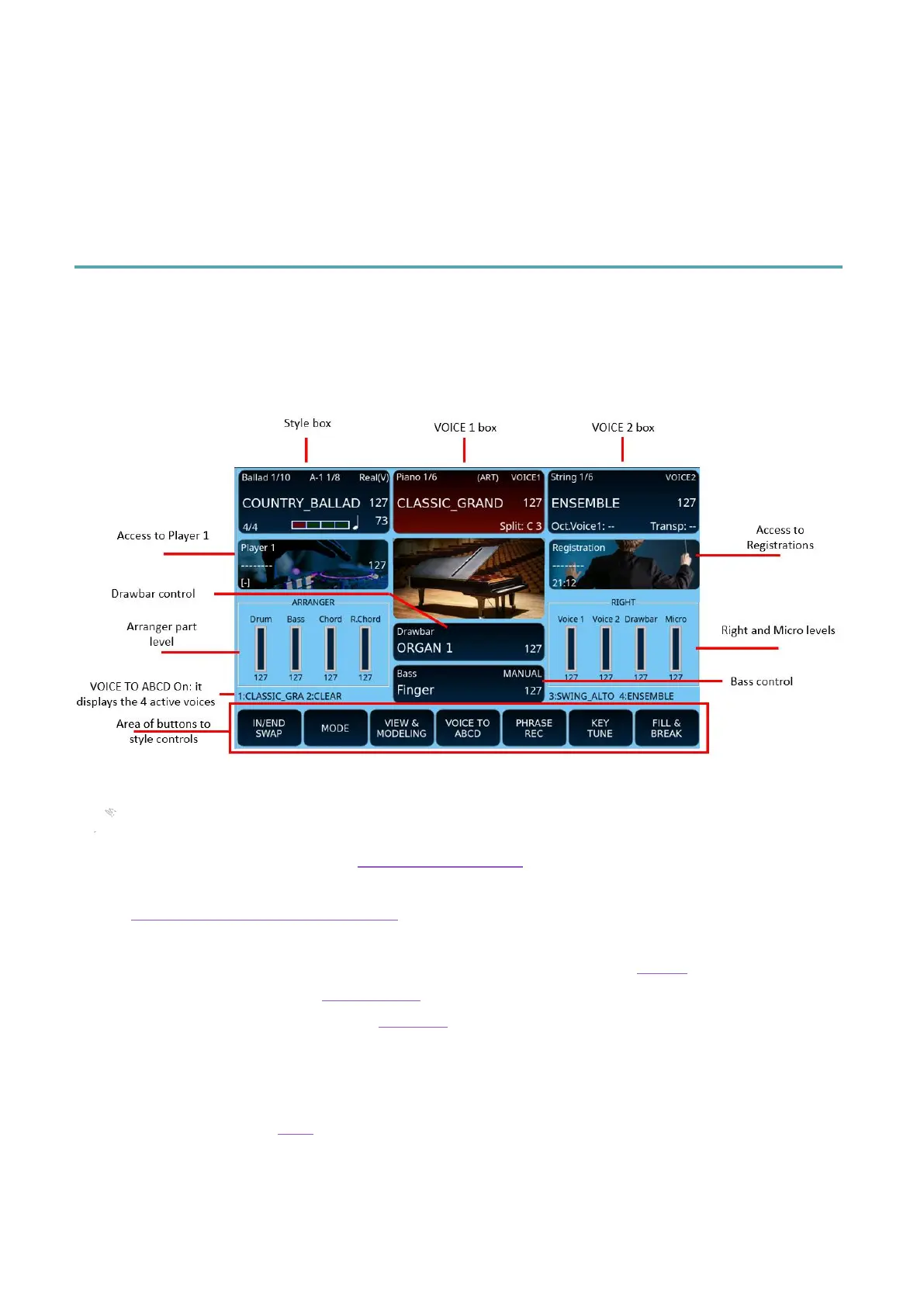
After turning on the instrument, the HOME page appears which facilitates access to the
primary functions for the main use of the instrument as an arranger.
Description:
• The top left frame displays and is where you can control the accompaniment style in
action. Find out more here: Controlling the style.
• The top center frame displays and controls the VOICE 1. Find out more in the
Description of the selected voice paragraph.
• The top right frame displays and controls the VOICE 2.
• On the second row, the frame on the left allows access to the Player and the frame on
the right, access to the Registrations.
• In the centre of the sreen, the Drawbar frame allows you to switch to the search and
control of the organ voices.
• Third row on the left, the ARRANGER frame shows the volume levels of the style's
parts; and the RIGHT shows the levels of the playable parts in real time.
• Further down the Bass frame opens the search and control page for bass voices.
• If VOICE TO ABCD is active, or when the ADSR FILTER, DRUM, MIXER, DRAWBAR
VIEW, and USER TAB buttons are assigned to the voices, the four active layers (three
from VOICE 1 and one from VOICE 2) will appear on either side of the Bass box.


 To Next Page