14
Hybrid DVR (HD Series)
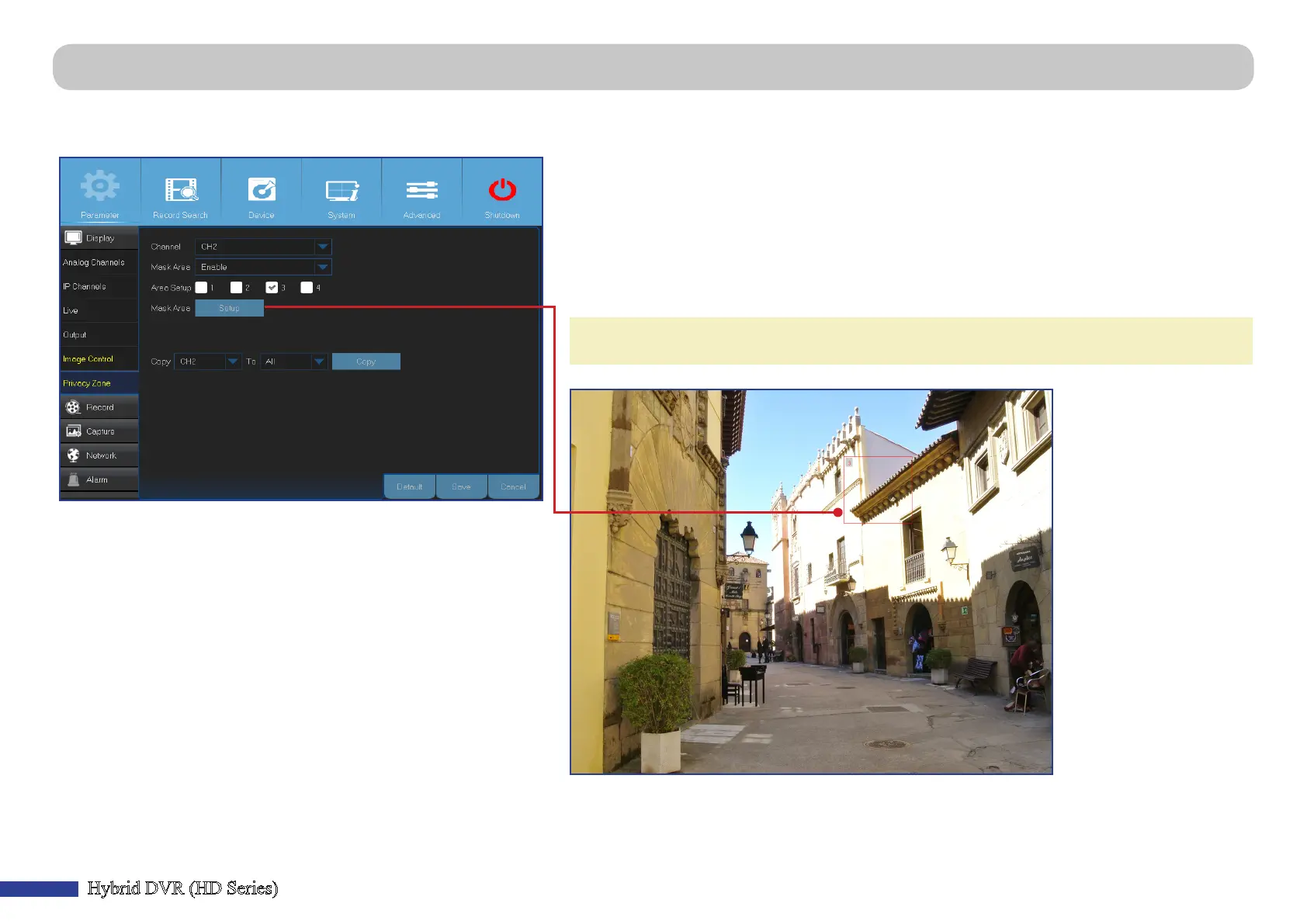
Main Menu > Parameter > Display > Privacy Zone
This menu allows you to create Privacy Zone(s) if you want to parally cover up part of the image. You can create up to four privacy zones in any size and locaon on the
channel view. These zone(s) appear as “red box rectangle areas”. Just click inside the default red-lined rectangle and drag it where you want to create a privacy zone.
• Channel: Select the channel(s) where you want to set privacy zone(s).
• Mask Area: You need to enable this funcon to set privacy areas.
• Area Setup: Decide how many privacy areas you want to set and check the area(s).
• Mask Area: Click Setup to open the channel in full screen mode and start marking the privacy
zones. Depending on the number of areas you have chosen in Area Setup, you will see areas
covered with black rectangles on the channel view. When you have nished marking the areas,
right-click to return to the Main Menu.
NOTE: The privacy zone(s) are not visible on channel live view as well as on the video le. On live view
and video le, you can see the privacy zone(s) covered with black boxes.



 To Next Page