Hybrid DVR (HD Series)
23
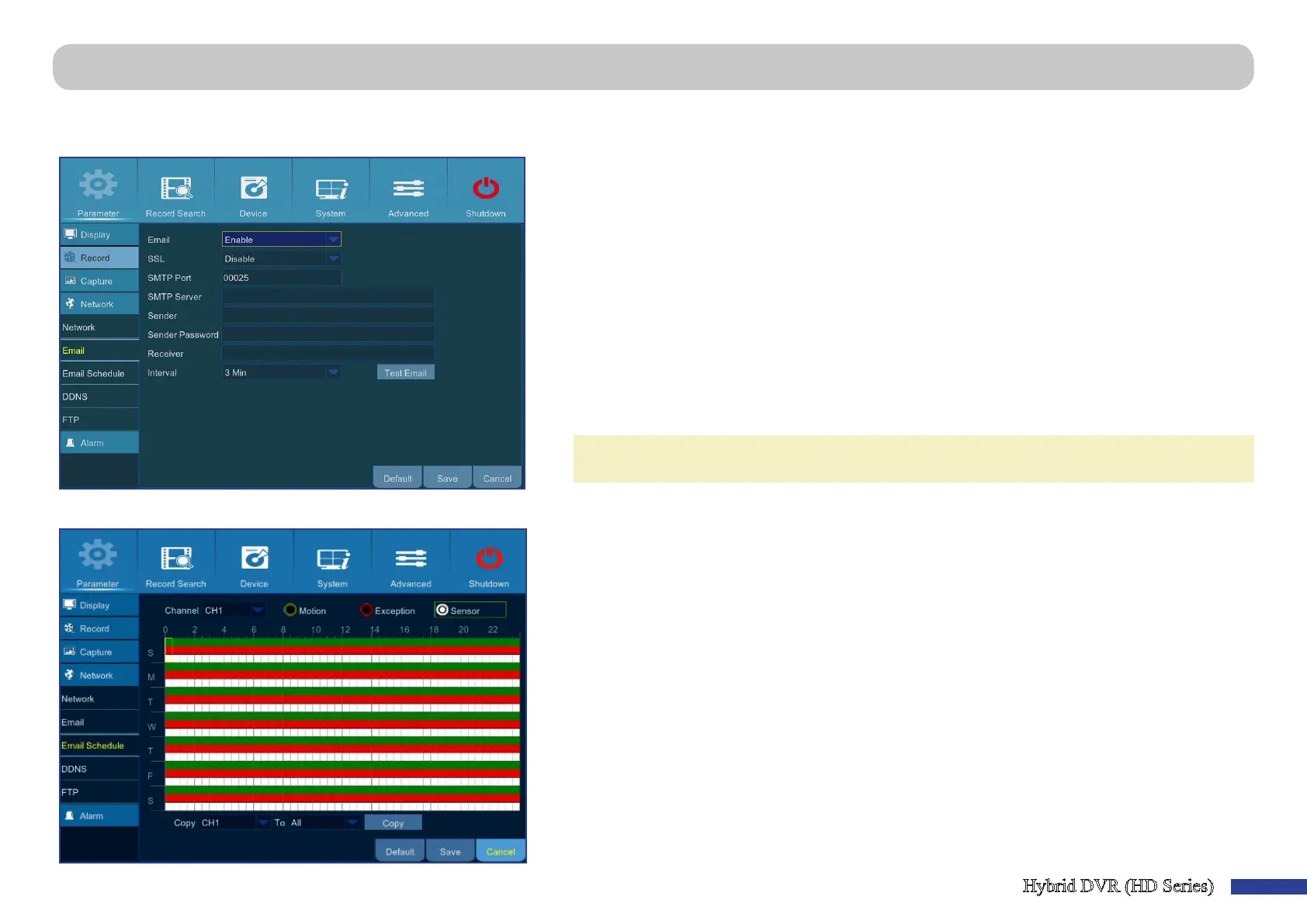
Main Menu > Parameter > Network > Email & Email Schedule
This menu allows you to congure email sengs. Please complete these sengs if you want to receive the system nocaons on your email when a moon is detected,
HDD becomes full, HDD is in error state, or Video Loss occurs.
• Email: Enable this feature.
• SSL: Enable if your email server requires the SSL vericaon. If you are not sure, please consult
your email service provider. For example, if you are using Gmail then this opon should be
enabled.
• SMTP Port: Enter the SMTP port of your email server. For example, if you are using Gmail, the
SMTP port is 465.
• SMTP Server: Enter the SMTP server address of your email.
• Sender: Enter your email address.
• Sender Password: Enter the password of your email.
• Receiver: Enter the email address where you want to receive the event nocaons from the
DVR.
• Interval: Congure the length of the me interval between the nocaon emails from the DVR.
NOTE: To make sure all sengs are correct, click Test Email. The system sends an automated email
message to your inbox. If you received the test email, it means the conguraon parameters are correct.
This menu allows you to create email schedule. Dene when and what type of events you want to be noed by email.
The color codes on email schedule have the following meanings:
• Green: Slot for Moon.
• Red: Slot for Excepon (HDD full, HDD error, or Video Loss).
• White: Slot for PIR camera or Smoke detector camera.
• Automac Event Sending is O: A me slot marked black means that there is no automac email
sending scheduled.



 To Next Page