Hybrid DVR (HD Series)
37
Remote Access via Web Client
Use the Web Client to remotely access your DVR at anyme via a PC. Before you access the Web Client, you need to ensure that the network sengs of the DVR are congured
properly. The most convenient and easiest way is if you have set the DVR a stac IP address (please see “Main Menu > Parameter > Network > Network” on page 21). It means you
only need to open the web browser on your PC and type in the stac IP address you have set on the DVR. However, if the IP address of the DVR is assigned by a DHCP server (see
“Main Menu > Parameter > Network > Network” on page 21), then it means that each me you reboot the DVR, the IP address changes. In this case, ask if your ISP can provide you
a stac IP address. If not, then congure the DDNS service. See the network sengs in “Main Menu > Parameter > Network > Network” on page 21 and “Main Menu > Parameter >
Network > DDNS & FTP” on page 24. Also, please make sure the UPnP is congured in the DVR and router, or the manual port forwarding is completed in the router.
NOTE: For Safari on Mac OS, verify the following:
a. Make sure you have installed or updated the Web plug-in to the latest version. Click the download link to download the SurveillanceClient Installer soware, close the browser, and
follow the on-screen instrucons to install the soware on your Mac.
b. Make sure that the Web plug-in is enabled in your browser (go to Safari > Preferences > Security > check Allow Plug-ins checkbox).
c. When logging in for the rst me, click Trust to enable your browser to use “SurveillanceClienth.plugin” plug-in.
Logging In
To access the Web Client, do the following:
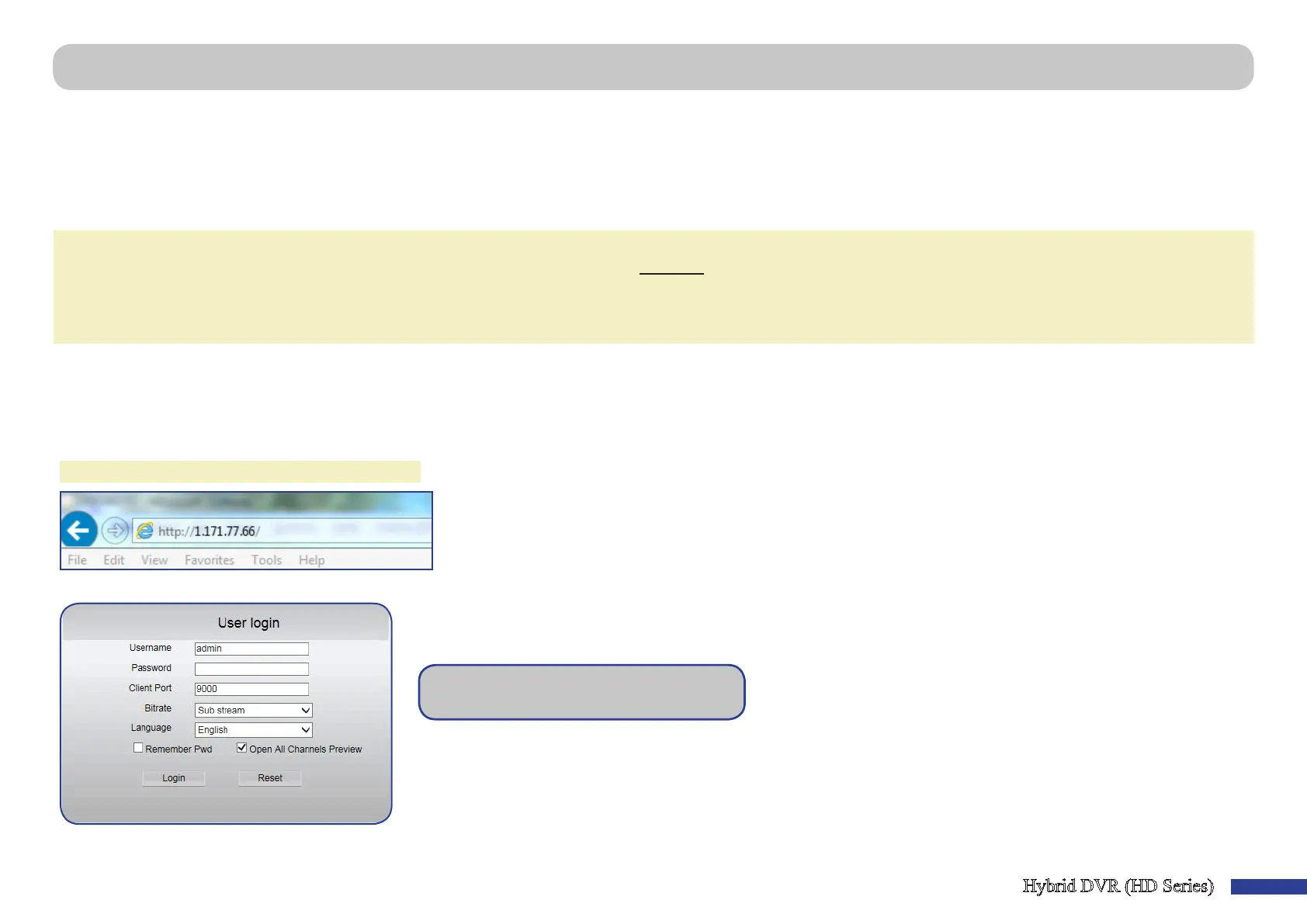
1) Launch the web browser (Internet Explorer) on your PC and enter the DVR stac IP address or DDNS domain name (Host Name) you have set on DVR in the URL box.
NOTE: The following IP address is an example only.
The user login page opens as shown.
2) Enter the User Name and Password. Then click Login.
The default DVR user name is “admin” and
default password is “123456”.



 To Next Page