24
Hybrid DVR (HD Series)
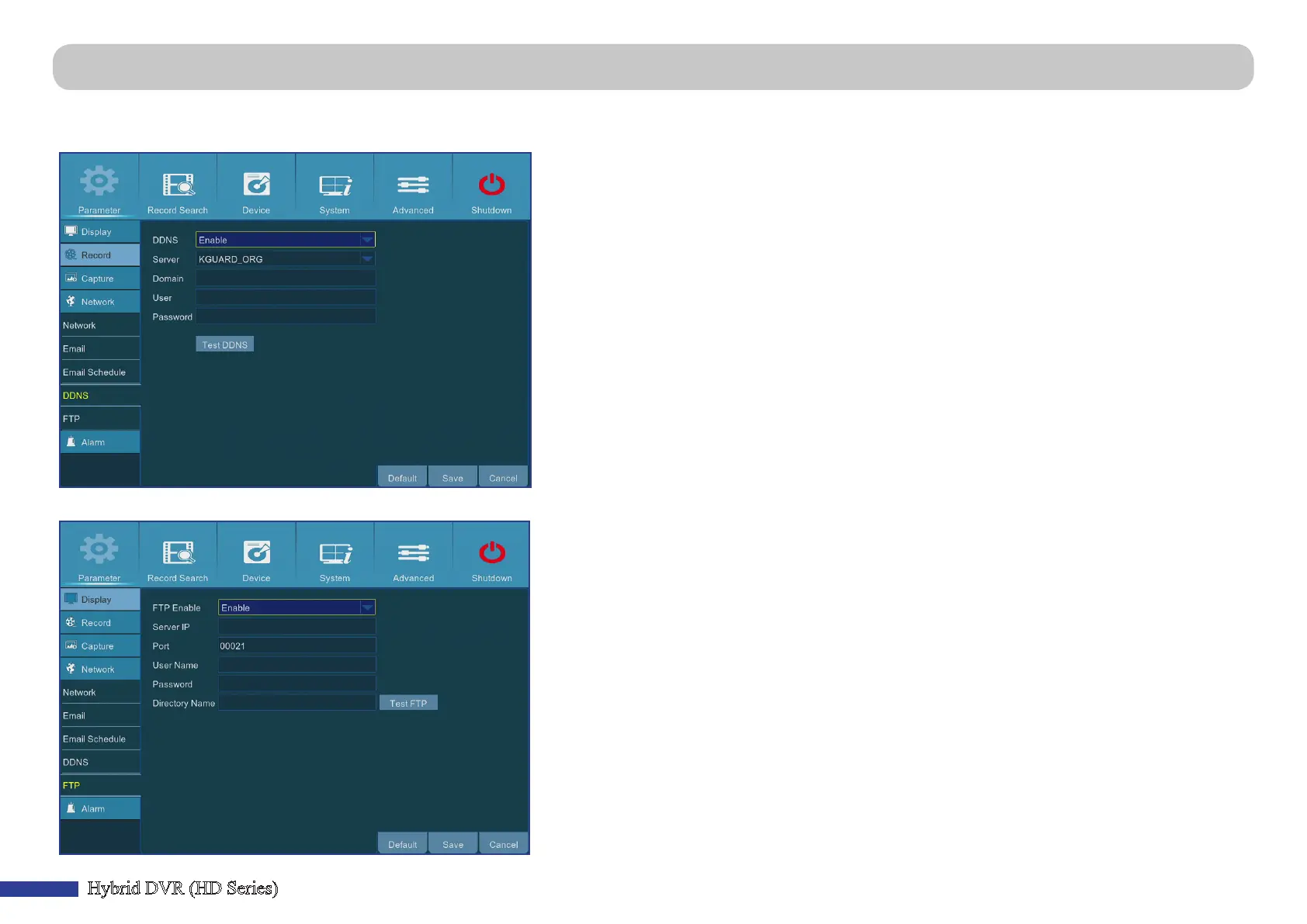
Main Menu > Parameter > Network > DDNS & FTP
This menu allows you to congure DDNS sengs. The DDNS provides a stac address to simplify remote connecon to your DVR. To use the DDNS, you rst need to open
an account on the DDNS service provider’s web page. For example, KGUARD.ORG: hp://www.kguard.org.
• DDNS: Enable the DDNS service.
• Server: Select the preferred DDNS server.
• Domain: Enter the domain name you created on the DDNS service provider’s web page. This will
be the address you type in the URL box when you want to connect remotely to the DVR via PC.
• User/Password: Enter the user name and password you obtained when creang an account on
the DDNS service provider’s web page. For example, username for KGUARD.ORG users is the email
address you used when creang the account on KGUARD.ORG web page.
Aer all parameters are entered, click Test DDNS to test the DDNS sengs.
This menu allows you to enable FTP funcon to view and load captured snapshots from DVR to your storage device over FTP.
• FTP Enable: Enable the feature in DVR.
• Server IP: Enter the FTP server IP address.
• Port: Enter the FTP port for le exchanges.
• Name/ Password: Enter your FTP server user name and password.
• Directory Name: Enter the default directory name for the FTP le exchanges.
• Test FTP: Click to test the FTP sengs.



 To Next Page