LaCie Ethernet Disk RAID (Firmware version 1.4)
User Manual
page 101
Protecting Local Disks
7.7. Changing the Recovery Password
When you protect a disk, you specify what password
to use for recovering the disk using the recovery CD or
when you remotely boot from a backup on the Ethernet
Disk RAID. You can change this password at any time
as long as the Status of the backup is Normal. (is en-
sures that the change is also made on the Ethernet Disk
RAID.)
TeChNICAl NOTe: e same password is
used for all disks backed up to the same Ether-
net Disk RAID. If you backed up multiple disks
to the same location and change the password
for one, the password is changed for all of them.
However, if you backed up one disk to one Ether-
net Disk RAID and a different disk to a different
Ethernet Disk RAID, each disk can have a differ-
ent recovery password.
To change the recovery password:
Click Restore.
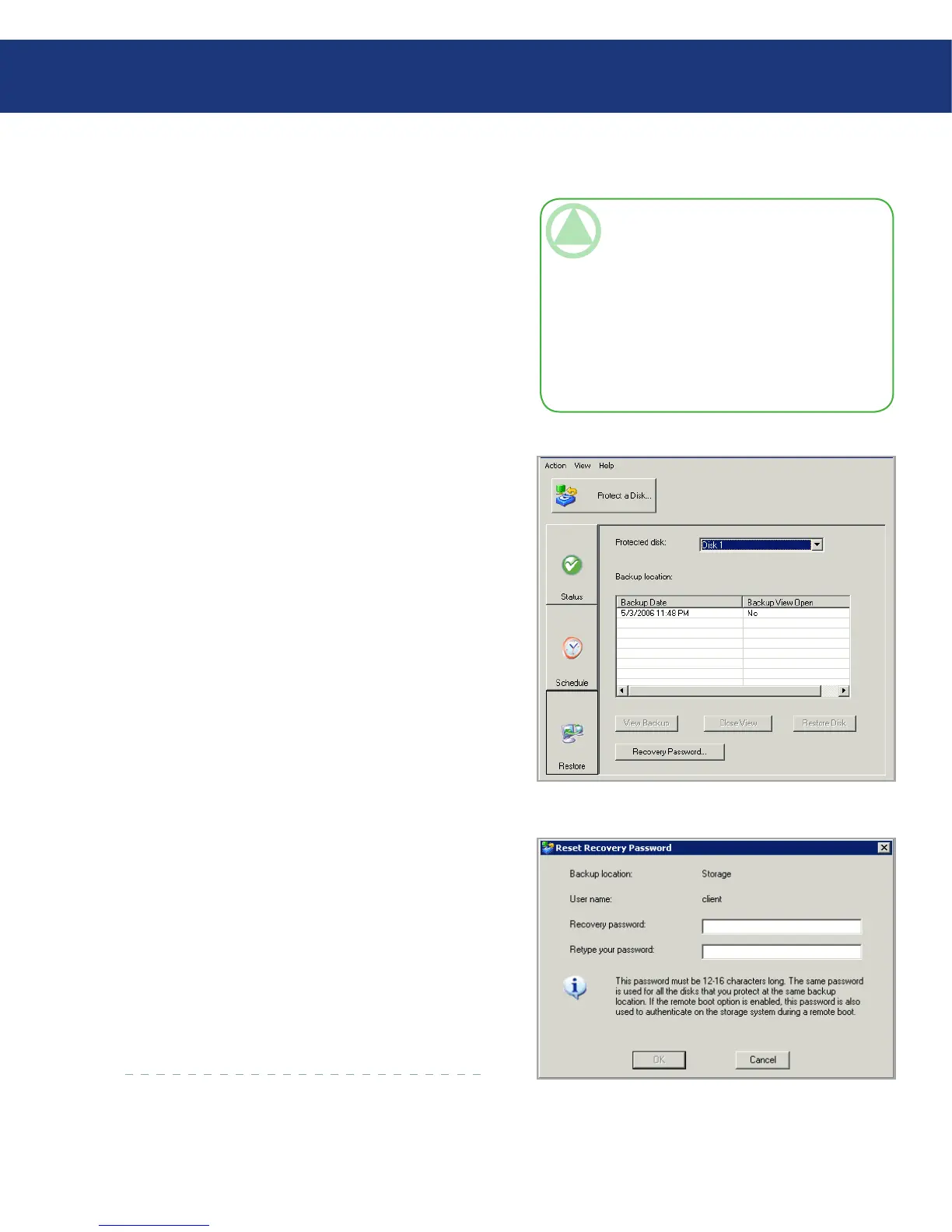
In the Protected disk list, select a disk whose backup
resides on the Ethernet Disk RAID whose recov-
ery password you want to change. See Fig. 7.7.A.
To double-check your selection, click Status. e
name of the Ethernet Disk RAID appears in the
Backup location area. en click Restore to return
to the Restore page.
1.
2.
Fig. 7.7.A
Click Recovery Password. e Reset Recover Pass-
word dialog box appears. See Fig. 7.7.B.
In the Recovery password text box, enter the desired
password. is password must be 12–16 characters
long.
In the Retype your password text box, enter the
password again.
Click OK.
3.
4.
5.
6.
Fig. 7.7.B














 To Next Page