LaCie Ethernet Disk RAID (Firmware version 1.4)
User Manual
page 50
Managing Your Ethernet Disk RAID
5.6. Managing Backups
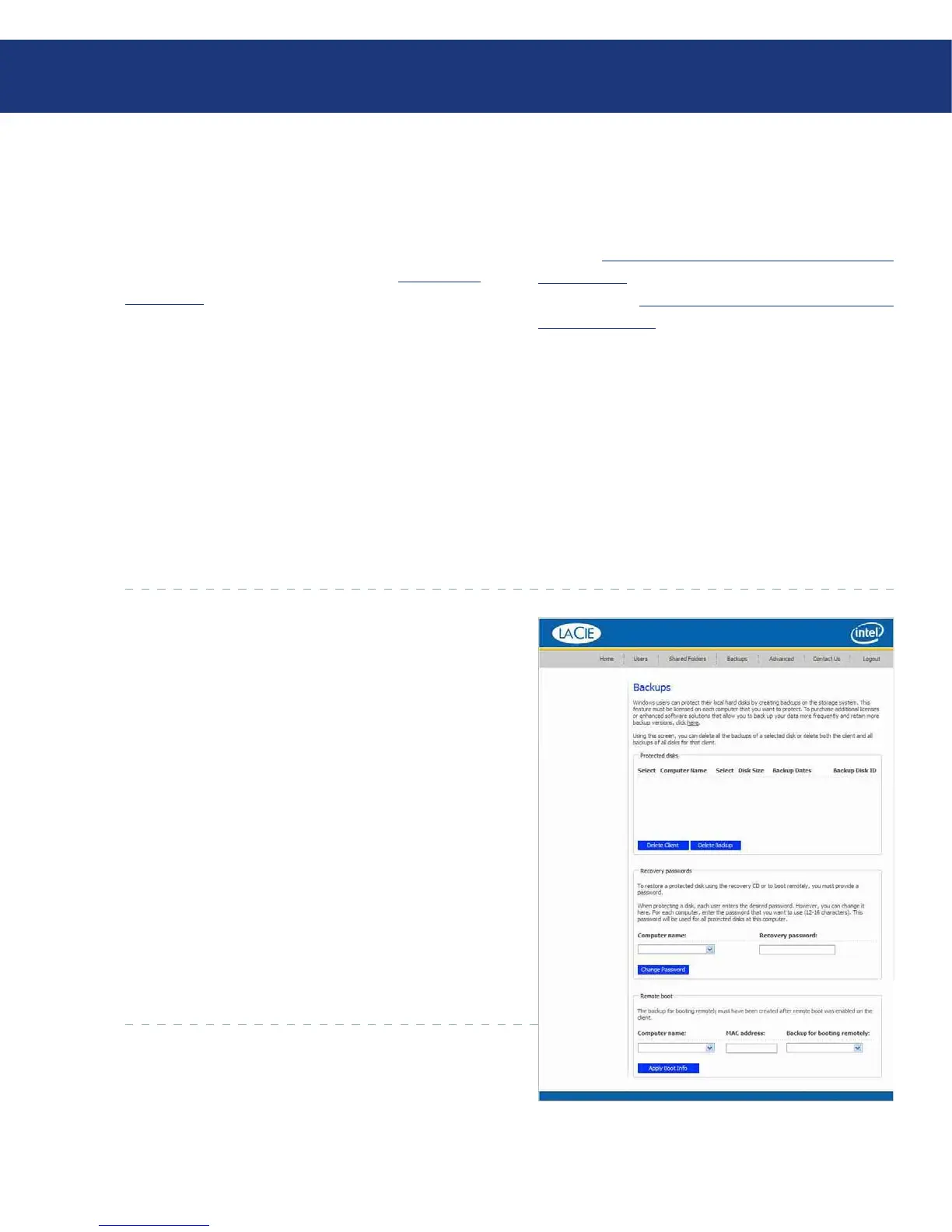
Once the users have used Windows Backup Soft-
ware to back up their computer hard disks to the Eth-
ernet Disk RAID (as described in section 7. Protecting
Local Disks), the Backups page displays a list of each
computer that has done this, the size of each protected
disk, the date and time of all available backups, and the
backup disk ID (the number used to identify the backup
on both the storage server and on the Status page in the
Windows Backup Software software).
If a user ever has to recover a disk using the recovery
CD or remotely boot from a backup on the Ethernet
Disk RAID, the user will be prompted for a password to
do so. e user had to provide this password when pro-
tecting the disk. However, if the user forgets it, you can
reset the password using the Manager. (For information
about recovering a disk using the recovery CD, refer
to section 7.9.3. Recovering a System Disk Using the
Recovery CD. For information about booting remotely,
refer to section 7.9.4. Recovering a System Disk While
Booting Remotely.)
For booting remotely, you can also specify the MAC
address to use (if you want to remotely boot a computer
using a different computer’s backup) and the backup to
boot from.
In addition, when a user removes protection for a
disk, the existing backups are not deleted. e user can
re-use the allocated space for new backups, or you can
delete those backups manually using the Manager.
5.6.1. Changing the Recovery Password■
In the navigation bar, click Backups.
In the Computer name list in the Recovery pass-
words group box, select the name of the computer
whose recovery password you want to change.
In the Recovery password text box, type the pass-
word to use. is password must be 12-16 characters
long.
Click Change Password.
When the confirmation message appears, click OK.
e user must provide this password when recov-
ering a disk from this Ethernet Disk RAID using the
Recovery CD or when remotely booting from a backup
on the Ethernet Disk RAID.
1.
2.
3.
4.
5.
Fig. 5.6.1.














 To Next Page