LaCie Ethernet Disk RAID (Firmware version 1.4)
User Manual
page 22
Configuring Your Ethernet Disk RAID
4.5. USB Devices
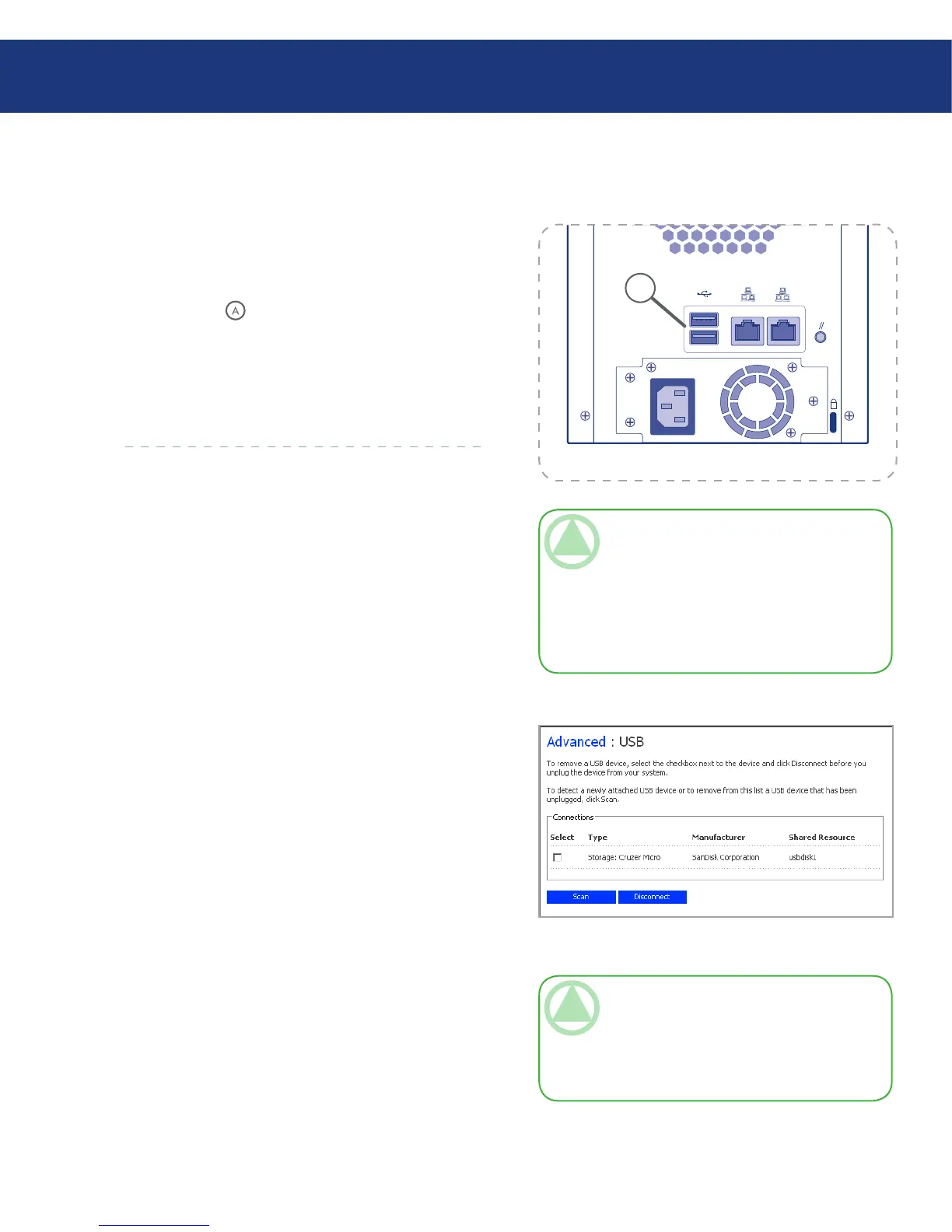
If you purchased optional USB external storage de-
vices, you can attach them to the USB ports on the back
of the unit (see in Fig. 4.5.1.).
When you plug a USB device into the Ethernet
Disk RAID, the device is automatically detected and is
added to the USB page. (You might need to click Scan
to update the display.)
TeChNICAl NOTes:
USB hubs are not supported.
Any USB disk must be formatted before you use
it with the Ethernet Disk RAID, and only the
first partition of a FAT or FAT32 file system will
be recognized.
❖
❖
A
Fig. 4.5.1.
4.5.1. Attaching USB Devices■
4.5.2. Disconnecting USB Devices■
Fig. 4.5.2.
TeChNICAl NOTe: If you inadvertently
disconnect a USB device, unplug it from the
Ethernet Disk RAID, plug it back in, and then
click Scan. is reactivates the USB device. User
assignments are always retained.
e USB page displays a list of all USB devices that
are currently attached to the Ethernet Disk RAID. USB
disks are identified by the names usbdisk1 and usbdisk2.
(ese names cannot be changed.)
To unplug a USB device from the Ethernet Disk
RAID, you must first use the Manager to disconnect it.
To disconnect a USB device:
In the navigation bar, click Advanced.
In the left pane, click USB.
In the list of USB devices, select the device(s) that
you want to disconnect.
Click Disconnect.
When the confirmation message appears, click OK.
You can now unplug the USB device.
1.
2.
3.
4.
5.














 To Next Page