Configuration and diagnostic software SensorStudio
Leuze electronic RSL 430 27
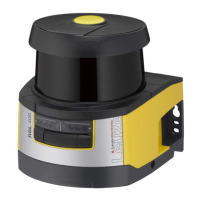
Ä Select the safety sensor from the device selection list and click [Next].
ð The device manager (DTM) of the safety sensor shows the initial screen for the configuration project.
Fig.4.6: Initial screen for safety configuration
NOTICE
The device manager (DTM) starts without querying the access level of the user. During commu-
nication with the safety sensor, the safety sensor does however query the access level of the
user. To change the access levels (see chapter 4.5.1 "Selecting access level").
Setting device manager
Using the menus of the device manager (DTM) you can set the parameters of the safety configuration. The
online help system provides information on the menu items and adjustment parameters. Select the Help
menu item in the menu [?].
4.5.1
Selecting access level
Using the device manager you can change the access level of the user, if necessary.
For the authorization concept of the software, see chapter see chapter 5.1 "Authorization concept of safety
sensor".
Ä Click in the DTM menu bar on the [Change access level]button ( ).
ð The Change access level dialog box opens.
Ä In the Access level list, select the item Expert, Engineer or Observer and enter the default password or
the password defined for the individual user.
The following access levels are available:
• Observer can read everything (no password)
• Expert can change communication and diagnostics settings (default password = comdiag)
• Engineer can additionally change the safety configuration (default password = safety)
The password is case-sensitive (i.e. a distinction is made between upper-case and lower-case letters).
Ä Confirm with [OK].


 To Next Page