Configuration and diagnostic software SensorStudio
Leuze electronic RSL 430 28
4.5.2
IDENTIFICATION
Detailed information on the menu items and setting parameters can be found in the information area and in
the online help. Select the Help menu item in the menu [?].
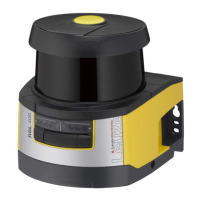
• RSL400 safety laser scanner
• Sensor and configuration data
• Technical data
4.5.3
PROCESS
Detailed information on the menu items and setting parameters can be found in the information area and in
the online help. Select the Help menu item in the menu [?].
• Sensor display
Device display in the DTM menu
• SENSOR DISPLAY
• STATE OF THE ACTIVE PROTECTIVE AND WARNING FIELDS
• SENSOR DATA
• Measurement contour
• Inputs / outputs
• SENSOR DISPLAY
• CONNECTIONS AND SIGNALS
• Simulation – only with access level Engineer
• Measurement contour
• Inputs / outputs
4.5.4
CONFIGURATION
see chapter 9 "Configuring the safety sensor"
NOTICE
You can only transfer changes made in the CONFIGURATION menu to the safety sensor if you
are logged in with the access level Engineer.
4.5.5
DIAGNOSIS
Adjustment / Alignment
Display of safety sensor alignment using the integrated electronic spirit level
Prerequisites: The software and safety sensor are connected.
Ä In the DIAGNOSIS menu, click the [Align sensor mechanically]button ( ).
ð The safety sensor display shows the horizontal and vertical alignment in degrees.
Visually identify device
If you have installed multiple safety sensors, identify the safety sensor that is connected to the currently
open device manager (DTM).
Prerequisites: The software and safety sensor are connected.
Ä In the DIAGNOSIS menu, click the [Visually identify sensor]button ( ).
ð In the display of the safety sensor connected to the device manager (DTM), the message "PING re-
ceived" flashes for ten seconds.
Reset sensor
Acknowledge messages and faults
Set safety sensor to safety mode


 To Next Page