Configuring the safety sensor
Leuze electronic RSL 430 79
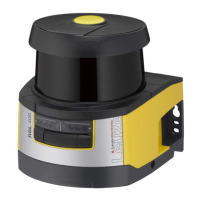
• Connect the USB cable to the safety sensor and the PC.
• Select the LAN/USB (RNDIS) interface for the device search.
• Start the device search by clicking the [Start] button.
• Select the safety sensor from the list of found devices.
NOTICE
Ä After use, seal the USB connection using a protection cap. Make sure that the protection
cap is felt to engage when sealing. The IP degree of protection specified in the technical
data is only achieved when the protection cap is closed.
9.2.4
Communication between safety sensor and PC
The following communication settings are active when the safety sensor is delivered:
LAN
• DHCP: Obtain IP address automatically
USB
Bluetooth
• Bluetooth module activated
• Device scan activated
You can change the communication settings on the PC using the configuration and diagnostics software in
order to, for example, assign a permanent IP address to the safety sensor in your network.
Ä Start the configuration and diagnostics software on your PC.
ð The mode selection of the Project Wizard is displayed.
ð If the mode selection is not shown, click the [Project Wizard] button ( ) in the menu bar of the soft-
ware to start the project wizard.
Ä Select the configuration mode and click [Next].
ð The Project Wizard displays the device selection list containing the configurable safety sensors.
Ä Select the safety sensor from the device selection list and click [Next].
ð The initial screen for the configuration project is displayed together with information for identification of
the selected safety sensor.
Ä In the initial screen, click the SETTINGS tab.
ð The SETTINGS menu opens.
Assign permanent IP address
Ä Select the menu command Communication > LAN.
Ä In the DHCP dialog box, deactivate the Obtain IP address automatically checkbox.
Ä In the CONNECTION SETTINGS dialog box, enter the IP address information.
Activating/deactivating the Bluetooth interface
Ä Select the menu command Communication > Bluetooth.
Ä Activate/deactivate communication with the safety sensor via the Bluetooth interface using the Activate
Bluetooth module checkbox. If the Bluetooth module is deactivated, communication with the safety sen-
sor via the Bluetooth interface is not possible.
Ä Activate/deactivate the Bluetooth device scan using the Activate device scan checkbox. If the device
scan is deactivated, the safety sensor will not be found during the Bluetooth device scan. To allow com-
munication via the Bluetooth interface, you must enter the device identification of the safety sensor
manually.


 To Next Page