Configuring the safety sensor
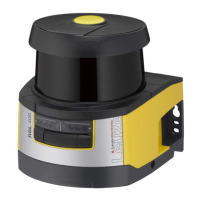
Leuze electronic RSL 430 80
9.3 Determine the configuration project
Ä Start the configuration and diagnostics software on your PC.
ð The mode selection of the Project Wizard is displayed.
ð If the mode selection is not shown, click the [Project Wizard] button ( ) in the menu bar of the soft-
ware to start the project wizard.
NOTICE
During installation of the software, a user admin (without password query) is created so that you
can start the software without user identification. If other users are registered (Tools > User
management in the FDT frame menu), you must log in at the software with a user name and
password.
This setting allows you to connect to the safety sensor and to read out, upload, enter or change
the safety configuration and all settings using the RSL400 device DTM. The password for the
safety sensor only needs to be entered (i.e. the access level only needs to be changed) when
the changes are downloaded to the safety sensor (see chapter 4.5.1 "Selecting access level").
Ä Select the configuration mode and click [Next].
ð The Project Wizard shows the list of configurable safety sensors.
NOTICE
You can use a prepared configuration project as a template and make changes to it. To do so,
select the configuration mode Open a stored project file.
If you want to load the configuration project currently stored in the safety sensor to the PC, se-
lect the configuration mode Device selection with device scan and establishment of connection
(online).
Ä Select the safety sensor in the Sensor list and click OK.
Alternatively, you can select the safety sensor by entering the part number or by specifying the sensor
range and the sensor type.
ð The device manager (DTM) of the safety sensor shows the initial screen for the configuration project.
1 Configuration Wizard
Fig.9.1: Safety configuration using Configuration Wizard


 To Next Page