Chapter 6 Communications
6-34
To send data to WinWedge
®
Step 1
Press the send/print key.
NOTENOTE
NOTENOTE
NOTE
Users can also select print options from the Users can also select print options from the
Users can also select print options from the Users can also select print options from the
Users can also select print options from the
extra menuextra menu
extra menuextra menu
extra menu
. Press. Press
. Press. Press
. Press
the the
the the
the
menu keymenu key
menu keymenu key
menu key
, followed by the , followed by the
, followed by the , followed by the
, followed by the
extra soft keyextra soft key
extra soft keyextra soft key
extra soft key
, and use the arrow, and use the arrow
, and use the arrow, and use the arrow
, and use the arrow
keys to highlight the desired print option. For example, highlightkeys to highlight the desired print option. For example, highlight
keys to highlight the desired print option. For example, highlightkeys to highlight the desired print option. For example, highlight
keys to highlight the desired print option. For example, highlight
send Dsend D
send Dsend D
send D
to print the diameter of a circle. See chapter 3: operation to print the diameter of a circle. See chapter 3: operation
to print the diameter of a circle. See chapter 3: operation to print the diameter of a circle. See chapter 3: operation
to print the diameter of a circle. See chapter 3: operation
for more information about the extra menu print options.for more information about the extra menu print options.
for more information about the extra menu print options.for more information about the extra menu print options.
for more information about the extra menu print options.
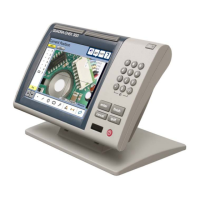
The data is displayed in the WinWedge window as shown.
NOTENOTE
NOTENOTE
NOTE
If no data appears in WinWedgeIf no data appears in WinWedge
If no data appears in WinWedgeIf no data appears in WinWedge
If no data appears in WinWedge
®®
®®
®
when the send/print key is when the send/print key is
when the send/print key is when the send/print key is
when the send/print key is
pressed, verify that the RS-232 cable is connected to the correctpressed, verify that the RS-232 cable is connected to the correct
pressed, verify that the RS-232 cable is connected to the correctpressed, verify that the RS-232 cable is connected to the correct
pressed, verify that the RS-232 cable is connected to the correct
port (com1 or com2) of the computerport (com1 or com2) of the computer
port (com1 or com2) of the computerport (com1 or com2) of the computer
port (com1 or com2) of the computer
. Check that the port. Check that the port
. Check that the port. Check that the port
. Check that the port
settings on the QC200 match the settings in the WinWedgesettings on the QC200 match the settings in the WinWedge
settings on the QC200 match the settings in the WinWedgesettings on the QC200 match the settings in the WinWedge
settings on the QC200 match the settings in the WinWedge
®®
®®
®
application.application.
application.application.
application.


 To Next Page