4.8 Send Data to Device
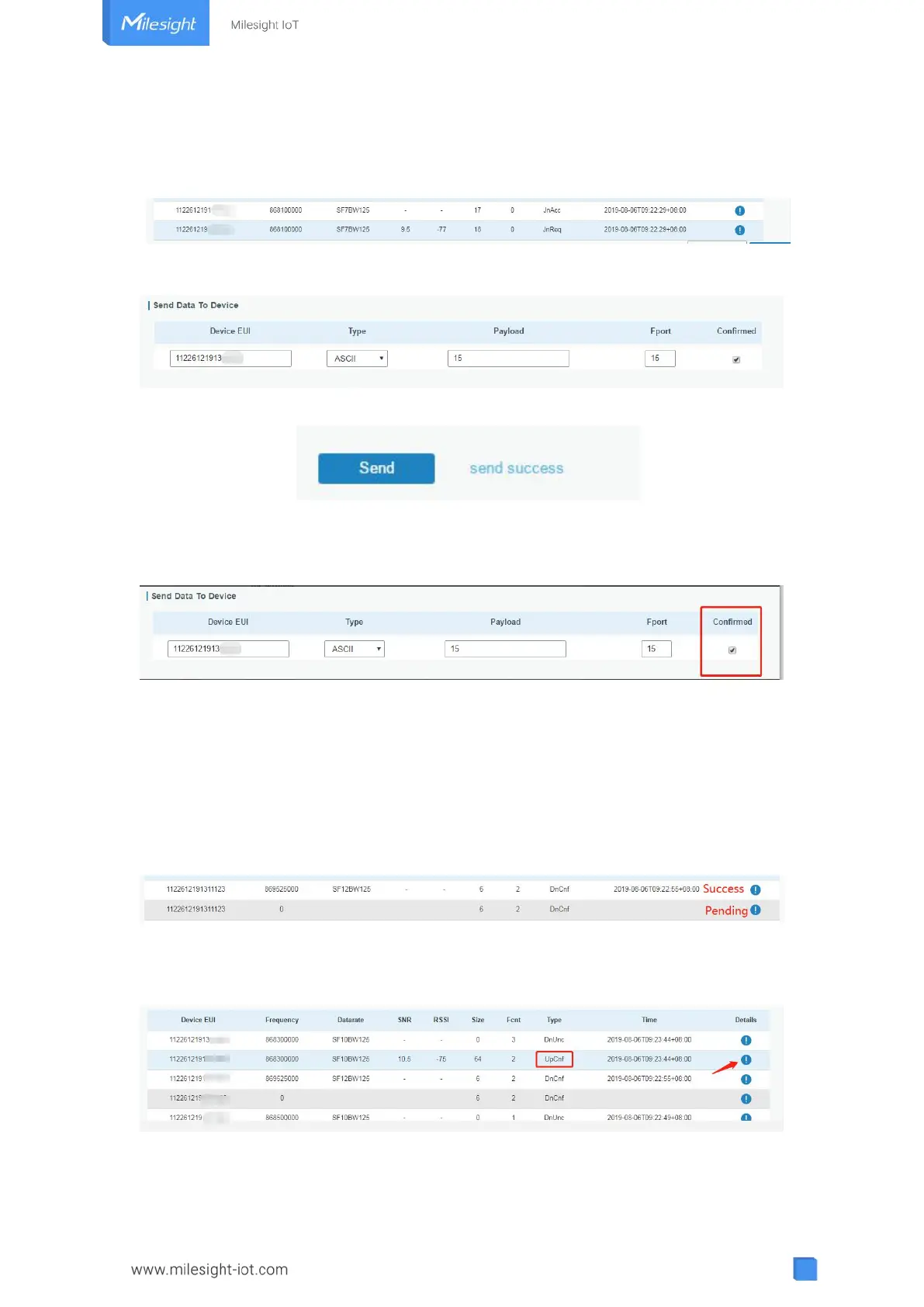
1. Go to “Network Server → Packets”, check the packet in the network server list to make
sure that the device has joined the network successful.
2. Fill in the device EUI or select the multicast group which you need to send downlinks.
Then fill in the downlink commands, ports.
3. Click “Send”.
4. Check the packet in the network server list to make sure that the device has received this
message successful. It’s suggested to enable “Confirmed”. Multicast feature does not
support confirmed downlinks.
You can click “Refresh” to refresh the list or set automatic refreshing frequency for the list.
If the device’s class type is Class C, then the device will constantly receive packets.
This packet’s type is DnCnf (Downlink Confirmed Packet) and if the packet’s color is gray,
then it means the packet cannot be transmitted now because at least one message has
been in the queue. If the packet record is white, it means the packet has been delivered
successfully.
If the device receives this downlink confirmed packet, then the device will reply “ACK” when
delivering next.


 To Next Page