25
b) Use the Keyboard screen to enter Mio Street as the street name of your destination, then tap the
search result.
Note: There may be multiple matches for a particular street name. Long streets that run through several neighbouring areas,
and common street names will produce search results ordered by their city or area name.
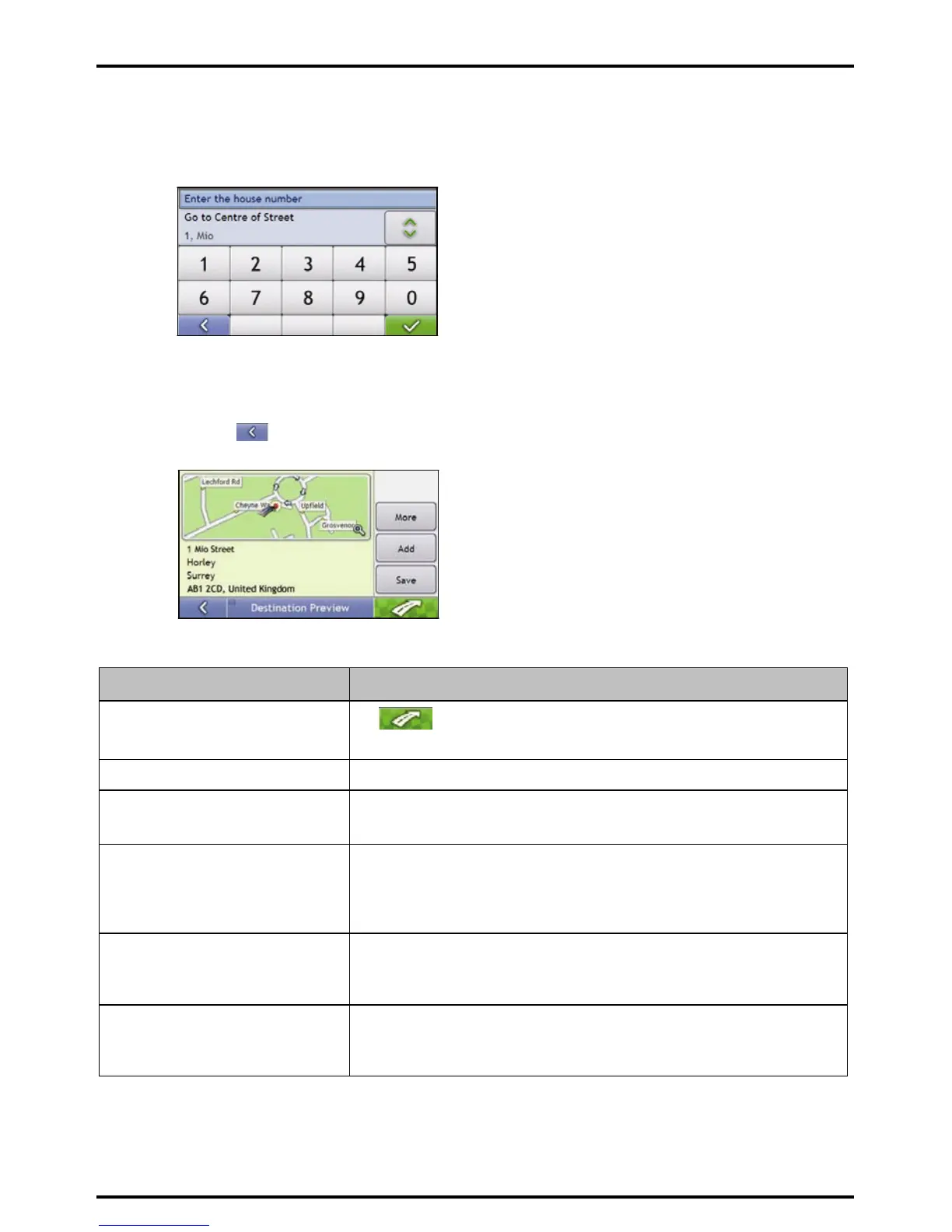
c) Use the Keyboard screen to enter 1 as the house number of your destination, then tap the search
result. The Preview screen will display.
Note: If house numbers are available, but not the one that you require, you may have to choose the same street in a
neighbouring area. Tap
and select another search result. If house numbers are not available for your selected section of
the street the Preview screen will display.
d) Complete the following:
If you want to ... Then ...
navigate to your selected destination
tap
.
Your route is calculated; the 3D Map screen will display.
view the position on the map screen tap the map to display the position on the 2D Map screen.
view more information about your
destination
tap More.
The Destination Details screen will display.
add the destination to a multi-stop trip tap Add.
The Multi-stop Trip Planner screen will display. The address is listed as a waypoint
on the multi-stop trip. See “
How do I create a trip with multiple stops?” on page
26.
save the destination as My Home tap Save.
The New Favourite screen will display.
tap Save as My Home.
save the destination as a favourite tap Save.
The New Favourite screen will display.
tap Save as Favourite.










 To Next Page