56
Element Description
Thumbnail A thumbnail of the NavPix.
Tap to display the NavPix in full-screen.
NavPix Title The title of the NavPix; tap Edit to add a title or edit the existing title.
Show on Map When selected, displays an icon on the map at the location the NavPix was taken.
Note: Show on map is available only if this is a NavPix with embedded GPS coordinates.
Tap to return to your album.
Time / Date and Location
Coordinates
Displays the time and date the NavPix was taken. Displays the GPS coordinates if
available.
Tap the scroll buttons to scroll through your album.
Assign Allows you to save a NavPix to an existing favourite, if GPS coordinates are associated
with the NavPix.
Edit Allows you to edit the name of the NavPix using the Keyboard screen.
Delete Deletes a NavPix from the album on your Mio or memory card.
Your route will be calculated and displayed on the 3D Map screen.
Note: This button is only available if this is a NavPix with embedded GPS coordinates.
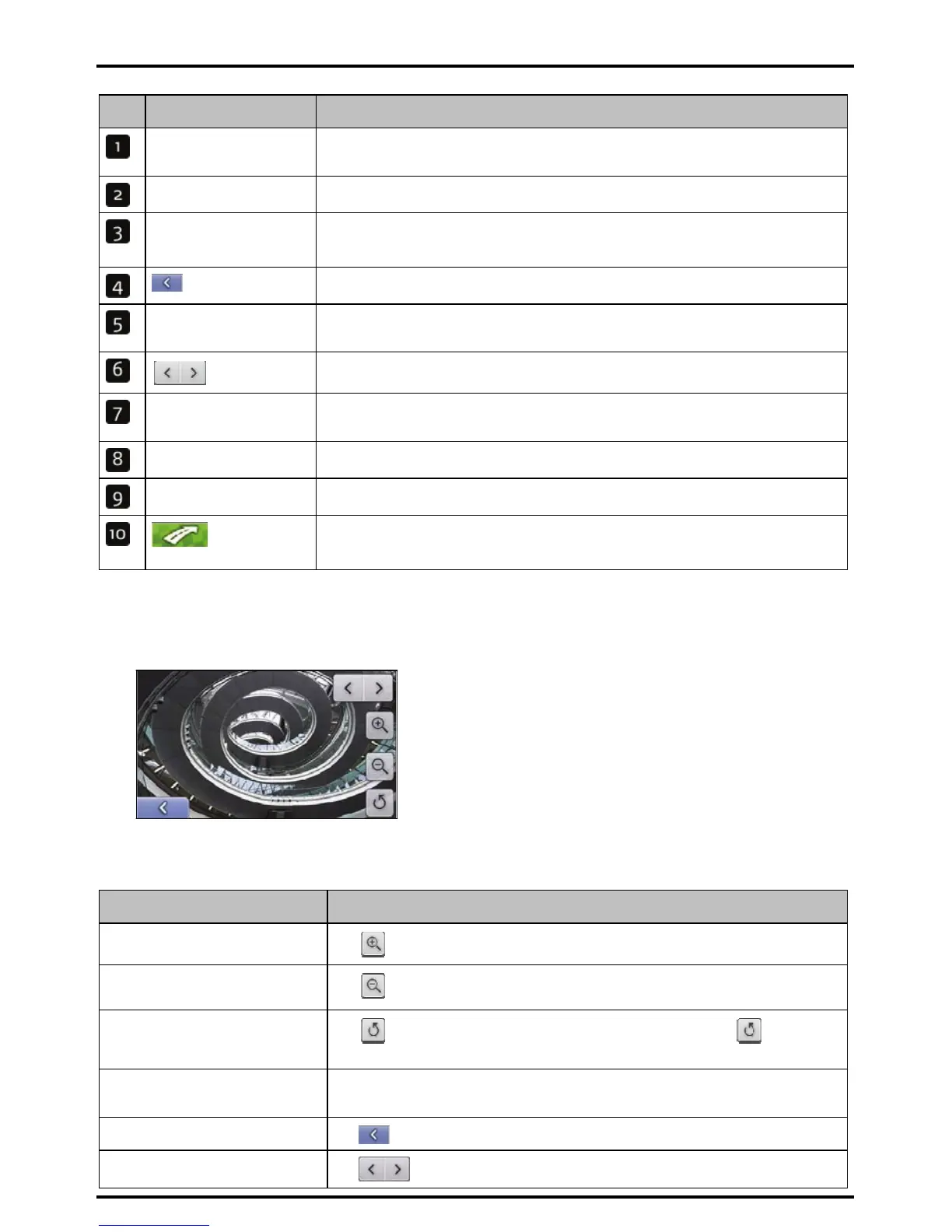
How do I view a NavPix in full-screen?
1. From the NavPix Details screen, tap the thumbnail of the NavPix.
The NavPix will appear in full-screen.
Note: The icons disappear after a few seconds; tap the screen to have them reappear.
2. Complete the following:
If you want to ... Then ...
zoom into the NavPix
Tap
zoom out of the NavPix
Tap
rotate the NavPix
Tap
. The NavPix will rotate 90 degrees anticlockwise each time is tapped;
the NavPix is saved at the new angle.
view parts of the NavPix not
displayed on-screen
tap and hold the NavPix, then drag across the screen.
return to the NavPix Details screen Tap
scroll through your NavPix
Tap






 To Next Page