70
How do I view a list of all events on my route?
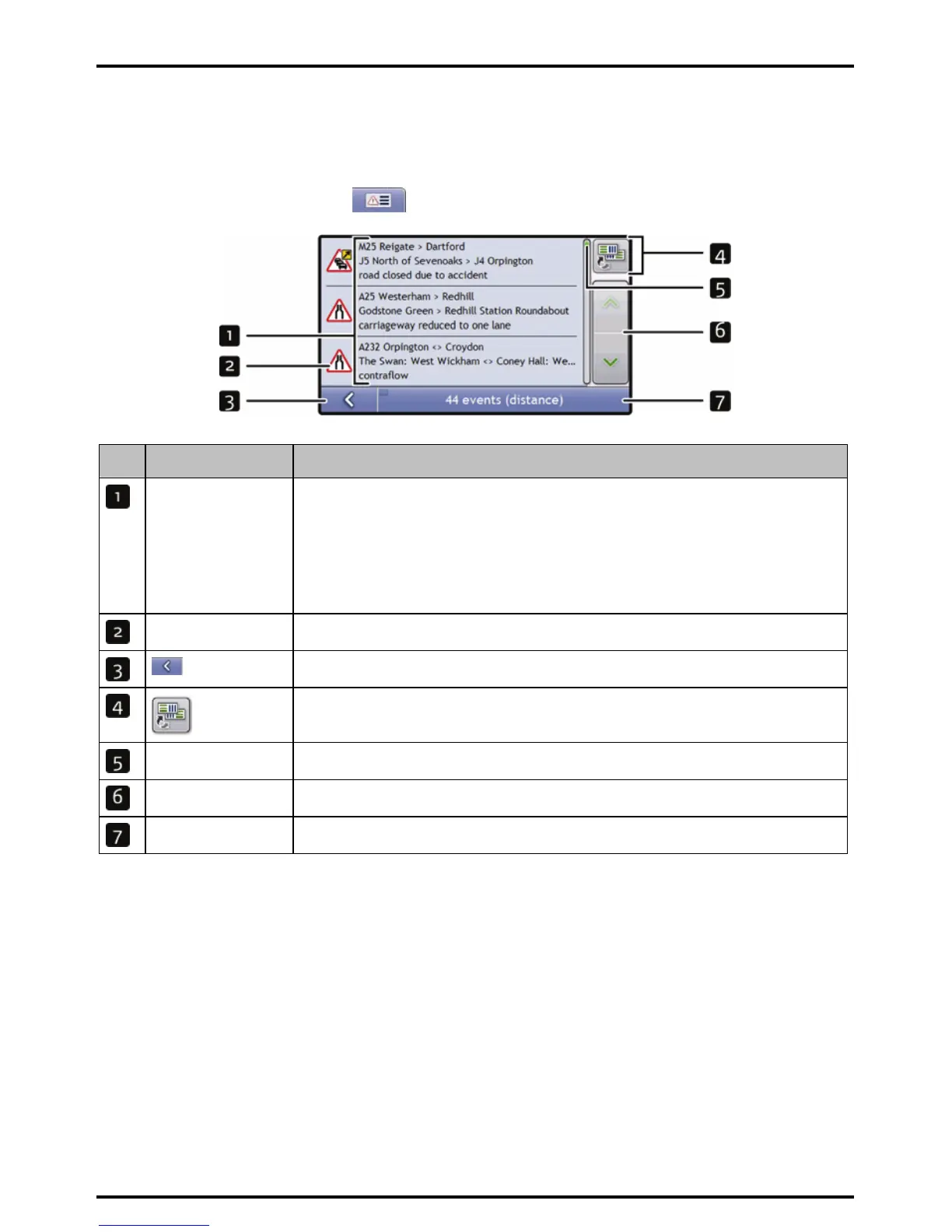
Your Mio creates a list of events as they are received, which is displayed on the Event List screen. This screen can
only be viewed if the TMC icon is green or orange.
From the Traffic Overview screen, tap
.
Item Description
Event description Displays details of the Event, including:
z Name of road and direction in which Event is taking place.
z Location of where Event begins and ends.
> indicates an Event from a location, to a location.
<> indicates an Event between locations.
z Type of Event.
Event icon Displays icon to indicate type of event. See page 128 to view list of icons.
Tap to return to the previous screen.
Tap to display the Select event sorting type screen, where you can sort events by distance,
road name or age.
Position indicator Displays your position in the Event List screen
Scroll buttons Allow you to view all events by moving up and down through the list.
Event number Displays the number of events in current list.






 To Next Page